
Configure FluentSMTP with Microsoft Outlook/Office Email
This is the Microsoft Entra path. If you already work in Azure Portal, the same app registration exists there: Outlook or Office365 with FluentSMTP.
Outlook, Hotmail, and Microsoft 365 are fine for ordinary site mail. They are a poor choice for bulk or marketing. Microsoft will throttle or lock the mailbox.
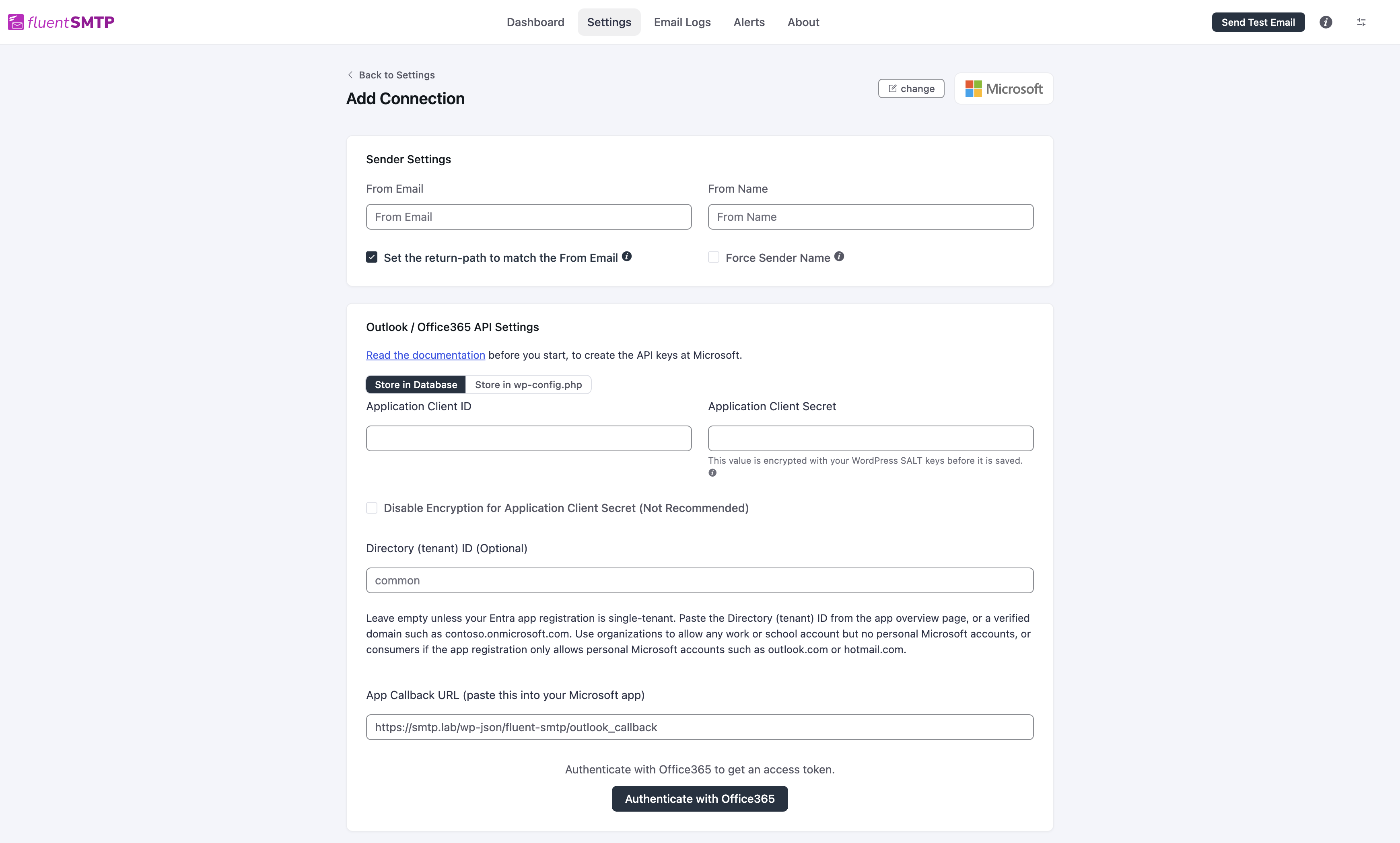
Open the Outlook connection
- Go to Settings → FluentSMTP.
- Pick Outlook or Office 365, or Add Connection then Outlook or Office 365.
Fill Sender Settings:
- From Email: the Microsoft address that will send.
- From Name.
- Set the return-path to match the From Email.
- Force Sender Name if you want this name on every message this connection sends.
Outlook does not have Force From Email. The mailbox you authenticate as is the From.
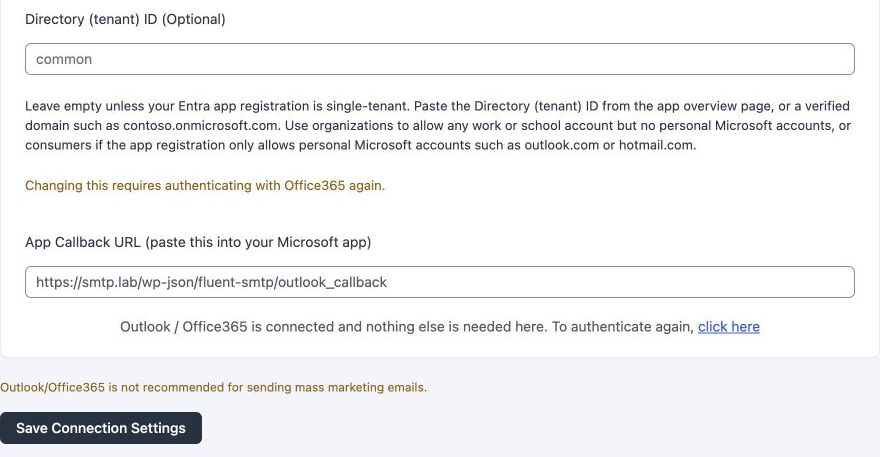
Copy App Callback URL on that form and keep it. That URL is unique to this WordPress site. It is not fluentsmtp.com.
With pretty permalinks on, it looks like:
https://your-site.example/wp-json/fluent-smtp/outlook_callbackIf permalinks are set to Plain, WordPress shows the REST route instead. Copy that exact string:
https://your-site.example/index.php?rest_route=/fluent-smtp/outlook_callbackPaste whichever one the form shows into Microsoft. Do not invent the pretty URL if the form shows rest_route.
Register the app in Microsoft Entra
- Sign in at entra.microsoft.com.
- Entra ID → App registrations → New registration (older layouts use Applications → App registrations).
- Name:
FluentSMTP. - Supported account types: for most sites use Accounts in any organizational directory (Any Microsoft Entra ID tenant - Multitenant) and personal Microsoft accounts. If this app is only for one company tenant, pick that single tenant instead and fill Directory (tenant) ID later.
- Redirect URI: platform Web, URI = the App Callback URL you copied.
- Review the Microsoft Platform Policies linked on the form, then click Register if you agree.
Use your own app name and the callback copied from your WordPress site. The current account-type dropdown may shorten the option to Any Entra ID Tenant + Personal Microsoft accounts.
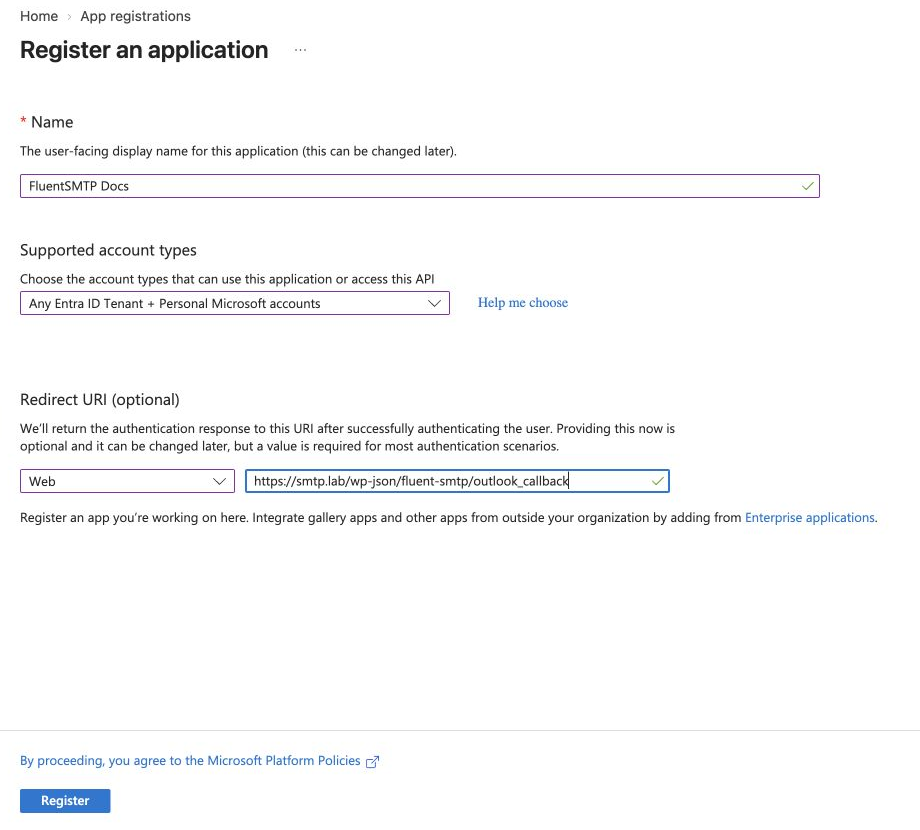
The screenshot uses the local demo address smtp.lab. Use the callback from your own WordPress site.
On the Overview page, copy Application (client) ID. That is Application Client ID in FluentSMTP.
Create a client secret
- Certificates & secrets → Client secrets → New client secret.
- Add a description and an expiry you will remember (or the longest you are allowed).
- Add. Copy Value immediately. Microsoft will not show it again. The Secret ID is not the secret.
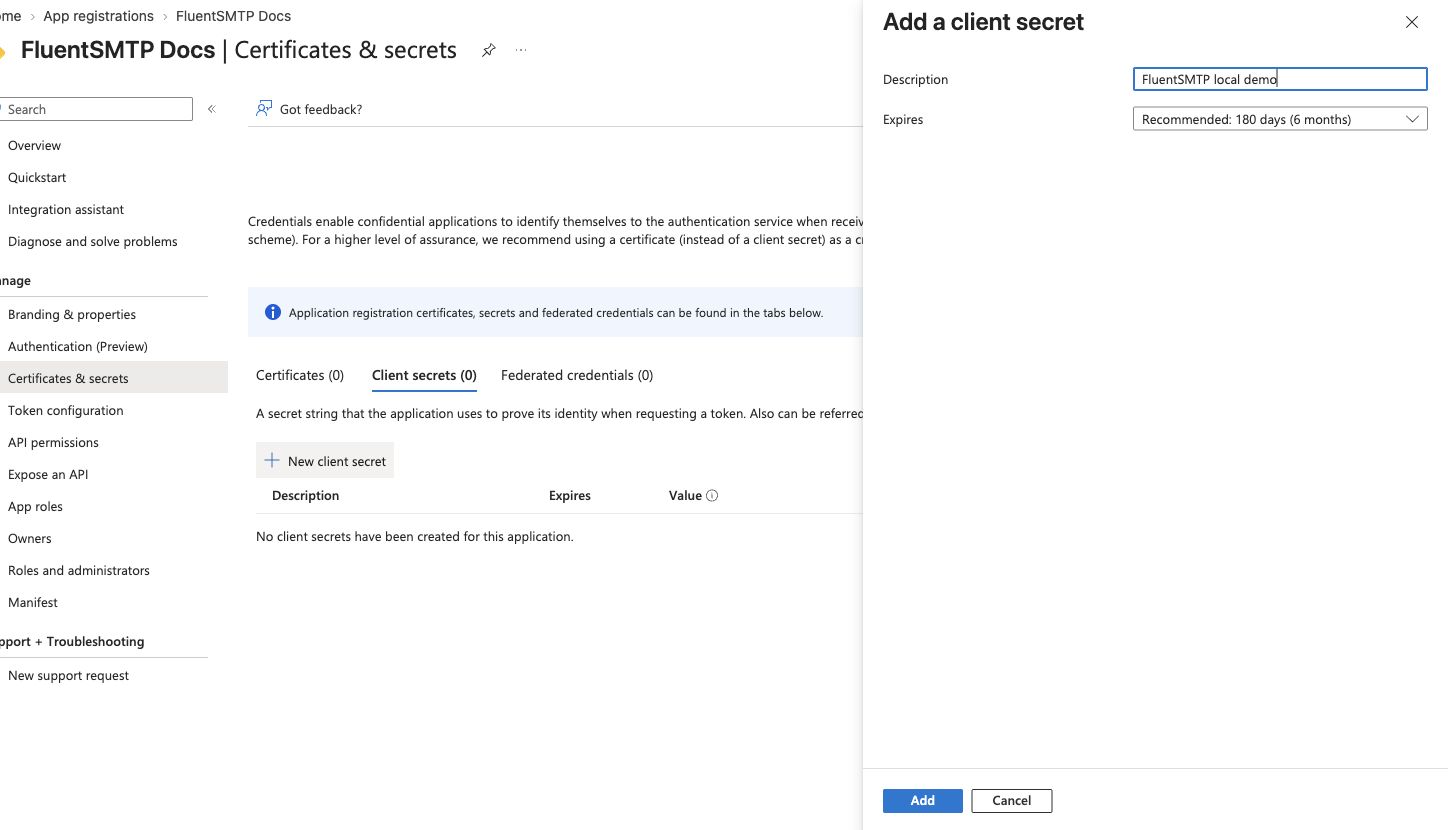
When the secret expires, mail stops until you create a new secret, paste it, and authenticate again.
Fill FluentSMTP and authenticate
- Leave Store in Database selected. You can tick Disable Encryption, or switch to Store in wp-config.php. Both are optional. See Where secrets are stored.
- Application Client ID: the client ID.
- Application Client Secret: the secret Value.
- Directory (tenant) ID (Optional): leave empty (placeholder
common) unless the Entra app is single-tenant. For a single-tenant app, paste the Directory (tenant) ID from Overview, or a verified domain such ascontoso.onmicrosoft.com. Useorganizationsif work/school accounts only, orconsumersif the registration only allows personal Microsoft accounts. Changing tenant after a successful auth means you must authenticate again. - Click Authenticate with Office365. Sign in with the mailbox you want to use. Check the app name and requested permissions, then click Accept. The prompt requests permission to send mail and maintain access between sessions.
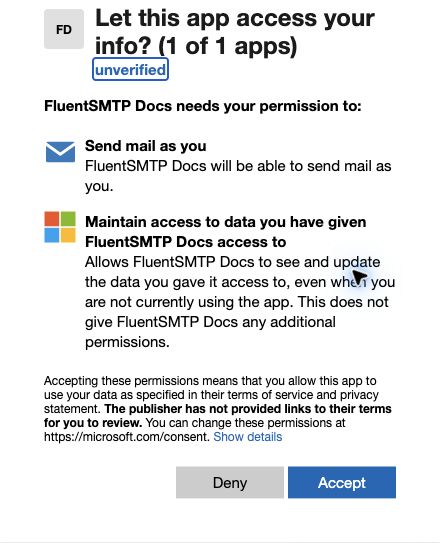
- The callback opens Your Access Code. Copy the code into FluentSMTP’s Access Token field, then click Save Connection Settings. Keep this code private.
- Reopen the saved connection to confirm Outlook / Office365 is connected.
Send a test from Send Test Email.
If authentication fails
- Redirect URI in Entra must match App Callback URL character for character, including
httpvshttps, and includingrest_routeif that is what the form shows. - If the form shows
/wp-json/and that URL 404s, permalinks or a security plugin is blocking REST. Switch permalinks to a pretty setting, or use therest_routeURL the form prints when permalinks are Plain. - The Microsoft account you approve must be allowed to send as From Email.