

SPF, DKIM, and DMARC: How Email Authentication Works and How to Set It Up

You have SPF, DKIM, and DMARC set up. Your DNS records look right. Your email provider says everything is configured properly.
And yet, some of your emails still land in spam.
That is where email authentication gets confusing. Having these records in place does not automatically mean every message will pass every check, and a pass does not always mean your email will reach the inbox.
To make sense of it, you need to know what SPF, DKIM, and DMARC actually check, how they work together, and why one can pass while another fails.
In this guide, we will break down each one, show you how to check your own emails, and explain what to look for when something goes wrong.
The short answer: SPF, DKIM, and DMARC are three DNS records that work together to prove an email genuinely came from the domain it claims. SPF lists the servers allowed to send as your domain, DKIM signs each message so receivers can verify it was not altered, and DMARC tells receiving servers what to do when those checks fail.
What SPF, DKIM and DMARC are, in One Pass
SPF, DKIM and DMARC all exist to solve the same basic problem. Every email arrives claiming it came from a particular domain, but email was not originally designed with a built-in way to prove that claim was true.
That gap is what makes spoofed invoices, phishing emails, and messages pretending to come from your bank possible!
SPF, or Sender Policy Framework, is a list of the servers allowed to send email for your domain.
DKIM, or DomainKeys Identified Mail, adds a signature to each message that proves it came through an authorised signing system and was not changed afterwards.
DMARC, or Domain-based Message Authentication, Reporting and Conformance, sits on top of SPF and DKIM. It tells receiving servers what to do when authentication fails and gives you reports about mail being sent using your domain.
An easier way to think about it is that SPF and DKIM answer two different questions, while DMARC decides what those answers mean.
- SPF asks: Did this email come from an approved server?
- DKIM asks: Was this message properly signed, and is it still intact?
- DMARC asks: Do those authentication results match the domain the recipient actually sees, and what should happen if they do not?
If you want the wider picture, including authentication methods beyond these three, see what email authentication is.
Where These Records Actually Live
This is where most people get surprised! They expect SPF, DKIM, and DMARC to be settings inside their email software, but they are not! All three live in your domain’s DNS.
Your email platform usually gives you the values, and your DNS provider is where you actually add them. That’s why many email authentication issues eventually turn out to be DNS issues.
All three are usually added as TXT records:
- SPF is added to your main domain
- DKIM is added to a special subdomain provided by your email service, such as
selector1._domainkey.yourdomain.com - DMARC is added to
_dmarc.yourdomain.com
If you are not sure where to add these records, start with configuring DNS for email. If the domain side of email is still new to you, what an email domain is and how to create a custom email address on your domain cover the basics.
One detail is worth remembering now because it explains a lot of confusing results later: an email can contain more than one domain! That is where alignment comes in, and we will get to it in the DMARC section.
SPF: Which Servers are Allowed to Send as You
SPF is the simplest of the three. It tells receiving servers which servers are allowed to send email for your domain. When an email arrives, the receiving server checks where it came from and compares that server with the ones listed in your SPF record.
A simple way to think about SPF is like checking the return address on a package. If the package comes from an approved sender, it looks more trustworthy.
A real SPF record might look like this:
v=spf1 ip4:203.0.113.25 include:_spf.google.com ~all
Here is what the main parts mean:
v=spf1tells the server that this is an SPF record.ip4:allows a specific IP address to send email.include:allows another email provider, such as Google, to send on your behalf.~alltells receivers to treat anything else as suspicious.-allis stricter and tells receivers that anything else should fail SPF.
That still does not mean the message will definitely be accepted or rejected. The receiving server always makes the final decision. An SPF pass does not guarantee inbox delivery, and an SPF fail does not always mean the email will be blocked.
Two limits worth knowing: A single TXT string can’t exceed 255 characters, and an SPF record can use no more than 10 DNS lookups when checked, as defined in RFC 7208.
Those lookups can come from things like include:, a, mx, ptr, and redirect. If you keep adding email services to your SPF record, you can eventually go over the limit without noticing. And when that happens, SPF can stop working correctly. Your emails may be treated as unauthenticated.
DKIM: Proving the Message was not Altered
Where SPF checks the sending server, DKIM checks the message itself.
Your sending system keeps a private key and uses it to sign each outgoing message. That signature is added to the email header. You then publish the matching public key in DNS.
And, when the email arrives, the receiving server retrieves that public key and uses it to verify the signature.
If the signature matches, the receiver learns two things: the message was signed by a system holding the private key, and the signed parts of the message have not been changed since it was sent.
If someone modifies the body or a signed header in transit, the signature will no longer match.
It helps to keep the two parts separate.
- The DKIM signature travels with the email and is different for each message
- The public key stays inside your sending system. It should never be publicly exposed.
DKIM doesn’t answer every question. A valid signature proves that the message came from whoever controls the signing key, but it does not automatically prove that the signer should be representing the domain your recipient sees. That is one of the reasons DMARC exists.
SPF vs DKIM vs DMARC: What Each One Catches
SPF, DKIM, and DMARC overlap enough that they are easy to mix up. But once something goes wrong, the differences matter.
| What it checks | What it proves | What it misses | |
|---|---|---|---|
| SPF | The server that delivered the message, against a published list | That the sending server was authorised for the return path domain | Nothing about the message contents, and it breaks when mail is forwarded |
| DKIM | A cryptographic signature in the message header | That a holder of your key signed the message and was not altered | Nothing about whether that signer should be sending as your brand |
| DMARC | Whether SPF or DKIM passed and aligned with the visible From domain | That the message genuinely represents the domain your reader sees | Nothing it is not told, since it depends entirely on the other two |
A few practical things follow from that.
You can publish SPF without DMARC, and many domains do. But SPF has no reporting system, so it will not tell you who else is trying to send mail using your domain.
DMARC depends on SPF or DKIM, so it needs at least one of them working before it has anything meaningful to evaluate.
DKIM also tends to survive forwarding better than SPF. A forwarded message keeps its DKIM signature, but it arrives from a new server that probably is not listed in your SPF record.
That is why forwarding and mailing lists can produce SPF failures even when your original setup is correct.
How the Three Work Together on One Message
Following a single email from your site to the recipient makes the whole process easier to understand.
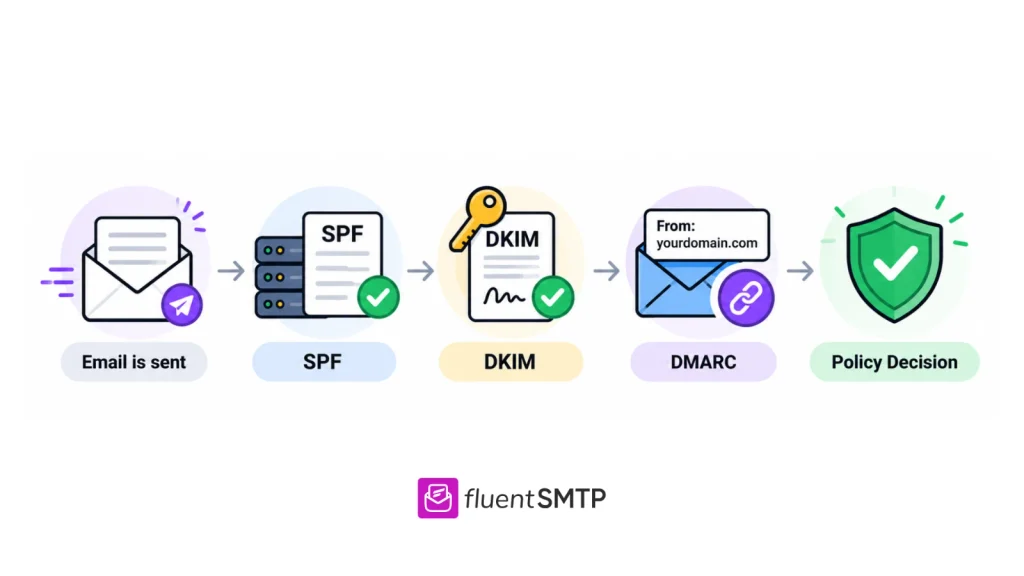
- Your site hands the message to a sending server. That server signs the email with DKIM and sends it on its way.
- The receiving server checks your SPF record to see whether the delivering server is authorised. It retrieves your DKIM public key and verifies the message signature.
- Then it looks up your DMARC record and checks whether SPF or DKIM passed and aligned with the domain in the visible From address.
- Finally, it applies your DMARC policy and includes the result in its reporting.
Several checks happen along the way, but DMARC brings those authentication results together.
What the Bulk Sender Rules now Require
Email authentication became much harder to ignore in February 2024, when Google and Yahoo began enforcing new requirements for bulk senders. These requirements give us a clear picture of what major inbox providers now expect from legitimate senders.
Before that, SPF, DKIM and DMARC were widely recommended but not always enforced. The newer rules changed that significantly.
For high-volume senders, defined by Google as those sending more than 5,000 messages a day to Gmail addresses, the requirements include;
- Authenticating mail with SPF and DKIM
- Publishing a DMARC record
- Providing one-click unsubscribe for commercial mail in line with RFC 8058
- And keeping spam complaint rates below 0.3%, with 0.1% being the safer target
If you run a typical WordPress site sending order confirmations, password resets, contact form notifications, and similar transactional emails, you are probably well below that volume.
However, that does not mean authentication is irrelevant. Even at lower volumes, properly authenticated email gives receiving servers more confidence in who you are.
Publishing a DMARC record at p=none costs nothing and gives you visibility into what is being sent from your domain.
Checking Whether Your Own Mail Passes
Checking SPF, DKIM and DMARC on your own email takes about a minute, and you do not necessarily need a separate tool.
The result is already inside the email header. In Gmail, open the message, click the three dots and select Show Original. In Outlook, open the message and choose File and Properties.
You should find an Authentication-Results section showing the result of each check:
spf=pass (google.com: domain of [email protected] designates 203.0.113.25 as permitted sender)
dkim=pass [email protected]
dmarc=pass (p=NONE sp=NONE dis=NONE) header.from=yourdomain.com
If all three show pass, your authentication is working for that message.
If you see dmarc=fail alongside spf=pass, check the domains involved. That is often the alignment issue we covered earlier. The header.from value shows the domain DMARC is comparing against.
If you want to understand the rest of the information in the header, see how to read an email header
The header tells you what the receiving server saw, but there is still another side to check: what your WordPress site actually sent.
That can be harder to spot because WordPress emails are triggered by plugins, themes, WooCommerce, forms, user actions, and WordPress itself. A problem affecting only one type of email might never appear in a manual test.
An email log makes that much easier to trace.
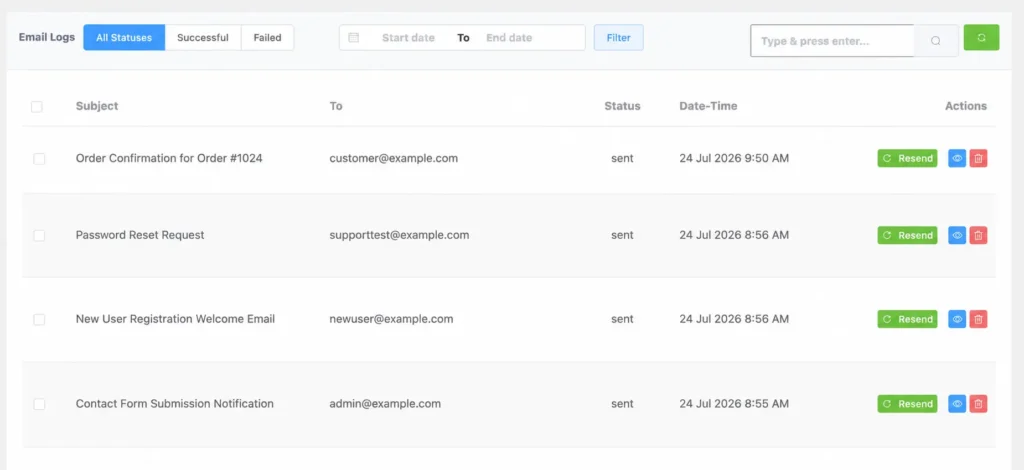
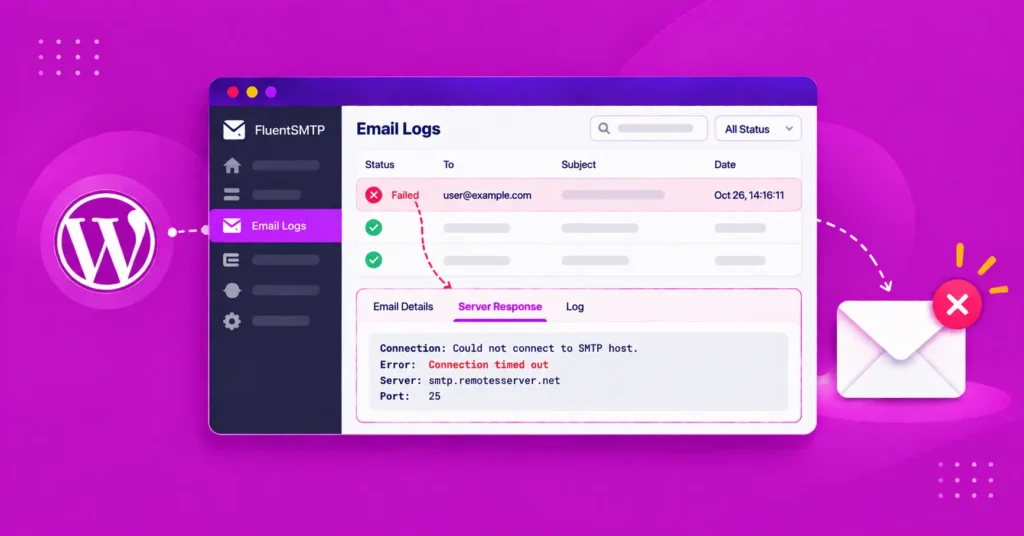
FluentSMTP keeps a record of the emails your WordPress site sends, so you can find the exact order confirmation or form notification that failed, see which connection sent it, and compare that information with the authentication results in the email header.
Download FluentSMTP
(100% Free)
Get the most powerful SMTP plugin for free and hit the recipient’s inbox with your WordPress emails

When one of Them Fails
Most SPF, DKIM and DMARC problems fall into a few common patterns.
- The SPF record has grown past its limit
You add one provider, then another, and eventually hit the ten-lookup limit without realising it. Everything may work for months before a change pushes the record over the edge. The fix is to reduce or reorganise the lookups. How to merge multiple SPF records covers the process.
- There is no DMARC record at all
A checker may simply tell you that no DMARC record was found. That is not a broken DMARC record. It means one has never been published. The usual starting point is to add a record at p=none and begin collecting reports. How to fix the “No DMARC Record Found” issue walks through it.
- You send from more than one domain
If your main website, shop, newsletter, or another service sends from different domains, each domain needs its own authentication setup. These records do not automatically carry over from one domain to another. How to set up SPF, DKIM and DMARC for multiple domains explains the setup.
What Comes After DMARC
Once DMARC is properly enforcing, there are two more standards worth knowing about. Neither should be your starting point.
BIMI can display your brand logo beside emails in supporting inboxes. It requires DMARC enforcement at quarantine or reject, along with a correctly formatted logo and, for most providers, a Verified Mark Certificate. Think of it as something you can work toward once the authentication foundation is already in place.
MTA-STS and TLS-RPT solve a different problem. Instead of authenticating the message itself, they deal with how mail is transported to your domain, helping enforce encrypted delivery and report failures.
Neither replaces SPF, DKIM or DMARC. Get the core three working first, monitor your reports, move toward enforcement, and then consider adding these extra layers.
Putting It All Together
SPF, DKIM, and DMARC can look complicated at first, but each one has a simple job.
SPF checks whether the sending server is allowed, DKIM checks whether the message was properly signed and left unchanged, and DMARC brings those checks together to make sure they match the domain your recipient sees.
The most important thing is not just having these records in place, but knowing whether they are actually working. Check your message headers, keep an eye on your DMARC reports, and fix any alignment or DNS issues you find.
Once all three are set up properly, your emails have a much stronger foundation for reaching the inbox and protecting your domain from spoofing.
Frequently Asked Questions
Sakhawat Showrabh
Table of Content
Subscribe To Get
WordPress Guides, Tips, and Tutorials





Add your first comment to this post