

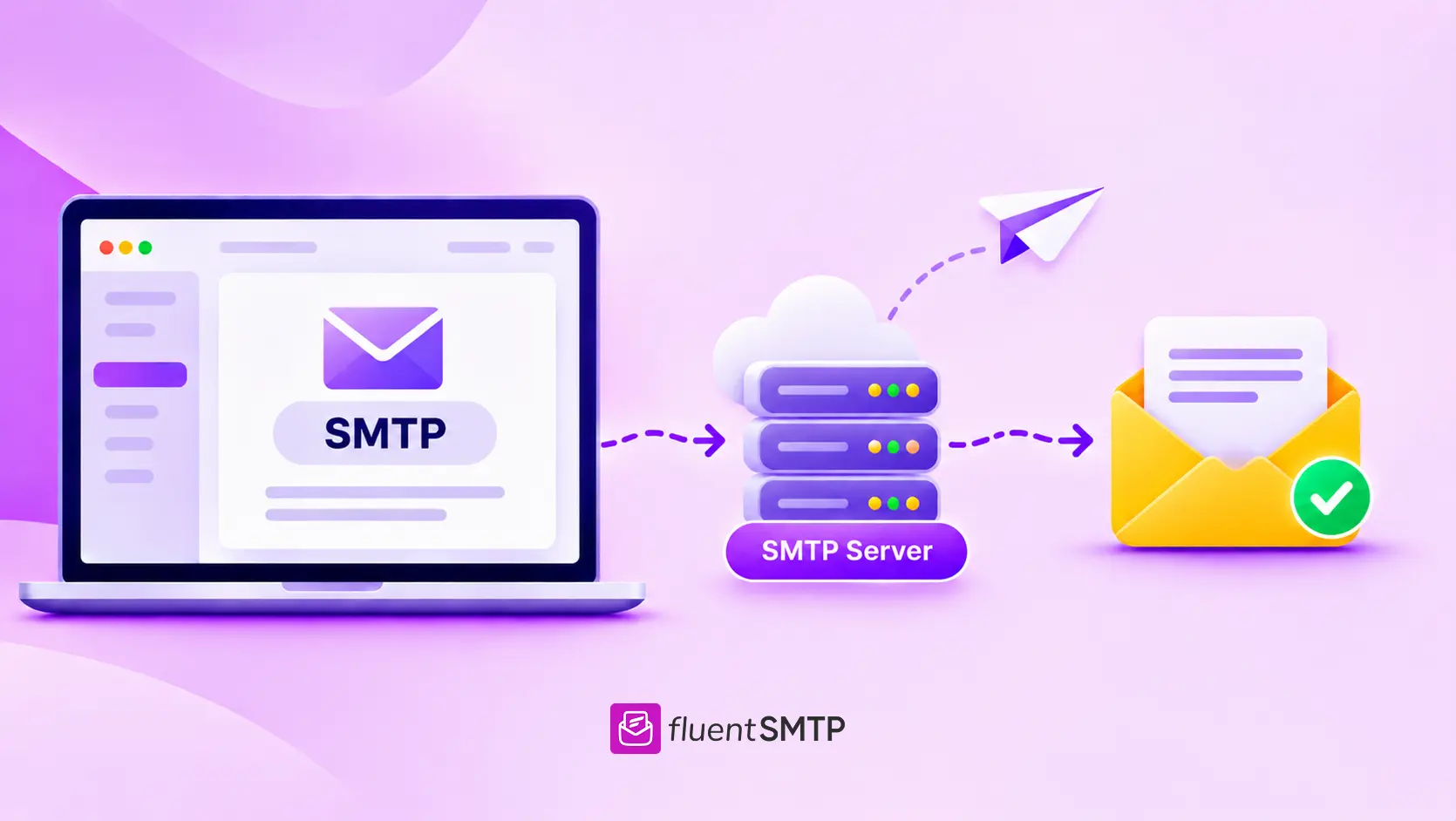
What Is SMTP? How Your Emails Travel From Send to Inbox

A customer fills out your contact form. Another one places an order on your WooCommerce store. A third one clicks “Forgot password.” WordPress shows a happy little “sent” message every time. So all three emails reached their inbox, right?
Not always.
Some land in spam. Some never arrive at all. And you usually find out only when someone writes to you from a different address, asking why they never heard back.
Most of the time, there’s nothing wrong with your form, your store, or your plugin. The problem is how the email travels after you hit send. That journey runs on a protocol called SMTP.
Let me walk you through what SMTP is, how it moves your email, and why getting it right decides whether your emails get read or get lost.
What is SMTP?
SMTP (Simple Mail Transfer Protocol) is the standard set of rules mail servers use to send email across the internet. It carries a message from the sender’s mail server to the recipient’s mail server.
Keep one thing in mind: SMTP only sends. Two other protocols handle receiving and reading email: IMAP and POP3.
Every mail server in the world speaks SMTP. That’s why an email from your small WordPress site can reach a Gmail, Outlook, or Yahoo inbox without any extra setup on their side.
SMTP at a glance:
- Full form: Simple Mail Transfer Protocol
- What it does: Sends and relays outgoing email
- First defined: 1982, in RFC 821
- Current standard: RFC 5321
- Recommended port: 587
Understand What SMTP Actually Does
Your email doesn’t jump straight from your site to someone’s inbox. It passes from one server to another, and SMTP handles each of those handoffs.
At every step, the sending server tells the receiving server who the email is from and who it’s for. Then the receiving server replies with a three-digit code:
- 2xx: The email was accepted.
- 4xx: Something went wrong temporarily, so the sender will try again later.
- 5xx: The email was rejected for good, and it bounces.
If the receiving server is busy, the sending server doesn’t give up. It holds your email in a queue and keeps retrying. So a late email is often just SMTP waiting its turn.
How SMTP Works?
When you hit Send, your website or email app hands the message to an SMTP server and logs in with your account details.
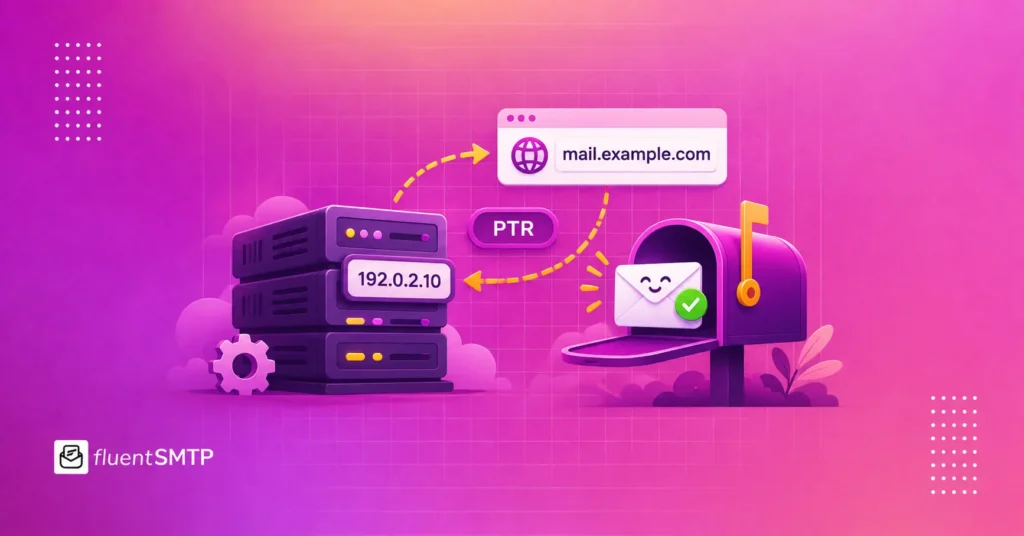
Next, the server needs to know where to deliver it. It checks the recipient’s domain (the part after the @) in DNS and finds its MX record. That record says which server accepts mail for that domain.
Then the two servers have a short conversation using simple commands like EHLO, MAIL FROM, RCPT TO, and DATA. Before accepting your email, the receiving server runs its own checks, such as SPF, DKIM, and spam filters.
Once it accepts the message, it delivers it to the recipient’s mailbox, and that’s where SMTP’s role in the email sending process ends.
What is an SMTP Server?
An SMTP server is the machine that actually sends your email. It accepts your outgoing messages, confirms you’re allowed to send, and passes them on toward the recipient.
Every email provider runs SMTP servers. Gmail and Outlook do, and so do dedicated sending services like Amazon SES, Mailgun, SendGrid, and Brevo.
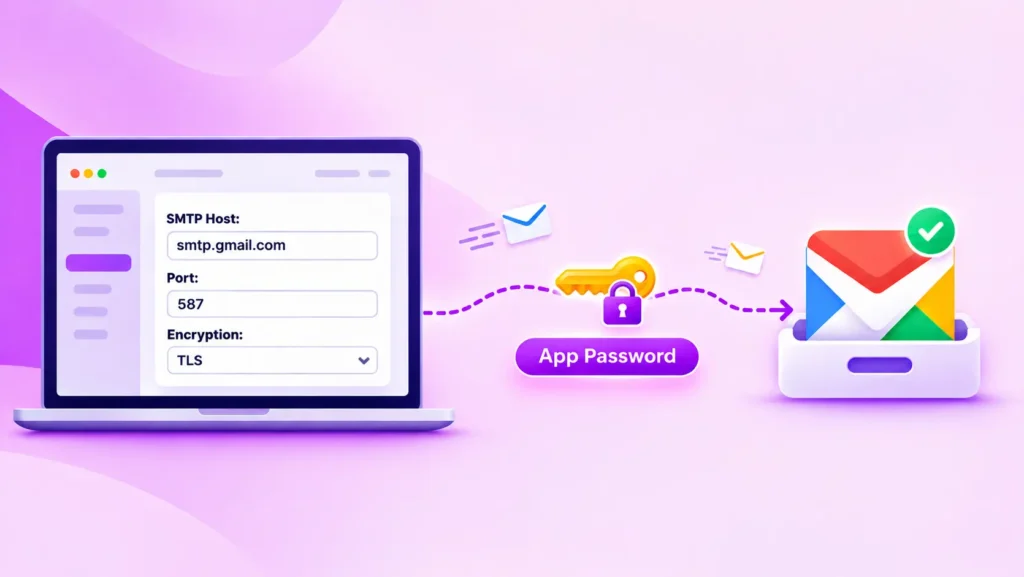
To connect your site or app to one, you’ll need four details:
- Host: The server address, such as smtp.yourprovider.com
- Port: Usually 587
- Encryption: TLS or SSL, depending on the port
- Login: A username and password, or an API key
If even one of these is wrong, the connection fails, and no email goes out.
Which SMTP Port Should You Use?
A port is like a numbered door your site knocks on to reach the SMTP server. You’ll see three numbers again and again.
|
Port |
Encryption |
When to use it |
|
587 |
STARTTLS |
Sending from websites and apps (the standard choice) |
|
465 |
SSL/TLS from the start |
When your provider asks for it |
|
25 |
Optional |
Server-to-server delivery, often blocked by hosting companies |
If you’re running a WordPress site, go with port 587 and TLS. Many hosts block port 25 to stop spam, which is why it’s behind so many connection errors. Port 465 still works well too, as long as you match it with the right SMTP port settings your provider recommends.
SMTP vs IMAP vs POP3: What’s the Difference?
The easiest way to remember it: SMTP sends, while IMAP and POP3 receive.
That’s why your email app asks for an “outgoing server” and an “incoming server” separately. The outgoing one is SMTP.
IMAP keeps your emails on the server and syncs them across your phone, laptop, and tablet. POP3, on the other hand, downloads them to one device and usually removes them from the server.
Your WordPress site only sends email, so SMTP is the only one it needs.
Is SMTP Secure?
The original SMTP wasn’t. It sent messages in plain text and trusted anyone who claimed to be a sender. That’s a big reason why spam and fake emails spread so easily.
Today, email adds security on top of SMTP:
- SMTP authentication: You have to log in before the server will send anything for you.
- TLS encryption: Your message is protected while it travels between servers.
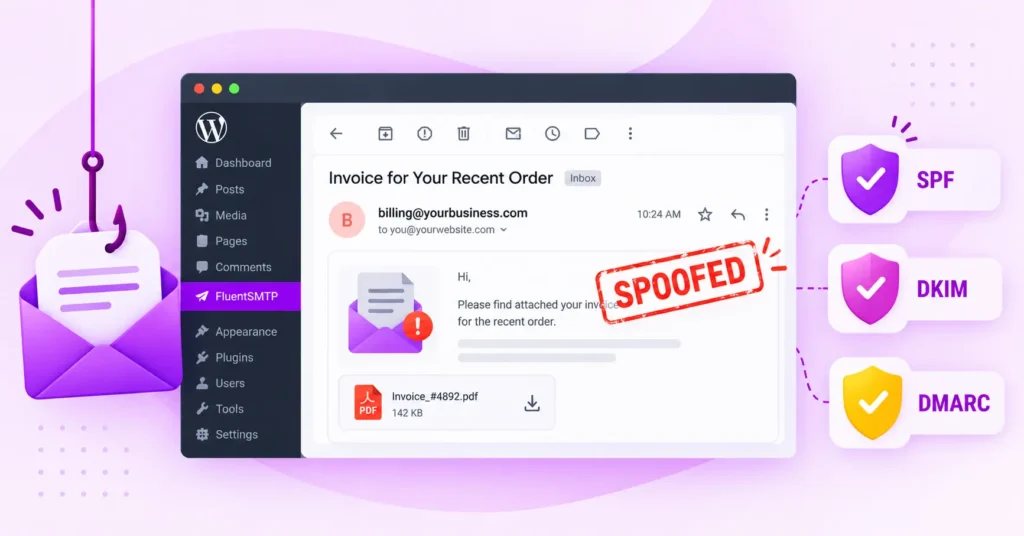
- SPF, DKIM and DMARC: DNS records that prove your domain really sent the email.
Since 2024, Gmail and Yahoo require SPF, DKIM, and DMARC from bulk senders, so email authentication is no longer something you can skip.
Why Does SMTP Matter for Your WordPress Site?
Out of the box, WordPress sends email using its wp_mail() function. By default, that relies on PHP’s mail() function on your web server.
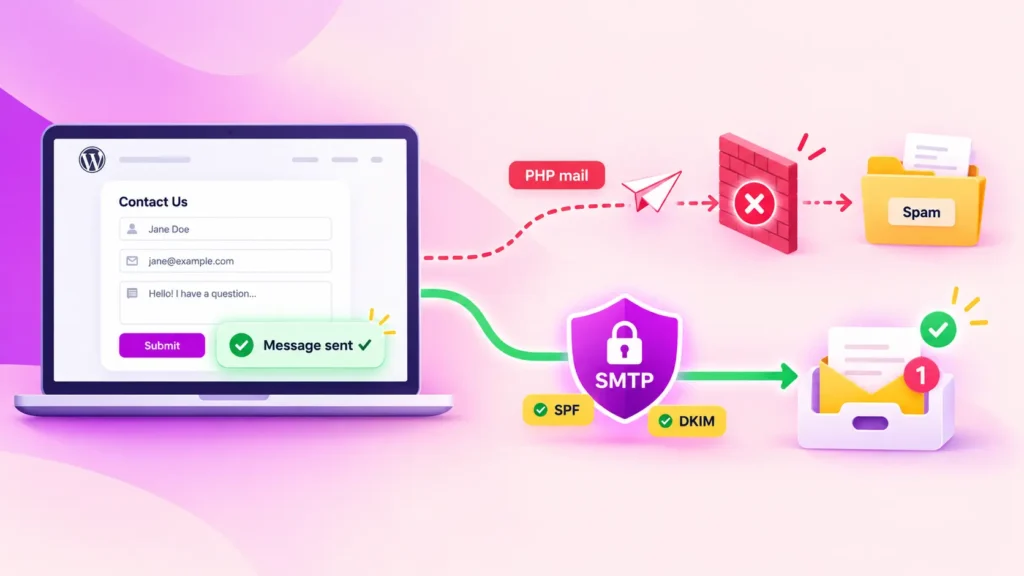
The problem is that this method doesn’t log in to any email service. It doesn’t sign your message with DKIM either. So when Gmail or Outlook receives that email, they have no proof it really came from your domain.
The result is something you’ve probably seen before. Order confirmations, password resets and form notifications quietly go to spam, or WordPress stops sending emails altogether without showing any error.
Sending through a proper SMTP service fixes this at the root. Your emails go out authenticated, from servers that inbox providers already trust.
This matters most for emails people are actually waiting for. Think WooCommerce receipts, Fluent Forms notifications, and account emails.
Meet FluentSMTP
The easiest way to connect WordPress to an SMTP service is with a plugin, and FluentSMTP is built for exactly that.
FluentSMTP is a free WordPress SMTP plugin by WPManageNinja. It replaces WordPress’s default mailer, so every email your site sends goes through a trusted provider like Amazon SES, Mailgun, SendGrid, or Brevo instead of your web server.
It also keeps an email log of everything your site sends. So when a customer says they never got their receipt, you can check in seconds instead of guessing. And you can send a test email anytime to make sure everything still works.
Download FluentSMTP
(100% Free)
Get the most powerful SMTP plugin for free and hit the recipient’s inbox with your WordPress emails

How to Set Up FluentSMTP in WordPress
FluentSMTP is a free plugin that replaces WordPress’s default mailer, so every email your site sends goes through the provider you pick.
Step 1: Install FluentSMTP
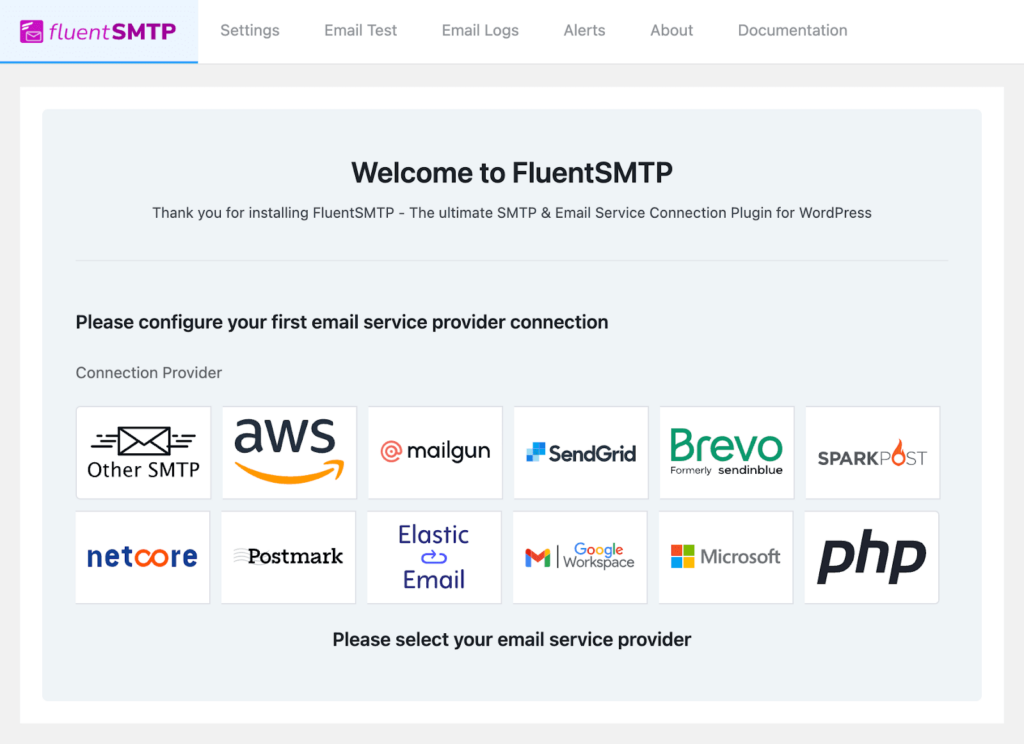
Install FluentSMTP from your WordPress dashboard. Add a new connection, choose your provider, and paste in your API key or SMTP details. Use a sender address on your own domain, like [email protected].
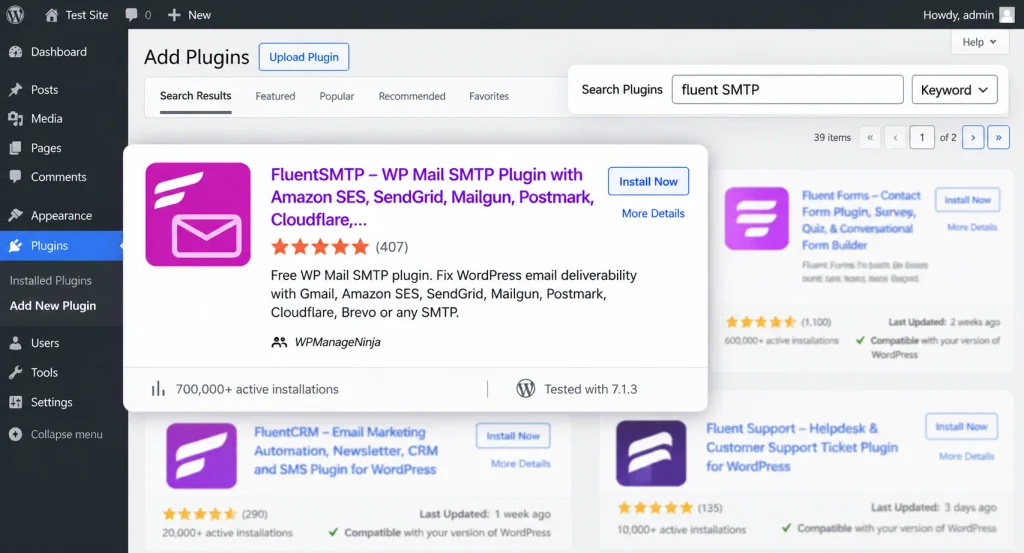
Step 2: Choose an Email Provider
Pick a sending service like Amazon SES, Mailgun, SendGrid or Brevo. Small sites can often start on one of the free SMTP servers and upgrade once their email volume grows.
Step 4: Verify Your Domain
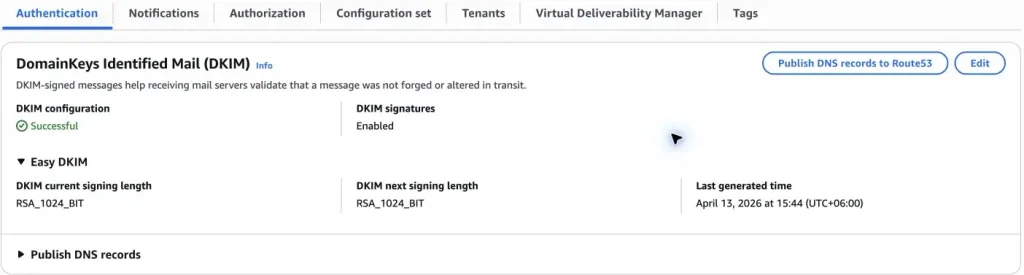
Your email provider will give you SPF and DKIM records. Add them to your domain’s DNS settings. This step is what makes Gmail and Outlook trust your emails, so don’t skip it.
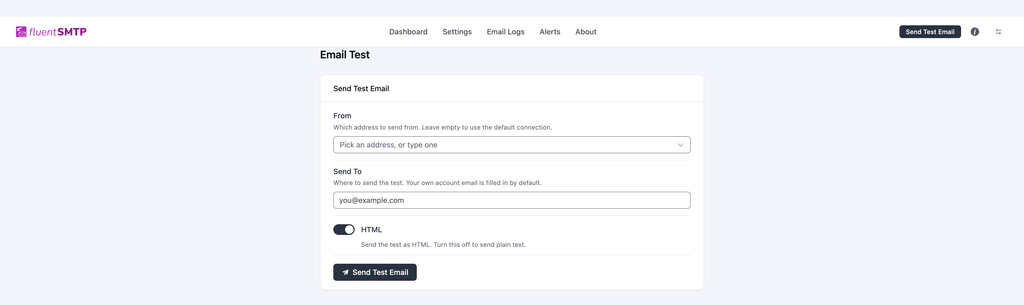
Step 5: Send a Test Email
Use FluentSMTP’s built-in test email to confirm everything works. After that, the email log shows every message your site sends, so you can spot a failed email right away instead of hearing about it from a customer.
SMTP Decides Whether Your Emails Get Read or Get Lost
Most people never think about SMTP until an important email goes missing. But it’s quietly running behind every email you send.
Once you understand it, the fix for most email problems becomes clear. Use a real sending service, use the right port, and authenticate your domain.
For your WordPress site, that’s exactly what FluentSMTP takes care of. Connect it to a provider, add your SPF and DKIM records, and send a test before you trust it. Your order emails, form notifications, and password resets will finally reach the people waiting for them.
Got a question about SMTP? Drop it in the comments, and I’ll be happy to help.
Thanks for reading!
Frequently Asked Questions

Madhobi Dhar
Table of Content
Subscribe To Get
WordPress Guides, Tips, and Tutorials



Add your first comment to this post