

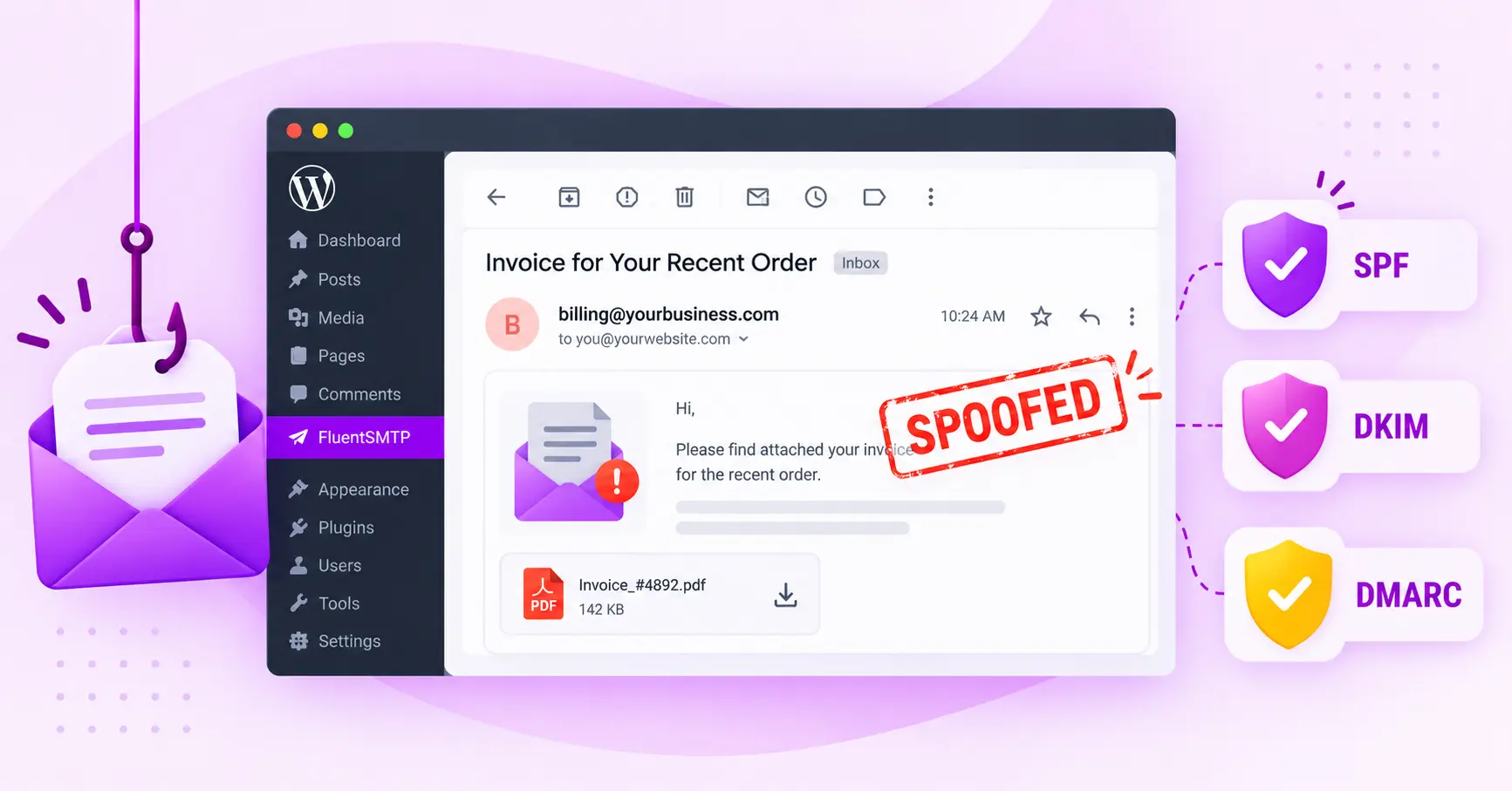
Email Spoofing: What It Is and How SPF, DKIM, & DMARC Stop It

A customer forwards you an email and asks, “Is this actually from you?”
It has your logo. Your domain is right there in the From line. And it’s asking them to update their card details through a link you’ve never seen before.
You didn’t send it. Your password still works, and your WordPress site looks fine. Someone is simply sending email as your domain, and honestly, they don’t need much to do it.
That’s email spoofing. Email was built to trust whatever the From line says, so stopping it comes down to giving receiving servers a way to check. Three DNS records do that job, and you can set them up without blocking your own WordPress emails along the way.
Key Takeaways
Spoofing is a DNS problem more than an inbox problem. These are the points that matter most if your domain is being used right now.
– Spoofers don’t need your password, because email never checks the From address by default.
– A message signed with your own DKIM key is a sign of a hacked account, not spoofing.
– SPF and DKIM alone can’t stop spoofing, since neither one looks at the visible From address.
– DMARC at p=none only reports. Protection starts at p=quarantine and is complete at p=reject.
– Contact forms that send “from” the visitor’s address are the most common reason WordPress sites fail their own DMARC.
– DMARC can’t block lookalike domains or fake display names, so those need different defences.
What is Email Spoofing?
Email spoofing is forging the sender details of an email so the recipient believes it came from a person or organisation they trust. It’s the delivery method behind most phishing, fake invoice scams and “urgent payment from the CEO” messages, because people act on mail from a name they recognise much faster than on mail from a stranger.
It’s possible because every email carries three separate sender identities, and the original email standards never required any of them to be true or to match each other.
|
Sender identity |
Where you see it |
What it actually is |
Who checks it |
|
Display name |
The bold name in your inbox, e.g. “Acme Billing” |
Free text the sender types in |
Nobody |
|
Header From address |
The address next to the name, e.g. [email protected] |
The address in the message header (RFC 5322.From) |
DMARC, through alignment |
|
Envelope sender (Return-Path) |
Hidden in the headers |
The address the sending server announces during delivery (RFC 5321.MailFrom), where bounces go |
SPF |
Spoofers target the first two, because those are what the reader sees, and they’re happy to put their own domain in the hidden envelope sender. That small detail is exactly why SPF on its own doesn’t stop spoofing, which comes up again further down.
Closing this gap is the whole point of email authentication, the set of standards that lets a receiving server verify a sender’s claims instead of trusting them.
Email Spoofing vs Phishing vs a Hacked Account
These three get mixed up constantly, and the fix for each one is different.
|
Email spoofing |
Phishing |
Hacked account |
|
|
What it is |
Forging the sender address |
Tricking someone into giving up data or money |
Someone using your real login |
|
Needs your password? |
No |
No |
Yes |
|
Sent from your servers? |
No |
Usually not |
Yes |
|
Passes DKIM for your domain? |
No |
No |
Yes |
|
Main fix |
DMARC at quarantine or reject |
Recipient awareness and filtering |
Reset credentials and clean up the site or mailbox |
Spoofing is usually the delivery method, and phishing is usually the goal, which is why the two show up together so often.
Types of Email Spoofing
There are four common types of email spoofing: exact domain spoofing, display name spoofing, lookalike domains, and Reply-To redirection. Your DNS records fully block the first, mostly block the last, and leave the two in the middle to other defences, which is where a lot of frustration with DMARC comes from.
1. Exact domain spoofing: This is the one most people mean when they say their domain is being spoofed. The email shows your real domain in the From address, like [email protected], but it was sent from a server you have never touched. Because it uses your actual domain, this is exactly the type of thing DMARC at quarantine or reject was built to block.
2. Display name spoofing: Here the attacker borrows your name rather than your domain. The inbox shows “YourStore Support”, while the address behind it is something like [email protected]. Most phone mail apps show only the display name, so plenty of readers never see the real address. SPF, DKIM, and DMARC can’t block it, since the email genuinely comes from Gmail and passes Gmail’s own checks.
3. Lookalike (cousin) domains: The attacker registers a domain that looks like yours at a glance, such as yourst0re.com or yourstore-support.com, and sends from it. They own that domain, so they can set up SPF, DKIM, and DMARC for it and pass every check. Your DNS has no say over a domain you don’t own.
4. Reply-To redirection: The From line shows your real address, but the Reply-To header quietly points somewhere else, like [email protected]. The reader thinks they’re replying to you, and their answer lands in the attacker’s inbox instead. When your own domain sits in the From line, DMARC at enforcement still blocks it, so this one is mostly covered once you reach reject.
How Can You Tell If Your Domain is Being Spoofed?
The quickest way is to read the authentication results in the headers of one suspicious message. If DMARC fails for your domain and the passing SPF or DKIM result belongs to a domain you don’t recognise, your domain is being spoofed. If the message passes DKIM with your own domain, someone has your credentials instead.
Check this before you change anything, because the two problems need completely different fixes, and tightening DMARC does nothing for a hacked account.
The symptoms that usually show up first
You rarely find spoofing by looking for it. It tends to show up as one of these:
- A wave of bounce messages for emails you never sent. This is called backscatter. The attacker used your address as the sender, the recipients’ servers rejected the mail after accepting it, and the “undeliverable” notices came back to you.
- Replies to conversations you were never part of, often from confused customers asking about an invoice or a password reset.
- A customer forwarding you a suspicious message that uses your branding.
- Unknown sending sources in your DMARC reports, if you already publish a DMARC record with reporting turned on.
Read the headers of one suspicious message
Ask whoever received the message to forward it as an attachment, or to open the source. In Gmail, that’s the three-dot menu, then Show original, and in Outlook it’s View message source. Look for the Authentication-Results line near the top.
Here’s what a typical spoofed message looks like:
Authentication-Results: mx.google.com;
spf=pass (google.com: domain of [email protected] designates 203.0.113.45 as permitted sender) smtp.mailfrom=cheap-mailer.example;
dkim=none;
dmarc=fail (p=NONE sp=NONE dis=NONE) header.from=yourstore.com
SPF passed, but for the attacker’s own domain, and DMARC failed for yours. The p=NONE part matters too, because it shows your domain currently asks receivers to do nothing about failures, and that’s why this message was delivered.
|
What the headers show |
What it most likely means |
|
dmarc=fail with header. From your domain, SPF or DKIM pointing at a domain you don’t recognise |
Spoofing. Someone forged your From address. Fix it with DMARC enforcement. |
|
dkim=pass with d=yourstore.com and dmarc=pass |
Not spoofing. The message was signed with your real DKIM key, so it left a system that holds your credentials. Treat it as a compromise. |
|
spf=pass for your own provider’s servers plus dmarc=pass |
Not spoofing. It went out through your real account. Treat it as a compromise |
|
No Authentication-Results at all |
Not enough to tell. Get another sample or check your DMARC reports |
Check whether your WordPress site sent it
A hacked WordPress site is one of the most common sources of “genuine” spam from a domain, usually through a vulnerable plugin or a form being abused to relay messages.
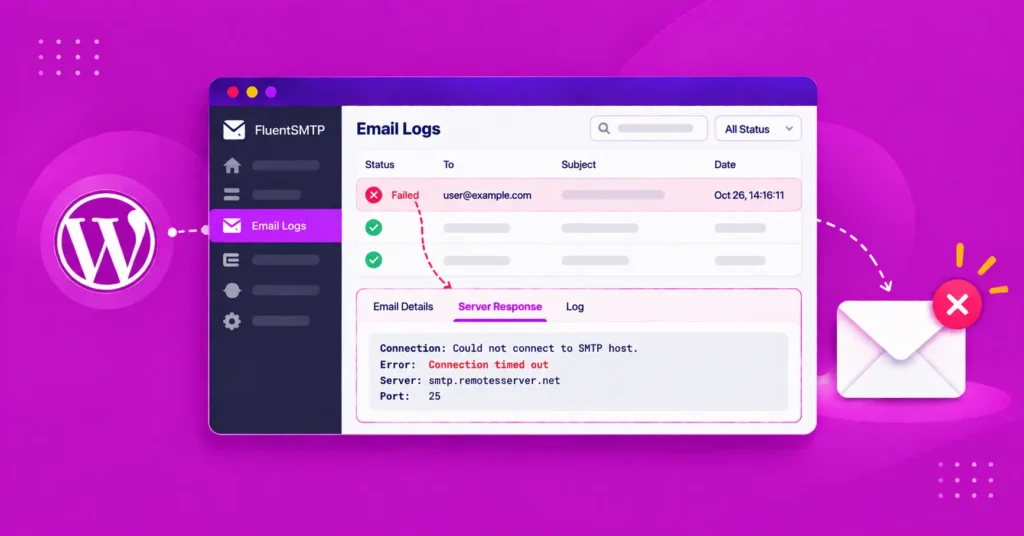
If your site sends through FluentSMTP with logging turned on, open FluentSMTP → Email Logs and search for the subject line or recipient from the suspicious message. Every email WordPress sends is recorded there with its recipient, subject, status, and time.
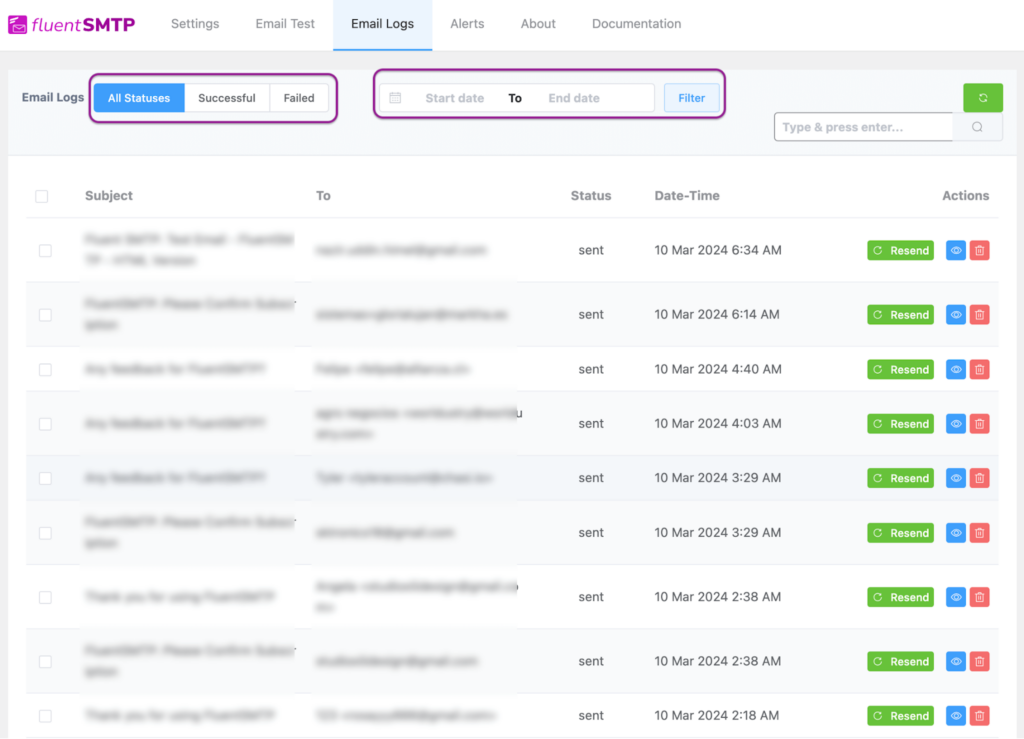
If the message is in the log, your site sent it, and you’re dealing with a compromise. Rotate your SMTP password or API key in your provider’s dashboard and update it in FluentSMTP, look for admin users you don’t recognise, update or remove the plugin that was abused, and run a malware scan.
Most of that clean-up overlaps with everyday email security best practices like limiting who holds sending credentials and turning on two-factor login.
If the message isn’t in your log and the headers show a DMARC failure, nobody touched your site. Your domain is being spoofed.
Download FluentSMTP
(100% Free)
Get the most powerful SMTP plugin for free and hit the recipient’s inbox with your WordPress emails

Warn your customers while you fix it
Moving DMARC to enforcement safely takes a few weeks, so send customers a short, plain notice in the meantime. Tell them a scam email is going around using your name, describe what it asks for, and tell them how you will and won’t contact them, for example, “we never ask for card details by email”. It’s a small step that prevents a lot of damage, and it’s far better for them to hear it from you than from their bank.
Why Don’t SPF and DKIM Stop Spoofing on Their Own?
Because neither of them checks the From address your reader sees. SPF checks the hidden envelope sender and DKIM checks whichever domain signed the message, so an attacker can pass both using their own domain while showing yours in the From line. Only DMARC ties those results back to the visible From address.
This is the part that catches a lot of site owners out. They add an SPF record, maybe turn on DKIM, assume they’re protected, and spoofed mail keeps arriving anyway.
SPF asks whether the server delivering the message is allowed to send for the domain in the Return-Path. An attacker puts their own domain there, authorises their own server, and passes SPF cleanly while your domain sits in the visible From line, exactly like the header sample above.
DKIM asks whether the message was signed by the domain named in the signature and left unaltered. An attacker signs with their own key, the signature checks out, and your domain never comes into it.
DMARC adds a rule called alignment: a message only passes if SPF or DKIM passes and the domain that passed matches the domain in the header From. Then it tells the receiving server what to do when that fails.
|
Check |
What it verifies |
Looks at the visible From? |
Stops exact domain spoofing on its own? |
|
SPF |
The sending server is authorised for the envelope domain |
No |
No |
|
DKIM |
The message was signed by the signing domain and not altered |
No |
No |
|
DMARC |
SPF or DKIM passed for a domain that matches the From domain |
Yes |
Yes, but only at p=quarantine or p=reject |
A DMARC record at p=none checks alignment and sends you reports, then lets every failing message through exactly as before. Plenty of domains publish p=none, tick the “we have DMARC” box, and stay fully spoofable for years. The way SPF, DKIM, and DMARC work together on a single message is the reason you need all three rather than any one of them.
How Do You Stop Email Spoofing on Your Domain?
You stop exact domain spoofing by publishing SPF and DKIM for every service that sends as your domain, then moving your DMARC policy from p=none to p=quarantine and finally p=reject. The order matters because once you enforce it, anything that fails gets blocked, including your own WooCommerce order emails if a step was skipped.
Step 1: List every service that sends email as your domain
This is the step people skip, and it’s the one that causes outages later. Write down everything that puts your domain in a From address. For a typical WordPress business, that looks something like:
- Your WordPress site (order confirmations, password resets, form notifications), sent through your SMTP or email API provider
- Your mailbox provider, such as Google Workspace or Microsoft 365
- Your email marketing or CRM tool
- Your helpdesk or live chat tool, if it replies from your domain
- Invoicing, payment or booking tools that send receipts with your address in From
- Any old server or hosting account that still sends cron or contact emails
If you can’t name them all yet, that’s fine. The reports in Step 4 will show you what you missed.
Step 2: Publish one SPF record that covers your real senders
A domain can only have one SPF record, so every service from Step 1 goes into the same TXT record at the root of your domain. For a site using Google Workspace for mailboxes and a transactional provider for WordPress email, it looks like this:
v=spf1 include:_spf.google.com include:[your-provider-spf-include] ~all
Replace the bracketed part with the include value from your provider’s dashboard. If you find two SPF records already, merge them into a single record, because two records make SPF fail for every message.
Step 3: Turn on DKIM for every sender, signed with your domain
DKIM is the more dependable of the two for DMARC, because it survives forwarding where SPF usually breaks. Each provider gives you its own key to publish as a TXT or CNAME record. The detail that matters for spoofing protection is that the signature must use your domain (d=yourstore.com) rather than the provider’s shared domain; otherwise it won’t align.
Most providers call this “domain authentication” or “custom DKIM”, and setting up a DKIM record usually means copying one selector and key value into your DNS. Google recommends 2048-bit keys where your DNS host supports them.
Step 4: Publish DMARC in monitoring mode and collect reports
Add a TXT record at _dmarc.yourstore.com:
v=DMARC1; p=none; rua=mailto:[email protected]
This changes nothing about delivery yet. It asks every major mailbox provider to send you a daily aggregate report listing each server that sent mail claiming to be your domain, and whether it passed or failed. If your domain has no record yet, start by creating a DMARC record in your DNS, and if a checker keeps telling you no DMARC record was found, the usual causes are a typo in the hostname or a record added to the wrong zone.
Step 5: Read the reports and fix your own failures first
Give it at least a couple of weeks so you catch services that only send occasionally, like monthly invoices. Then sort what you see into two piles. Sources you recognise that are failing are yours to fix, usually by adding them to SPF or turning on custom DKIM. Sources you don’t recognise are the spoofers, and those are exactly what enforcement will block. The raw reports are XML and hard to scan, so it helps to know how to read DMARC reports field by field or run them through a free report viewer.
Step 6: Move to quarantine, then reject
Once your legitimate senders consistently pass, tighten the policy:
v=DMARC1; p=quarantine; rua=mailto:[email protected]
Leave it for another week or two while you watch for anything legitimate that slipped through. When the only failures left are senders you don’t recognise, go all the way:
v=DMARC1; p=reject; rua=mailto:[email protected]
At p=reject, Gmail, Yahoo, Outlook and other providers that honour DMARC refuse forged mail during delivery itself, so it never reaches the inbox or the spam folder. Backscatter usually drops too, because a message refused at the door doesn’t generate a bounce back to your address.
Keep the rua tag after you enforce. Businesses add new tools all the time, and the reports are how you’ll notice when one of them starts sending unauthenticated mail as you.
Step 7: Lock down subdomains and domains you don’t send from
Attackers love domains nobody is watching, like the .net version you bought to protect your brand, an old product domain, or a subdomain such as billing.yourstore.com. DMARC policies apply to subdomains automatically unless you set a separate sp= value, so make sure you haven’t set sp=none by accident. Anyone running several brands or stores can follow the same pattern when setting up SPF, DKIM, and DMARC for multiple domains.
For any domain that never sends email, publish records that say so outright:
SPF (TXT at root): v=spf1 -all
DMARC (TXT at _dmarc): v=DMARC1; p=reject; sp=reject
Add a null MX record (0 .) as well, which tells the world the domain doesn’t receive mail either. These records take five minutes and close off a spoofing route most small businesses never think about.
Protect Your Brand from Lookalike Domains and Fake Display Names
DMARC can’t stop lookalike domains or fake display names, because neither one uses your actual domain. Once you’re at p=reject, nobody can deliver mail with your exact domain in the From line to providers that honour DMARC, but they can still register yourst0re.com or put “YourStore Billing” in front of a free Gmail address.
You can’t remove that risk completely, but you can shrink it a lot:
- Register the obvious typos and variants of your domain, especially ones a busy customer wouldn’t notice on a phone screen, and lock them down with the non-sending records from Step 7.
- Report lookalike domains used for phishing to the registrar and hosting company listed in the WHOIS record, along with a copy of the phishing email. Many registrars act quickly on clear evidence.
- Show your logo in the inbox with BIMI once you’re at enforcement. Gmail, Yahoo and other supporting inboxes display your verified logo next to genuine mail, so a lookalike sender stands out by missing it. BIMI only works with DMARC at p=quarantine or p=reject, which is one more reason to finish the steps above.
- Tell customers how you contact them. One line in your order confirmations or footer, like “we’ll never ask for payment details by email”, gives them a rule to check suspicious messages against.
Your DNS Decides Who Can Send as You
Stopping email spoofing comes down to your DNS records, because that’s what receiving servers check before they trust a message with your domain on it. Once your DMARC policy says quarantine or reject, forged mail stops reaching your customers.
If you already have SPF, DKIM, and a p=none record, read a couple of weeks of reports, fix your own senders, and move up to reject. If your WordPress emails still go out through PHP mail on your host, route them through an email service with FluentSMTP first, so your order confirmations and form notifications pass DMARC before you enforce it.
After that, keep your DMARC reports coming in and watch your email sender reputation. New tools get added all the time, and the reports are how you catch the next gap early.
If you still have questions about email spoofing or DMARC, leave a comment below. I’ll be happy to help.
Thanks for reading!
Frequently Asked Questions

Madhobi Dhar
Table of Content
Subscribe To Get
WordPress Guides, Tips, and Tutorials


Add your first comment to this post