

Gmail SMTP Settings: Server, Ports, & App Passwords

You connect your WordPress site to Gmail and send a test email. It fails with an error: 535-5.7.8 Username and Password not accepted.
So you check your password. It’s correct. You log in to Gmail with it just fine. You try again, and the same error comes back.
This mostly happens when Gmail stopped accepting regular Google account passwords for SMTP, and most setup screens never tell you that. Until you fix it, nothing goes out: password reset emails, order confirmations, form notifications, or donation receipts.
In this guide we’ll cover the exact Gmail SMTP settings, which port to use, how to create the app password Gmail expects, and how to connect Gmail to WordPress the right way.
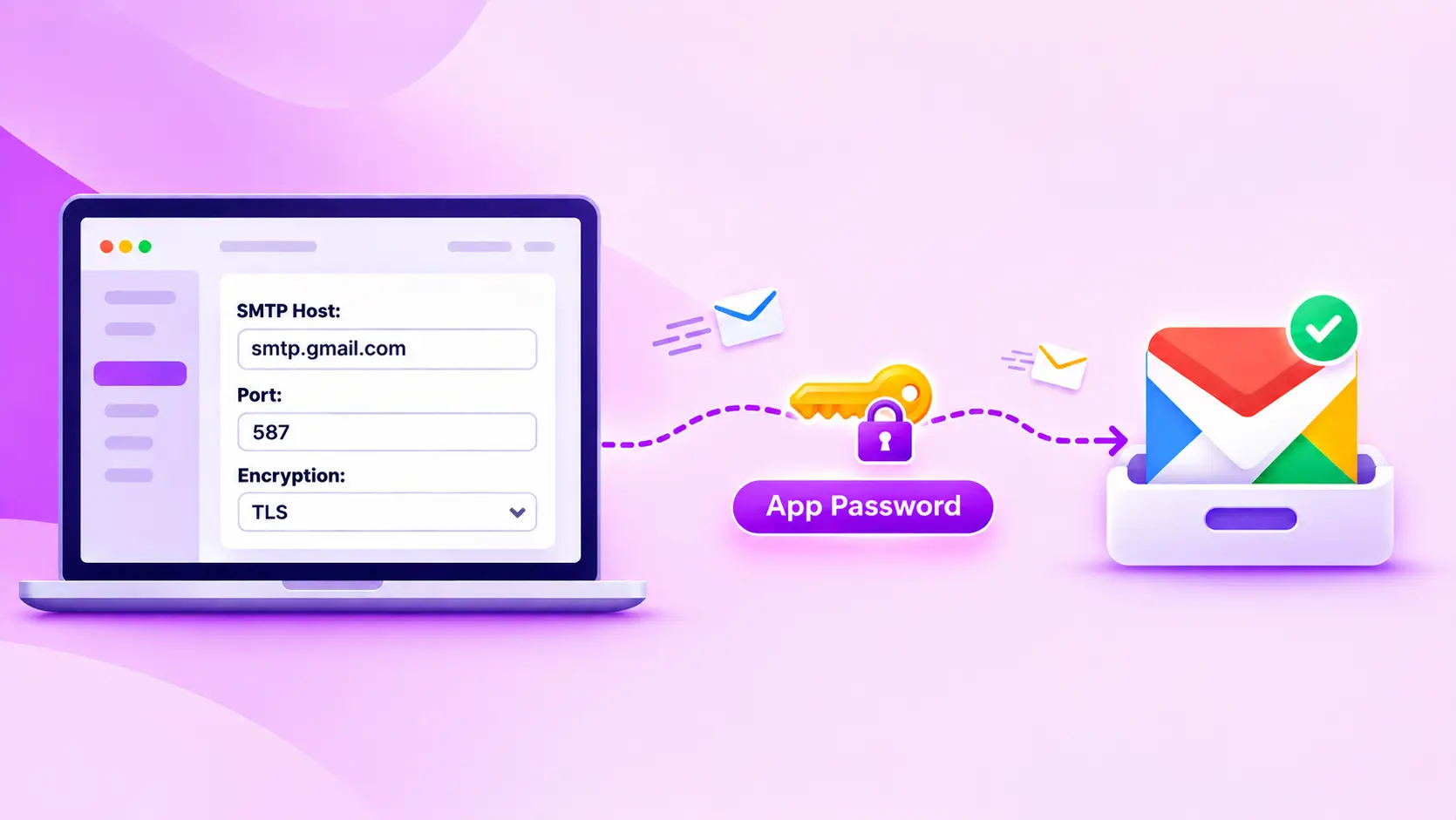
The Gmail SMTP server is smtp.gmail.com. It uses port 587 with TLS or port 465 with SSL. You sign in with your full Gmail address and a 16-character app password, because Gmail no longer accepts your regular Google password for SMTP. In WordPress, FluentSMTP can also connect to Gmail through the Gmail API, which skips the app password entirely.
What are the Gmail SMTP Settings?
The Gmail SMTP settings are the server address, port, encryption type, and login details an app needs to send email through your Gmail account. They’re the same whether you use a personal Gmail account or Google Workspace.
|
Setting |
Value |
|
SMTP server (host) |
smtp.gmail.com |
|
Port |
587 (recommended) or 465 |
|
Encryption |
TLS for port 587, SSL for port 465 |
|
Authentication |
Required |
|
Username |
Your full Gmail or Google Workspace email address |
|
Password |
A 16-character app password |
|
Daily sending limit |
500 (personal Gmail), 2,000 (paid Google Workspace) |
|
Recipients per email |
Up to 100 |
What is the Gmail SMTP Server Name?
The Gmail SMTP server name is smtp.gmail.com. Some apps call this field the SMTP host, outgoing server, or mail server. Enter the name exactly as it is, without “https://” or “www.”
Gmail IMAP and POP Settings
SMTP only handles sending. If your app also needs to receive Gmail messages, use these incoming settings:
|
Protocol |
Server |
Port |
Encryption |
|
IMAP |
imap.gmail.com |
993 |
SSL |
|
POP |
pop.gmail.com |
995 |
SSL |
WordPress only sends email, so you won’t need these for your website.
Gmail SMTP Port: Should You Use 587 or 465?
Use port 587 with TLS for Gmail SMTP. Switch to port 465 with SSL only if your app doesn’t offer TLS or your host blocks port 587. Both ports are encrypted. The difference is when the encryption starts.
- Port 587 (TLS/STARTTLS): The connection opens normally, then upgrades to encryption before your login and email are sent.
- Port 465 (SSL): The connection is encrypted from the very first moment.
Gmail treats both as secure, so neither one gives you better deliverability. Pick the one your app supports.
If you want the full background on what each port does, see this guide to SMTP port numbers.
What About Port 25?
Google lists port 25 as an option, but skip it for your website. Most hosting companies and cloud providers block outgoing traffic on port 25 to stop spam. Port 25 is meant for server-to-server mail transfer, not for apps logging in to a Gmail account.
When Both Ports Time Out
If port 587 and port 465 both fail with a timeout, your host is blocking outgoing SMTP connections. Gmail never even sees the attempt.
You can ask your host to open the port. The cleaner fix is to send through the Gmail API instead, which uses HTTPS and doesn’t depend on SMTP ports. That’s covered in the WordPress section below.
If you’re seeing a timeout right now, here’s how to fix the Could Not Connect to SMTP Host error.
Why Doesn’t Gmail Accept Your Regular Password?
Gmail doesn’t accept your regular Google password for SMTP because Google turned off “less secure app” access. That was the old setting that let apps sign in with just a username and password. For Google Workspace accounts, the final cutoff was May 1, 2025.
Now an app has to sign in to Gmail in one of two ways:
- OAuth (“Sign in with Google”): The app gets a limited, revocable token instead of your password. This is what Google recommends.
- An app password: A separate 16-character password made for one app. It only works when 2-Step Verification is on.
So if your plugin or device has a plain username and password field, an app password is what goes in it.
Is Gmail SMTP Being Shut Down?
No. smtp.gmail.com still works on ports 587 and 465. Only the old way of signing in was retired. Your server and port settings stay exactly the same. Only the password changes.
What is a Gmail App Password?
A Gmail app password is a 16-character code that Google generates so one app or device can sign in to your account. You use it in place of your Google password. It works only when 2-Step Verification is on, and you can revoke it at any time without changing your main password.
Each app password only works for SMTP, IMAP, and POP access. It can’t be used to sign in to your Google account in a browser. If it leaks, someone could send email from your account, but they couldn’t take over the account itself.
Steps To Create a Gmail App Password for SMTP
To create a Gmail app password, turn on 2-Step Verification, open myaccount.google.com/apppasswords, name the app, and click Create. Copy the 16-character code and paste it into your app’s SMTP password field.
Step 1: Turn On 2-Step Verification
- Go to your Google Account and open Security.
- Under How you sign in to Google, click 2-Step Verification.
- Follow the steps to set it up with your phone.
Without 2-Step Verification, the app passwords page won’t appear at all.
Step 2: Open the App Passwords Page
Go straight to myaccount.google.com/apppasswords. You can also type “App passwords” into the search bar at the top of your Google Account.
The option is hard to find through the Security menu, so the direct link saves time.
Step 3: Name the App Password
Type a name that tells you where it’s used, such as WordPress – Main Site. The name is only for you, but it helps when you need to revoke one later.
Step 4: Create and Copy the Code
Click Create. Google shows a 16-character code in four groups of four letters. Copy it right away. Google won’t show it again.
Step 5: Paste It Into Your SMTP Settings
Paste the code into the Password field of your SMTP settings, and use your full Gmail address as the username. If the login fails, paste the code again without the spaces.
Why Can’t I See the App Passwords Option?
Google hides the app passwords option in three cases:
- Your 2-Step Verification is set up with security keys only.
- You’re using a work or school account, and your Google Workspace admin controls app passwords.
- Your account has Advanced Protection turned on.
For a Workspace account, ask your admin to allow app passwords. Or use the Gmail API method below, which doesn’t need one.
Why Did My App Password Stop Working?
Changing your Google account password revokes all your app passwords. If your WordPress emails stopped the same day you reset your Google password, that’s the reason.
Create a new app password and update your SMTP settings. Then send a test email.
Gmail vs Google Workspace SMTP Settings
Gmail and Google Workspace use the same SMTP server, smtp.gmail.com, with the same ports. The differences are your From address, your daily sending limit, and who controls app passwords.
|
Feature |
Personal Gmail |
Google Workspace |
|
From address |
||
|
Daily sending limit |
500 emails |
2,000 emails (500 on a trial) |
|
App passwords |
Available with 2-Step Verification |
Available unless your admin turns them off |
|
SMTP relay (smtp-relay.gmail.com) |
Not available |
Available for admins |
|
Best for |
Personal sites and test sites |
Business sites sending from their own domain |
For a business site, send from your own domain. An order confirmation from a @gmail.com address looks less trustworthy, and customer replies end up in a personal inbox.
Google Workspace admins also get SMTP relay (smtp-relay.gmail.com). It’s built for printers, scanners, and office servers, and it authenticates by IP address rather than login. For a WordPress site, the standard settings above are simpler to manage.
If you use Workspace, this walkthrough on sending WordPress emails with Google Workspace SMTP covers the Workspace side in more detail.
How Many Emails Can You Send With Gmail SMTP?
You can send 500 emails per day with a personal Gmail account and 2,000 per day with a paid Google Workspace account. Each email can have up to 100 recipients over SMTP. The limits run on a rolling 24-hour window, not a calendar day.
| Account type | Daily limit | Recipients per email |
| Personal Gmail | 500 | 100 |
| Google Workspace (trial) | 500 | 100 |
| Google Workspace (paid) | 2,000 | 100 |
Every email your site sends counts toward the limit: password resets, admin alerts, form notifications, and order emails.
That adds up faster than you’d think. Say your WooCommerce store gets 150 orders a day. Each order sends a confirmation, a processing notice, a completed notice, and an admin copy. That’s 600 emails a day. A personal Gmail account hits its limit by the afternoon, and Google may pause sending on the account.
How to Use Gmail SMTP in WordPress
To use Gmail SMTP in WordPress, install an SMTP plugin like FluentSMTP. Then connect Gmail either through the Gmail API or with smtp.gmail.com and an app password.
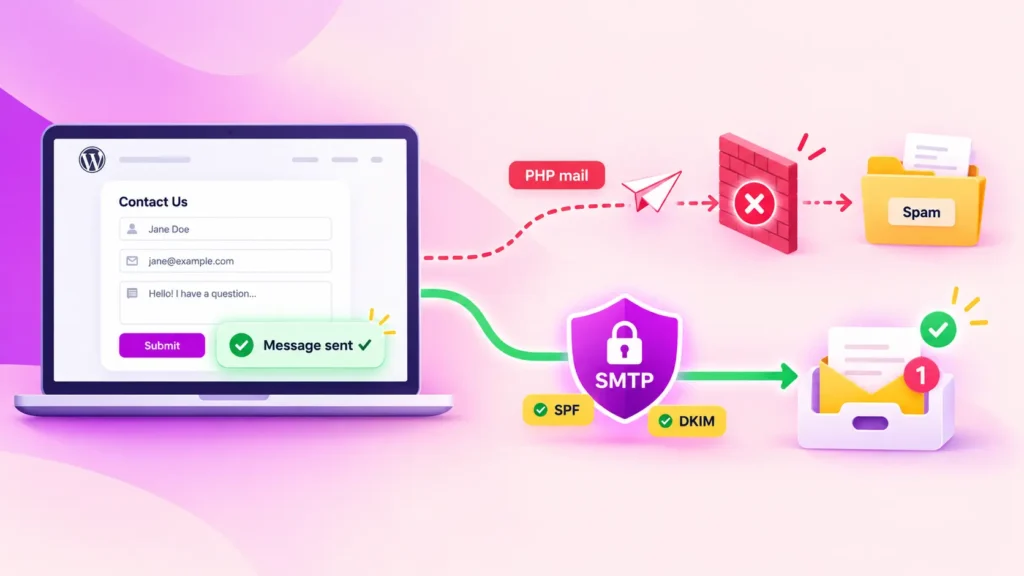
By default, WordPress sends email with PHP mail() through your web host. Hosts often limit it, and Gmail and Outlook don’t trust it, which is why WordPress emails go missing. Routing them through Gmail fixes that.
FluentSMTP, a free WordPress SMTP plugin from WPManageNinja, replaces PHP mail() and sends every WordPress email through the service you connect, including Gmail and Google Workspace.
Download FluentSMTP
(100% Free)
Get the most powerful SMTP plugin for free and hit the recipient’s inbox with your WordPress emails
Once FluentSMTP is installed and activated, go to Settings → FluentSMTP in your WordPress dashboard. From there, you have two ways to connect Gmail.
Method 1: Connect Gmail Through the Gmail API (Recommended)
This method signs in to Gmail with OAuth, so you don’t need an app password. Changing your Google password won’t break it, and blocked SMTP ports won’t affect it.
- Create a project in Google Cloud Console.
- Enable the Gmail API for that project.
- Create OAuth credentials, and copy the Client ID and Client Secret.
- In FluentSMTP, select Gmail/Google Workspace as your connection.
- Add your From Email and From Name, then paste in the Client ID and Client Secret.
- Authenticate with your Google account and click Save Connection Settings.
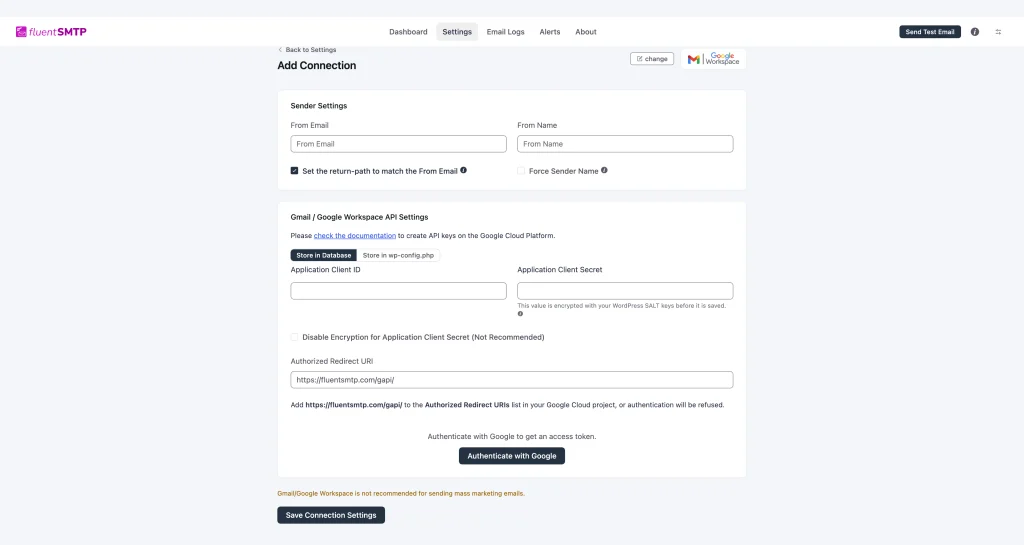
Configure your email sending with FluentSMTP by adding a new Google Workspace connection. This page allows you to set sender details and Google API credentials for reliable email delivery.
The Gmail and Google Workspace setup docs walk through each Google Cloud screen with screenshots.
Method 2: Connect with smtp.gmail.com and an App Password
This method is quicker to set up. It works well for staging sites or if you don’t want to create a Google Cloud project.
- In FluentSMTP, select Other SMTP as your connection.
- Add your From Email and From Name. Use the same Gmail address you’ll log in with.
- Set SMTP Host to smtp.gmail.com.
- Set SMTP Port to 587 and Encryption to TLS.
- Enter your full Gmail address as the Username.
- Paste your app password as the Password.
- Click Save Connection Settings.
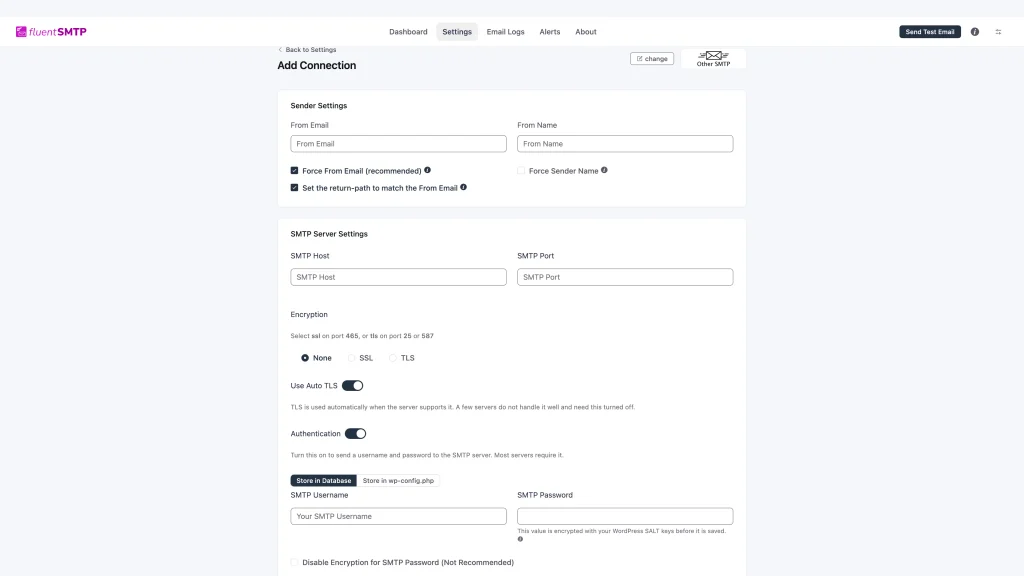
Easily configure a new SMTP connection with FluentSMTP’s intuitive interface. This screenshot highlights the sender and server settings.
Keep in mind that this connection depends on your host allowing port 587 or 465. It also stops working whenever your app password gets revoked.
Test Your Gmail Connection
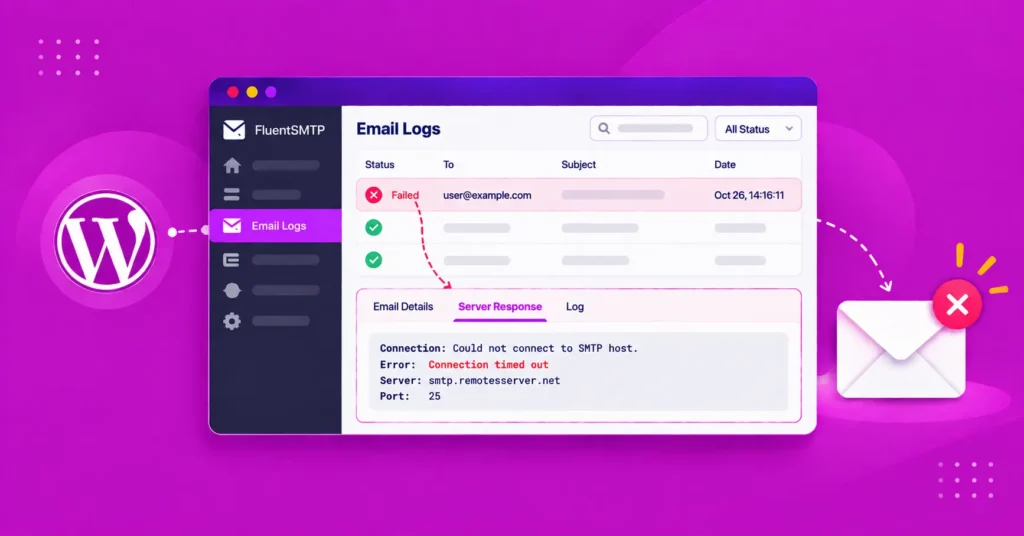
Open the Email Test tab in FluentSMTP, enter your own email address, and click Send Test Email. Then check the Email Logs tab. A successful send shows up there, and a failed one shows the exact error Gmail returned.
Then test a real workflow too. If you use Fluent Forms, submit one of your own forms. Your notification and confirmation emails go through the same Gmail connection, so you’ll see exactly what your visitors get.
Common Gmail SMTP Errors and How to Fix Them
Most Gmail SMTP errors come from the wrong password type, a blocked port or a hit sending limit. The error code tells you which one it is.
|
Error |
What it means |
How to fix it |
|
535-5.7.8 Username and Password not accepted |
You used your Google password, mistyped the app password, or it was revoked |
Create a new app password and paste it without spaces |
|
534-5.7.9 Application-specific password required |
2-Step Verification is on, but you used your regular password |
Use an app password, or switch to the Gmail API method |
|
Connection timed out |
Your host blocks port 587 or 465 |
Try the other port, ask your host, or use the Gmail API method |
|
550-5.4.5 Daily user sending limit exceeded |
You hit the 500 or 2,000 daily limit |
Wait for the 24-hour window to reset, then move high-volume email to a dedicated service |
Gmail Changes Your From Address
If your emails arrive from your Gmail address instead of the From Email you set, Gmail is rewriting it. Gmail only sends from addresses it can verify on your account.
To fix it, add the address in Gmail under Settings → Accounts and Import → Send mail as, then verify it. Or use the same address for your From Email and your login.
Your Gmail Emails Land in Spam
If your emails send but land in spam, your domain likely isn’t authenticated. Set up SPF, DKIM, and DMARC for your domain. If you’re sending from your own server, check that your PTR record is valid too.
When Should You Stop Using Gmail SMTP?
You should stop using Gmail SMTP when your site regularly sends more than a few hundred emails a day, or when missed emails cost you orders or donations. Gmail suits a portfolio, a small business site, or a contact form. It isn’t built for a busy store or a membership site.
Watch for these signs:
- You’ve seen the 550-5.4.5 sending limit error more than once.
- Your site sends order, booking or donation emails every day.
- You need delivery stats beyond a basic sent or failed log.
When you get there, a transactional email service built for volume is the better fit.
You don’t have to drop Gmail completely. FluentSMTP lets you set Gmail as a fallback connection behind your main email service, so if one fails, your emails still go out.
Gmail SMTP Settings Rarely Change, Logins Do
smtp.gmail.com, port 587, and TLS have stayed the same for years. What breaks Gmail SMTP is the login: a regular password Gmail won’t accept, or an app password that was quietly revoked.
If you run WordPress, connect Gmail through the Gmail API in FluentSMTP, and that problem goes away. If you use an app password, keep it somewhere safe and remember to update it after any Google password change.
Then keep an email log running. If Gmail rejects a message, you’ll see the exact error instead of guessing.
Hope this guide may helps you, If you have any further queries, drop a comment below. I’m always happy to help.
Thanks for reading!
Frequently Asked Questions

Madhobi Dhar
Table of Content
Subscribe To Get
WordPress Guides, Tips, and Tutorials


Add your first comment to this post