

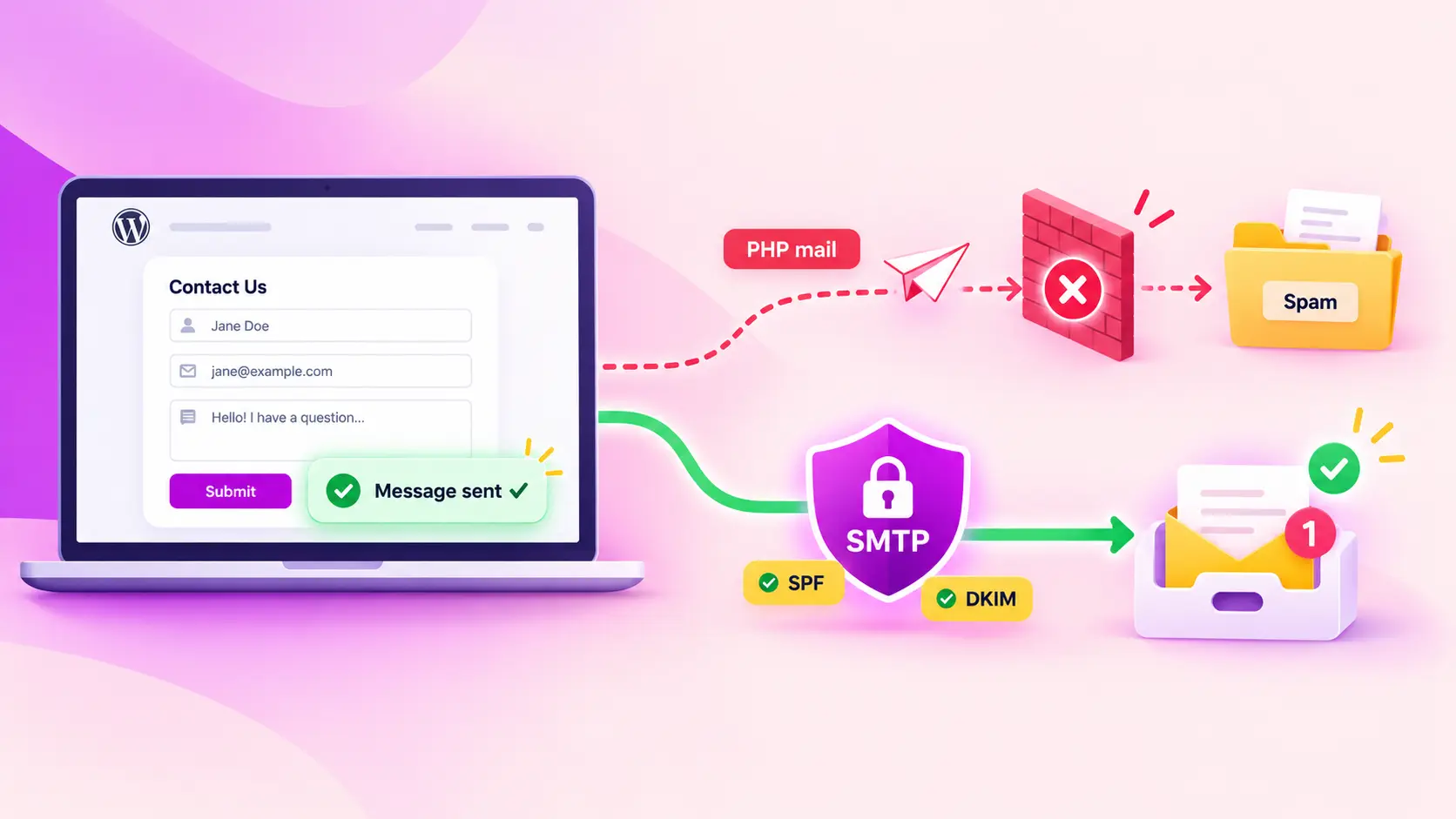
WordPress Contact Form Not Sending Email? How SMTP Fixes It

You set up a contact form, tested it once, saw “Thank you, your message has been sent,” and moved on.
Then a customer emails you: “I filled out your form last week. Did you get it?”
You didn’t. It’s not in your inbox, and it’s not in spam. You check the form settings, and everything looks right. And honestly, it probably is.
That success message only means your form handed the email to WordPress. After that, the email got blocked or filtered out somewhere along the way, and your form never knew.
If your form has never sent a single email, or it worked for months and then quietly stopped (often after a host move or a domain change), this guide is for you. In this guide, we’ll show you where form emails get lost, why WordPress’s default way of sending email causes it, and how setting up SMTP gets every notification into your inbox.
Your WordPress contact form isn’t sending email because WordPress uses PHP mail() by default, and many hosts block or limit it. Gmail and Outlook also reject or filter its emails because they aren’t authenticated. Sending form emails through SMTP, with a From address on your own domain, fixes it for every form plugin.
Why is Your WordPress Contact Form Not Sending Email?
A WordPress contact form usually stops sending email because WordPress uses PHP’s mail() function by default. Many hosting providers block or rate-limit PHP mail, and inbox providers like Gmail and Outlook reject or filter its emails because they aren’t authenticated. Sending form emails through SMTP fixes it.
This affects every form plugin the same way. They all hand their emails to WordPress, and WordPress decides how those emails get sent.
What Happens After Someone Submits Your Form?
When a visitor submits your form, the form plugin passes the notification to WordPress’s wp_mail() function. WordPress uses the PHPMailer library, which by default sends through PHP mail() on your web server. Your form shows “Message sent” as soon as WordPress accepts the email, before delivery is even attempted.
Picture this step by step:
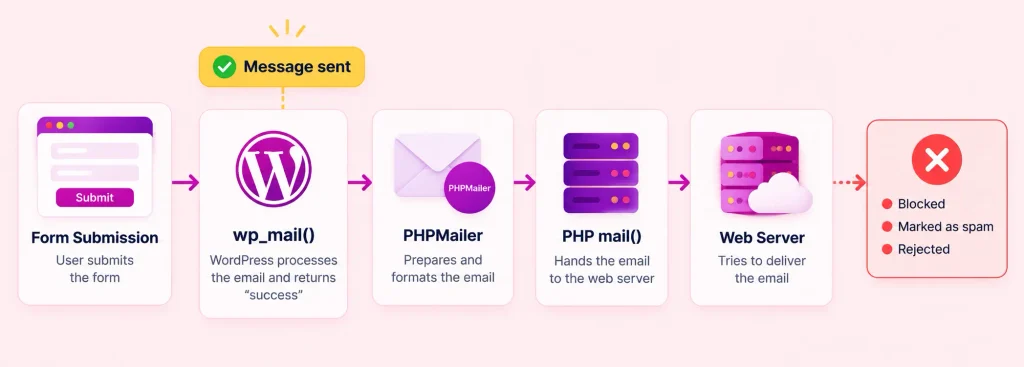
- A visitor fills out your form and clicks Submit
- Your form plugin builds the notification email
- The plugin hands it to WordPress through wp_mail()
- WordPress sends it with PHPMailer, using PHP mail() by default
- Your web server tries to deliver it to the recipient’s inbox
The success message appears after step 3. Everything that can go wrong happens in steps 4 and 5, after the visitor has already left.
Why Does PHP Mail Fail for Contact Forms?
PHP mail fails for three main reasons: hosting providers block or limit it to stop spam, the emails it sends carry no domain authentication, and forms often use the visitor’s address as the sender. Any one of these can get your form email rejected, filtered to spam, or silently dropped.
Your host blocks or limits outgoing mail
Shared hosts send email for hundreds of sites from the same server. To protect that server’s reputation, many hosts disable PHP mail, cap hourly sending, or block common mail ports. Your form can’t detect this. It has already shown the success message.
The email isn’t authenticated
Inbox providers check whether the sending server is allowed to send email for your domain. A shared web server usually isn’t listed in your domain’s records.
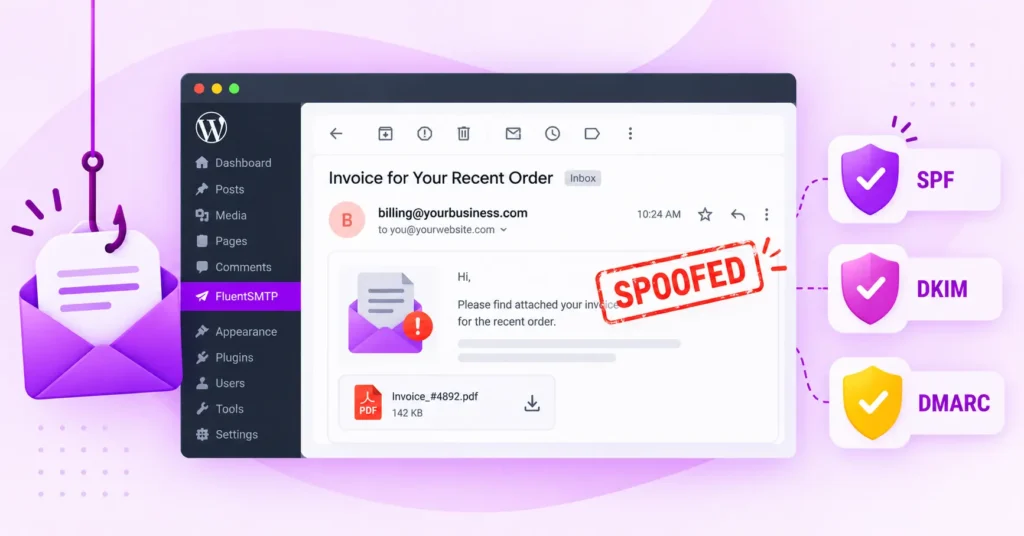
Since February 2024, Google has required every sender to Gmail to set up SPF or DKIM. Bulk senders, meaning more than 5,000 messages a day, must also have DMARC. Yahoo introduced matching rules at the same time. Unauthenticated email from PHP mail is exactly what these rules filter out.
The From address doesn’t match your domain
Many forms send “from” the visitor’s email. If Sarah submits with [email protected], your server sends an email claiming to come from Gmail. Gmail can tell it didn’t, so the email fails its checks.
What is SMTP, and How Does It Fix Contact Form Emails?
SMTP (Simple Mail Transfer Protocol) is the standard protocol for sending email between servers. In WordPress, an SMTP plugin replaces PHP mail and sends your form emails through a dedicated email service, such as Amazon SES, SendGrid, Mailgun, Brevo or Google Workspace. That service authenticates each email for your domain, so it reaches the inbox.
You don’t change your form. The same notification travels a route that inbox providers trust.
| PHP mail (WordPress default) | SMTP through an email service | |
| Who sends the email | Your shared web server | A service built for email delivery |
| Host blocking | Often blocked or rate-limited | Avoidable (API connections use HTTPS) |
| Authentication | Usually none | SPF and DKIM for your domain |
| From address | Often mismatched | Your own verified domain |
| When something fails | No record, no error | Logged with the exact error |
| Typical result | Spam folder or rejected | Inbox |
Tutorial: Steps to Set Up SMTP for Your WordPress Contact Form
To set up SMTP for a WordPress contact form: choose an email service, install an SMTP plugin such as FluentSMTP, connect the service with its API key or SMTP credentials, set a From address on your own domain, add SPF, DKIM, and DMARC records, then send a test email and submit your form.
FluentSMTP is a free WordPress SMTP plugin with no paid version or upsells. It connects to Amazon SES, SendGrid, Mailgun, Brevo, Postmark, SMTP2GO, Google Workspace, Microsoft 365, and any other SMTP server.
Step 1: Choose an email service
If your contact form sends a few hundred emails a month or fewer, a free plan is usually enough. Compare the limits in our list of the best free SMTP servers.
- If you’re already on Google Workspace or Microsoft 365? Send through them.
- If you want high volume at low cost, go with Amazon SES.
- If you want quick setup with a free tier, try Brevo, SMTP2GO, or Mailgun.
Step 2: Install FluentSMTP
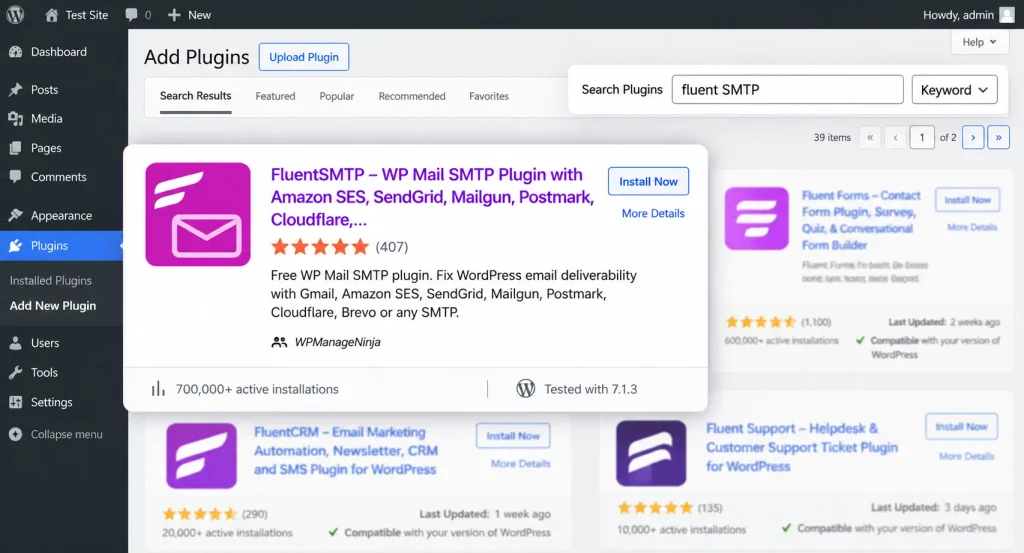
- Go to Plugins > Add New
- Search for “FluentSMTP”, then install and activate it
Deactivate any other SMTP plugin first. Two SMTP plugins fighting over the same emails is a common reason form notifications still fail.
Download FluentSMTP
(100% Free)
Get the most powerful SMTP plugin for free and hit the recipient’s inbox with your WordPress emails

Step 3: Connect your email service
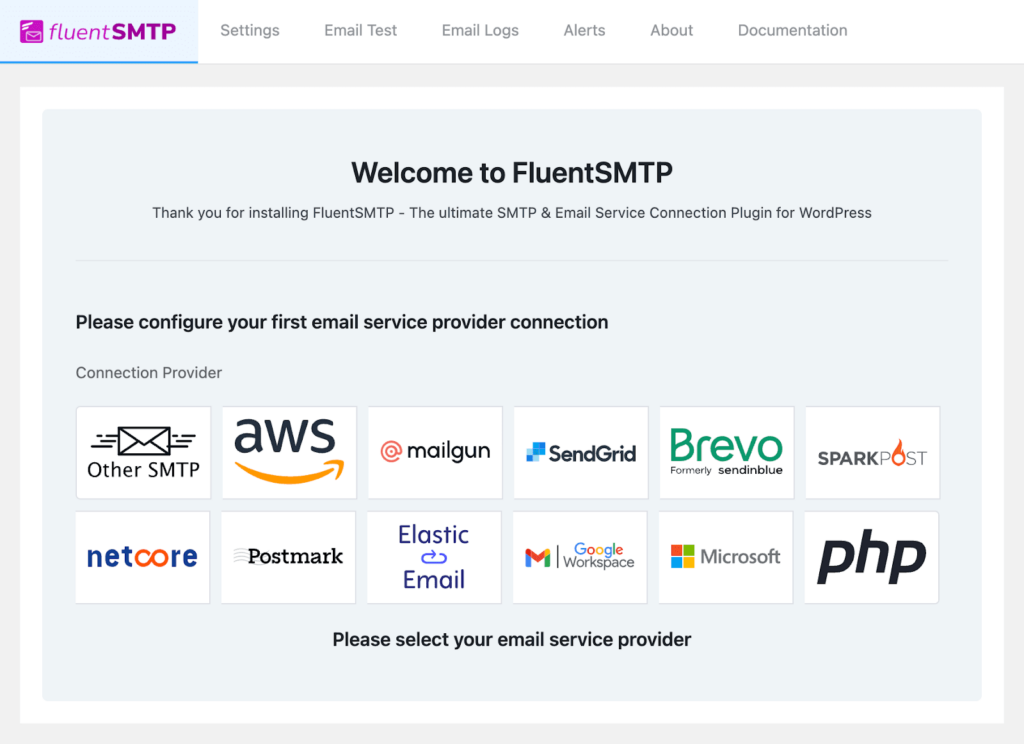
Choose your provider in FluentSMTP and paste in the API key or SMTP credentials from your email service dashboard. See our WordPress SMTP configuration guide for provider-specific settings.
Step 4: Set a From email on your own domain
Use an address like [email protected] as the From email. In your form’s notification settings, put the visitor’s email in Reply-To, so your replies still reach them.
FluentSMTP can force this From email across every plugin, so one misconfigured form can’t override it.
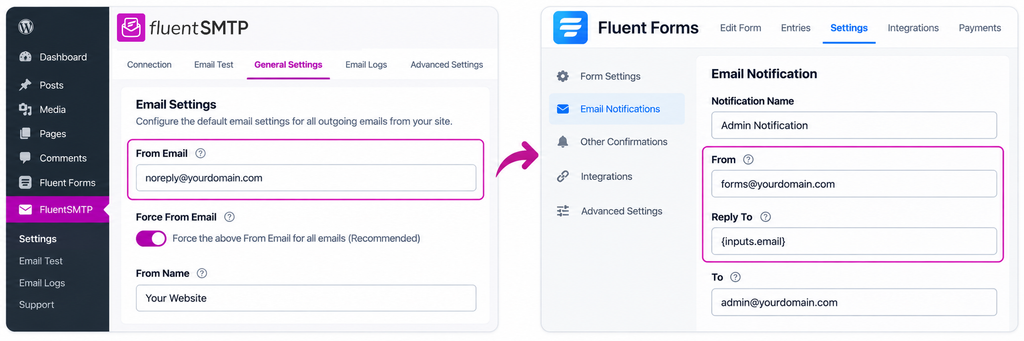
This comparison illustrates how email sender settings can be configured differently between Fluent SMTP’s general settings and Fluent Forms’ specific notification settings. It highlights the flexibility in managing ‘From Email’ and ‘Reply To’ addresses.
Step 5: Add SPF, DKIM and DMARC records
Your email service gives you DNS records to add to your domain:
- SPF: lists which services can send email for your domain
- DKIM: a digital signature proving the email came from you
- DMARC: tells inbox providers what to do when those checks fail
This step is what moves you from “delivered” to “in the inbox.” Our guide to SPF, DKIM and DMARC walks through each record.
Step 6: Test the connection, then test your form
Send a test from FluentSMTP’s Email Test tab, then submit your real contact form. If the notification lands in spam, recheck Step 5. It’s almost always an authentication record.
How to Make Sure You Never Miss a Contact Form Email
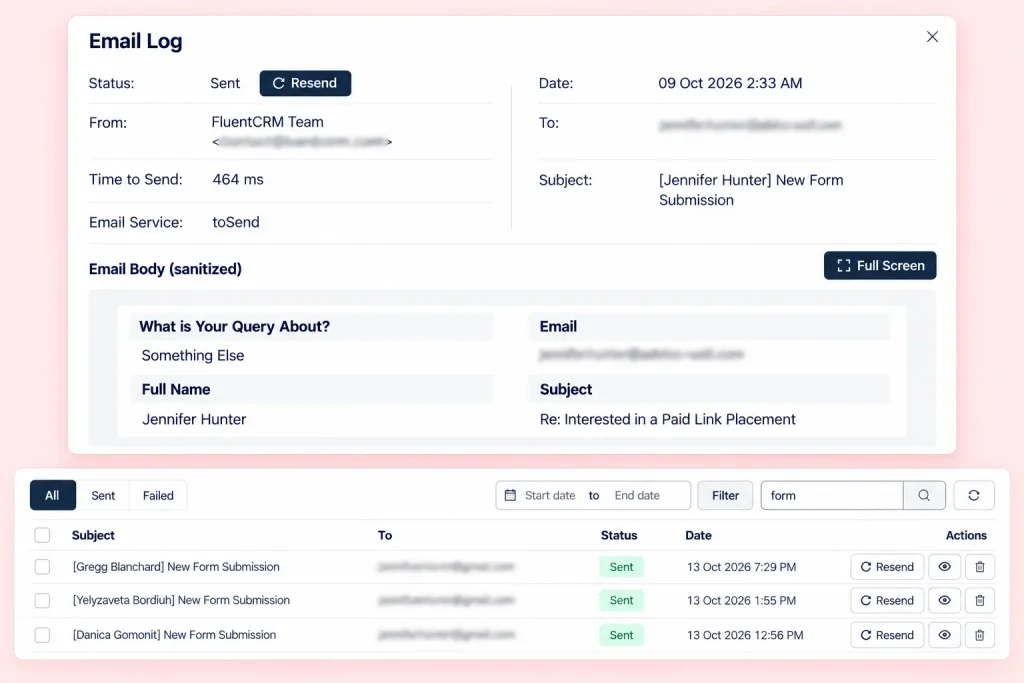
Turn on email logging so you can see every email your site sends and resend failures. Add a fallback email connection, set up failure alerts in Slack, Telegram, or Discord, and use a form plugin that saves every submission, so a failed email never means a lost lead.
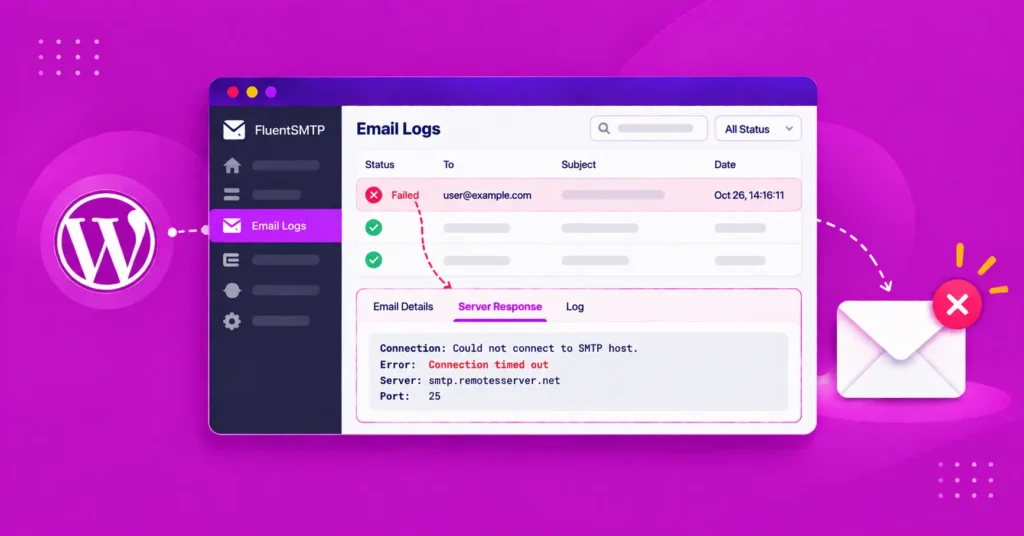
Keep an email log: FluentSMTP logs every email: recipient, status, and the exact error if it failed. You can resend a failed form notification with one click. See how to set up a WordPress email log.
Add a fallback connection: FluentSMTP lets you add a second email service as a backup. If the main one fails, it switches to the backup automatically.
Get alerts when an email fails: Set up email failure alerts through Slack, Telegram, or Discord, so you hear about a problem in minutes, not weeks.
Use a form plugin that saves every entry: SMTP gets your emails delivered, but if your form plugin doesn’t save submissions, one failed email still means a lost message. Fluent Forms, built by the same team as FluentSMTP, stores every submission in your WordPress dashboard. Fluent Forms captures the lead, and FluentSMTP delivers the notification.
The Fix is in How Your Emails Are Sent
When a WordPress contact form stops sending email, PHP mail is almost always the cause. Switch to SMTP, send from your own domain, authenticate it, and keep a log running. Set it up once, and every form on your site is covered.
Get started with FluentSMTP, and pair it with Fluent Forms so every submission is saved, even when an email fails.
If you get stuck anywhere, drop a comment below. I’m always happy to help.
Thanks for reading!
Frequently Asked Questions

Madhobi Dhar
Table of Content
Subscribe To Get
WordPress Guides, Tips, and Tutorials




Add your first comment to this post