

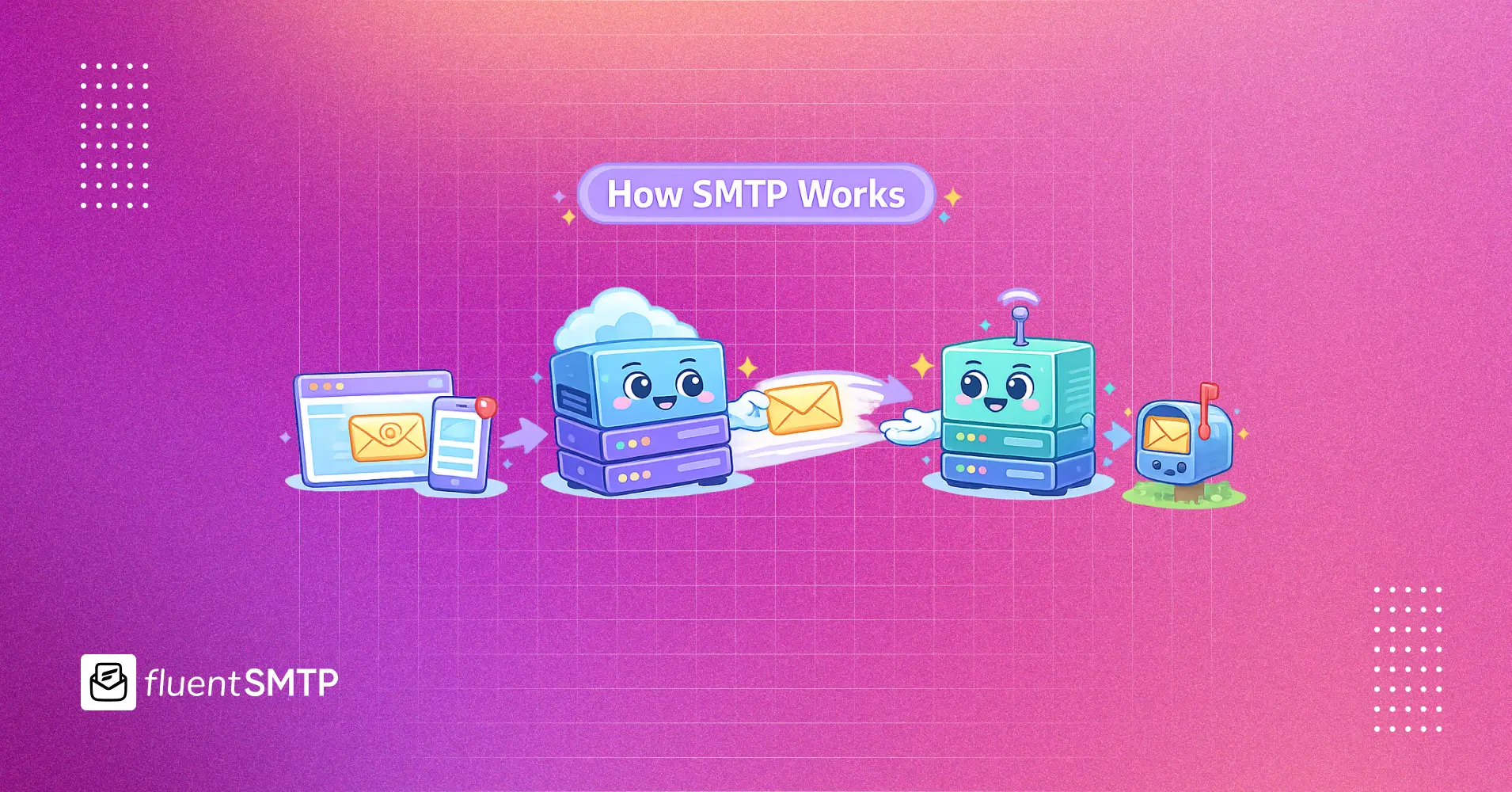
How SMTP Works: The Step-by-Step Email Sending Process

Every email you send goes through a strict, invisible handshake before it can land in someone’s inbox. That handshake is called SMTP.
And once you understand how it works, it becomes much easier to figure out why emails sometimes fail, get delayed, or never arrive at all.
SMTP, short for Simple Mail Transfer Protocol, is the set of rules computers use to send email from one server to another. It does not deliver email to your inbox. Its job is to handle the sending and relaying part, moving a message from the sender’s server to the recipient’s server.
The part where you actually open and read your email is handled by a different protocol, usually IMAP or POP3. And that distinction trips up a lot of people.
So before we get into the technical details, let’s build the full picture from the ground up.
The Journey of One Email, Step by Step
Think of SMTP like the postal service for digital mail. Here’s what happens between the moment you hit “Send” and the moment your email shows up in someone’s inbox.
Step 1: You compose and send the email
Before you even see the “sending” spinner, your MUA starts preparing the message for delivery. It formats the headers, encodes any attachments, adds a timestamp, and assigns a unique ID that helps track this exact email through every step that follows.
Your email client, such as Gmail, Outlook, or your WordPress site, is called the Mail User Agent, or MUA. It packages your message and hands it off to a mail server.
Step 2: The MUA connects to an SMTP server
Next, the MUA connects to an SMTP server. At this stage, the server starts checking whether the email is allowed to move forward. It does more than verify your password. It confirms the connection is encrypted, checks whether the account has permission to send from that domain, and logs the attempt.
If anything fails here, the email is rejected immediately and never actually gets sent.
Step 3: The SMTP server looks up where to send it
Once the message is approved for sending, the SMTP server reads the recipient’s address. It looks at everything after the @ symbol and asks the internet’s directory system, DNS, for that domain’s MX record. The MX record simply tells the server, “This is where mail for this domain should go.”
A domain can have multiple MX records with different priority levels. The sending server decides which one to try first and which ones to fall back on if the first server does not respond.
Step 4: The message relays from server to server
Now the sending server acts as a Mail Transfer Agent, or MTA. It connects to the recipient’s mail server and passes the message along. Sometimes this happens directly. Other times, the email moves through one or more relay servers first, similar to how a package may pass through several sorting centers before reaching your city.
As the email travels, each server it passes through adds a “Received” header. This records when the message arrived and where it came from. It creates a trail that helps you, or a spam filter, reconstruct the full path.
Step 5: The receiving server accepts or rejects it
When the message reaches the recipient’s mail server, the server checks it against spam filters, authentication records, and reputation data. If everything looks good, it accepts the email. If something seems off, the server may reject it outright or bounce it back with an error code.
Step 6: The message moves to the inbox
Once the message is accepted, another piece of software takes over. This is called the Mail Delivery Agent, or MDA. Its job is to place the accepted message into the recipient’s actual mailbox.
Step 7: The recipient reads it
The final step does not use SMTP. When the recipient opens the email, that happens through IMAP or POP3. SMTP’s job ends once the message is delivered to the mailbox.
If you have ever wondered how these protocols differ from each other and from SMTP, we have explained that separately in our POP3 vs IMAP comparison.
What’s Actually Being Said Behind the Scenes
If you strip away the technical layer, an SMTP conversation between two servers reads almost like a scripted exchange. It usually goes something like this:
- HELO/EHLO: The sending server introduces itself
- MAIL FROM: It states who the message is from
- RCPT TO: It states who the message is for
- DATA: It sends the actual subject line and body
- QUIT: It closes the connection once the transfer is confirmed
Each step gets a response code from the receiving server. A **250** response means the step was successful. Codes starting with **4** or **5** mean something went wrong, and each code points to a specific issue.
A Quick Word on Ports
Every SMTP connection uses a specific port, and choosing the wrong one is one of the most common reasons email setups fail. The quick version is simple:
- Port 587 is the standard choice for sending email from an application today
- Port 465 is an older option, but many providers still support it
- Port 25 is mainly for server-to-server relay, not for your website or app
There is a bit more nuance behind when to use each one, especially because some hosting providers block certain ports entirely. We cover that in detail in our breakdown of SMTP port numbers 25, 465, and 587.
Where WordPress Fits Into All This
Here’s the part most WordPress users do not think about until something breaks.
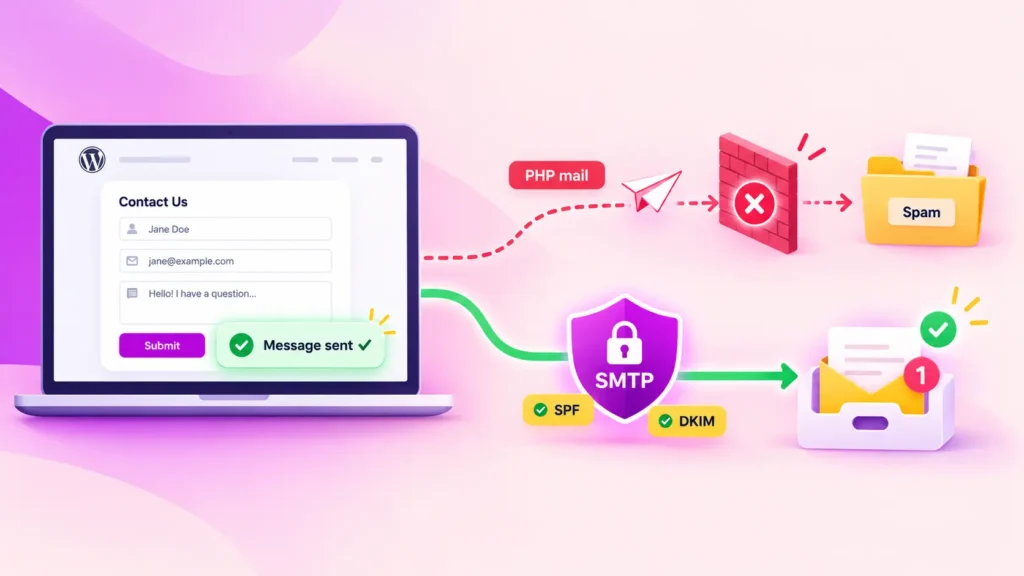
By default, WordPress does not use proper SMTP at all. It relies on the PHP `mail()` function, which passes your email to whatever mail setup is configured on your hosting server and hopes everything works.
That “hope for the best” approach is exactly why WordPress emails go missing so often.
PHP mail sends messages without proper authentication, without a verified sending domain, and without any trusted relationship with the recipient’s server. So when inbox providers see an unauthenticated message coming from a random hosting IP, they naturally treat it with suspicion.
Because, frankly, that is exactly what spam often looks like.
Routing your WordPress emails through a real SMTP connection fixes this problem. It authenticates every message, sends through a reputable mail server, and gives receiving inboxes a real reason to trust what is arriving.
That is the entire premise behind FluentSMTP. It replaces the unreliable PHP mail path with a properly authenticated SMTP connection, using providers like Amazon SES, Google Workspace, Brevo, Postmark, or your own SMTP credentials.
To understand the setup in more detail, explore our complete walkthrough of WordPress email settings and SMTP configuration.
Where Email Delivery Breaks Down
Once you understand the journey above, email delivery problems become much easier to diagnose. That is because every failure happens at a specific point in the chain, and each point leaves a different clue.
Authentication fails at step 2
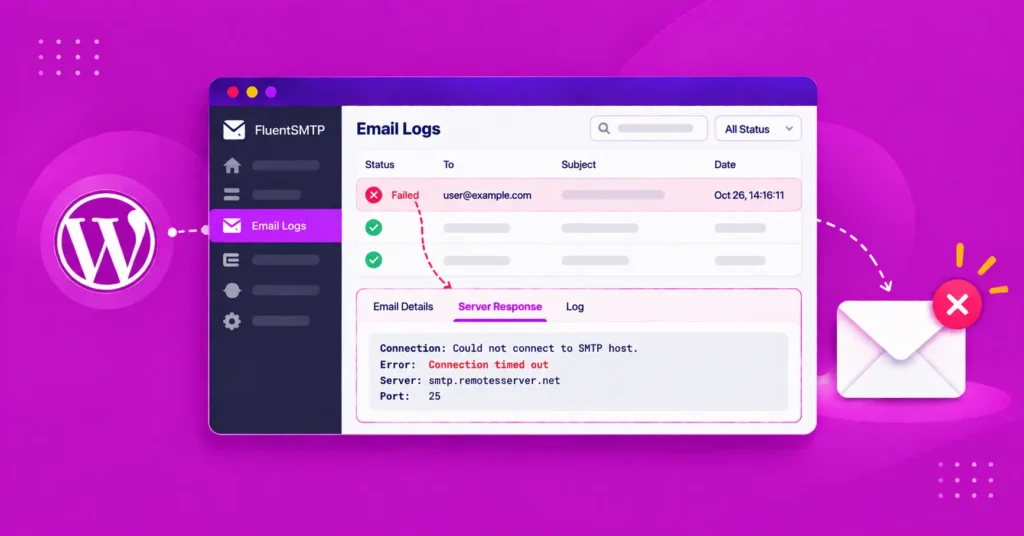
This is the most common failure by far. It usually looks like the email never left your site at all. WordPress may show a generic “email failed to send” message, but there is no bounce from the recipient’s server because the message never made it that far. It was rejected before the actual delivery attempt began. We cover this in more detail in our SMTP authentication breakdown.
The wrong server handles relaying at step 4
This often shows up as inconsistent delivery. Some emails go through fine, while others disappear without a clear reason. In many cases, the relay path is misconfigured, or the wrong port is being used for the job. We explain this part further in our SMTP relay article.
The receiving server rejects the message at step 5
Unlike an authentication failure, this one usually comes back with a specific error code, such as 550 or 421. That code tells you why the recipient’s server refused the message.
You need to trace what happened after delivery
Sometimes the email does arrive, but lands in spam. Other times, you need to confirm which servers handled it and when. In that case, the answer is usually hidden in the message’s header data.
Frequently Asked Questions
What is SMTP and why is it used?
SMTP is the standard protocol for sending email between servers. It’s used because it gives every mail server, regardless of who built it, a shared set of rules for handing off messages reliably.
Do I need an SMTP server to send email?
Yes, technically every email sent anywhere uses SMTP at some point. The real question is whether you’re using a properly authenticated one. Default setups like PHP mail technically use SMTP too, just in a way that receiving servers don’t trust.
How do I fix my email SMTP server?
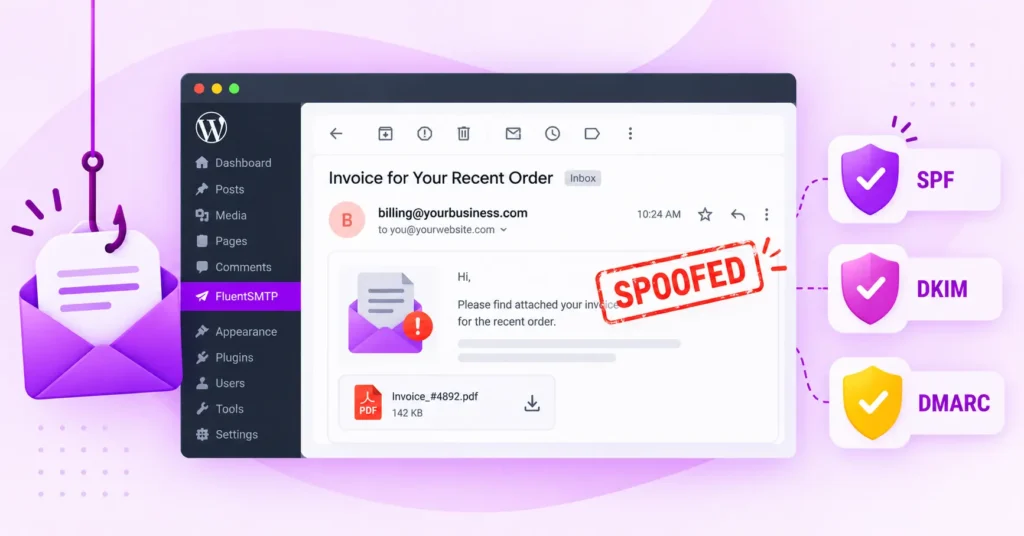
Most fixes come down to three things: using the correct port, confirming your SMTP credentials are valid, and making sure your domain has proper SPF, DKIM, and DMARC records. If you’re on WordPress, connecting a plugin like FluentSMTP handles the authentication side automatically.
Is SMTP the same as IMAP or POP3?
No. SMTP sends mail. IMAP and POP3 retrieve it. They’re separate protocols doing separate jobs in the same overall journey.
Give Your WordPress Emails a Real SMTP Connection
SMTP is the quiet engine behind every email your site sends.
It authenticates your message, finds the right server, hands it off, and gets out of the way. But when any part of that process breaks, that is exactly where your emails start disappearing.
The default WordPress email setup was never built to handle this properly. It relies on PHP mail, skips proper authentication, and hopes everything works. That is why so many WordPress emails end up in spam or never arrive at all.
FluentSMTP fixes this by connecting your site to a real, authenticated SMTP provider in just a few minutes, with no code required. So if you are ready to stop guessing whether your emails are landing, install FluentSMTP and connect your provider of choice today.
Nader Chowdhury
Table of Content
Subscribe To Get
WordPress Guides, Tips, and Tutorials



Add your first comment to this post