


WordPress Email Not Sending? The Complete Fix Guide

WordPress says the email was sent. But did it actually arrive?
Maybe it was a password reset you were waiting for. Maybe a customer never received their order confirmation. Or perhaps a new student signed up for a course and the welcome email never showed up.
At first, it looks like one missing email. Then comes the bigger question: how long has this been happening?
That is what makes WordPress email problems frustrating. Your site can keep running normally while important emails quietly fail in the background.
And “WordPress email not sending” is not really one problem. There are several possible causes, and the fix for one may do absolutely nothing for another. You can change sender addresses, deactivate plugins, rebuild notifications, and still end up exactly where you started.
So the first job is not fixing anything. It is finding out where the email is failing.
Once you know that, the rest gets much easier.
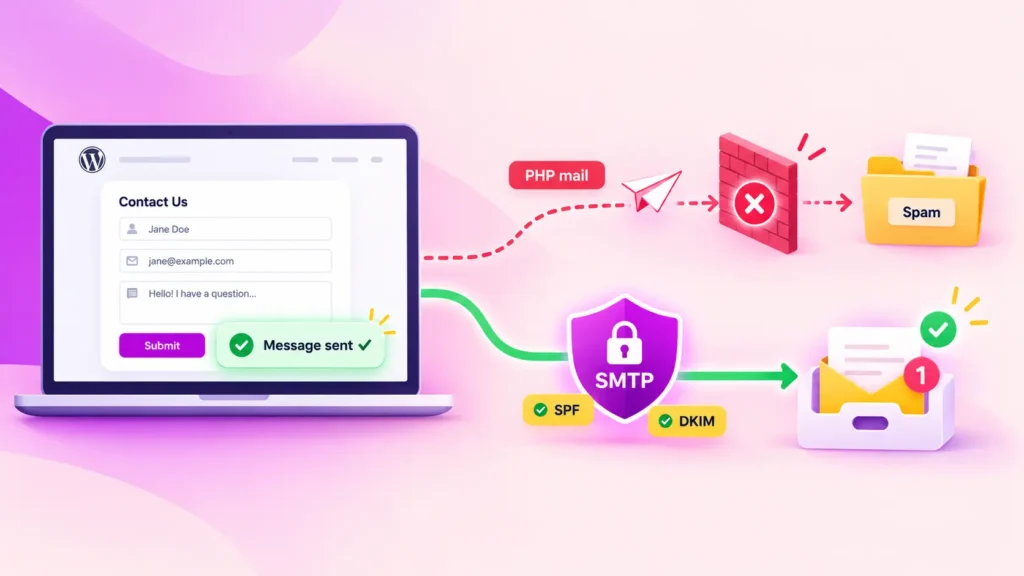
The short answer: WordPress does not send email reliably by default. It passes emails to your web server’s PHP mail() function, which many hosts throttle or block and which cannot authenticate messages with DKIM on its own. The fix is to route WordPress email through an authenticated SMTP service and add SPF, DKIM, and DMARC records to your domain.
Why WordPress Fails to Send Emails in the First Place?
WordPress has never had a real mail system.
When your site sends anything, whether it is a form notification, an order confirmation, or a password reset, it calls a function named wp_mail().
By default, that function hands the message to your web server’s PHP mail() setup and considers the job done. It does not check whether the message was accepted or whether it was delivered. It reports success the moment it passes the message along.
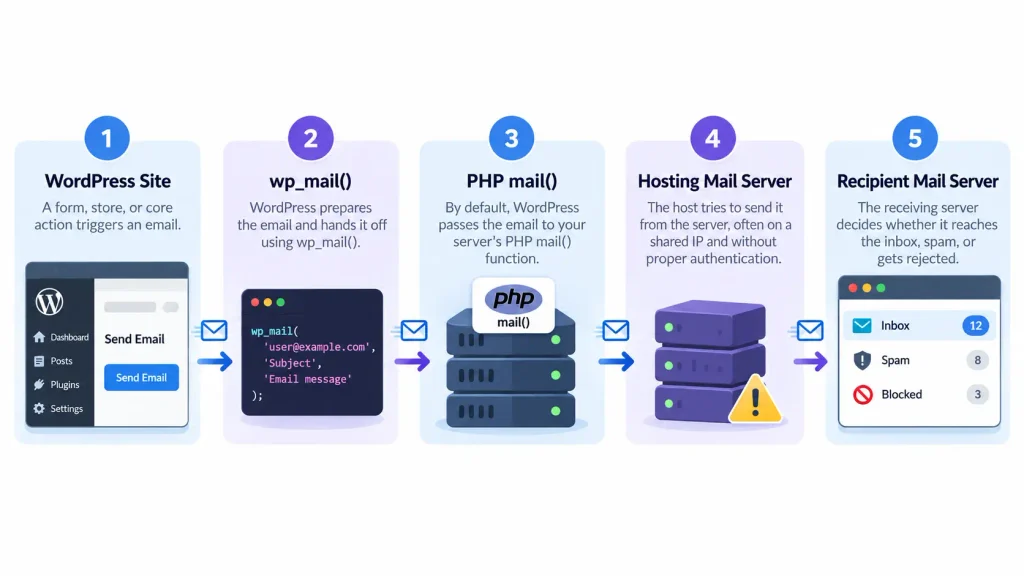
That creates three problems at once.
- Your host may not send the message at all. Shared hosting providers disable or throttle PHP mail() because spammers abuse it, and many block outbound port 25 entirely.
- If the host does send it, the message can go out unauthenticated. PHP mail() cannot sign a message with DKIM on its own, so receiving servers may get no cryptographic proof that the mail is genuinely from your domain. They treat it accordingly.
- If you are using shared hosting, your emails may also be sent from a shared IP address carrying the reputation of every other site on that server. If one of them is sending spam, your order confirmations can inherit the damage.
The result is a system that fails silently.
Your site believes the email went out. But Gmail either never received it or filed it as suspicious. Nobody is notified either way. This is why the fix almost always involves routing WordPress email through a proper SMTP service instead of the host’s default.
First: Find out Whether WordPress is Sending Emails At All
Every cause below splits along one question: Did the email leave your site, or not?
Answer this before you change a single setting. The two branches lead to completely different fixes, and guessing wrong means hours spent on the wrong problem.
How to answer it?
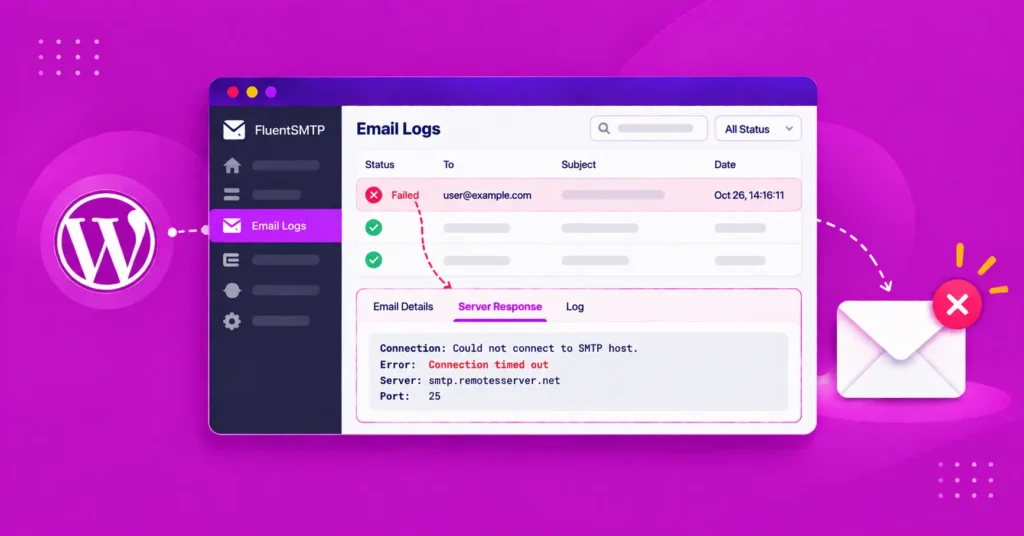
You need a record of what your site attempted to send. An email log captures every outgoing message with its status, recipient, timestamp, and any error the receiving server returned.
If you’re using FluentSMTP, every send is recorded with its status and the full error response, so you can trigger the failing email and read exactly what happened.
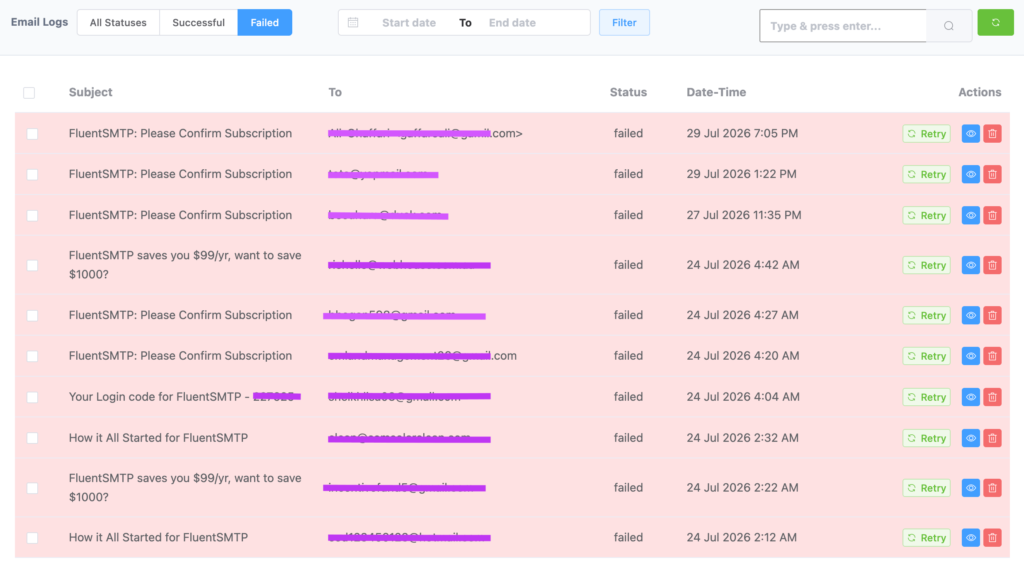
If you use a different SMTP plugin, most offer equivalent logging. Without any plugin, you can ask your host for their mail server logs, though these are usually slower to get and harder to read.
Install a logging plugin and trigger the failing email yourself. Submit the form. Place a test order. Request a password reset. Then look at what the log recorded:
- Nothing at all: The email was never attempted. WordPress failed before it ever reached the sending layer, so nothing you change about SMTP will help. If a form triggered it, go to Cause C. If it was a registration or password reset, go to Cause F.
- A failed send with an error message: The message was attempted and rejected. The error text usually states the reason, such as an authentication failure, a connection timeout, or a blocked port. Go to Cause A.
- A successful send, but nothing arrived: This is the most misleading result and the most common. The message left your server and was accepted. Something after that point filed it in spam or dropped it. Go to Cause B.
Whichever tool you use, do not skip this step. The rest of this guide depends on knowing which of the three results above you have.
Cause A: Your host is blocking or throttling PHP mail
You’ll see: Nothing in the log, or a failed send citing a connection or authentication error. Often, no email works at all, including forms, password resets, and order confirmations.
A host blocking PHP mail() is one of the most common causes of WordPress email not sending, and it is not a WordPress problem. Your host is refusing to send mail the way WordPress is asking.
The fix is to stop using PHP mail() and route your site’s email through an authenticated SMTP service such as Amazon SES, Postmark, Mailgun, SendGrid, Brevo, or your existing Google Workspace or Microsoft 365 account.
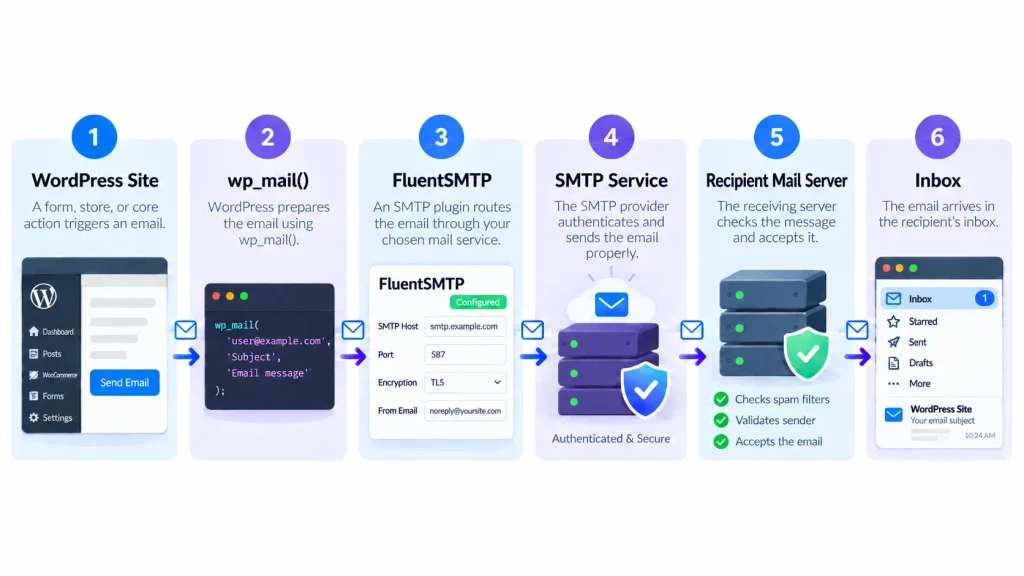
Instead of handing the message to the local server, WordPress logs into a real mail service with credentials and sends it properly. That service handles authentication, reputation, and delivery.
This also fixes the silent failure problem. An SMTP connection either succeeds or returns an error you can read.
One thing that catches people out: Some services start you in a restricted mode. Amazon SES accounts begin in a sandbox that only delivers to addresses you have verified yourself, so a live store will send nothing until production access is approved. Check your provider’s status before concluding that the setup failed.
Cause B: Mail is sending but landing in spam
You’ll see: A successful send in the log. The recipient finds the message in their junk folder, or never sees it even though your log insists it went out.
Sending is not the same as delivering. Once your server hands a message over, the receiving mail server decides what to do with it. If it cannot verify that the message is genuinely from your domain, spam can be the outcome. This is why WordPress emails land in spam even when the site reports them as sent.
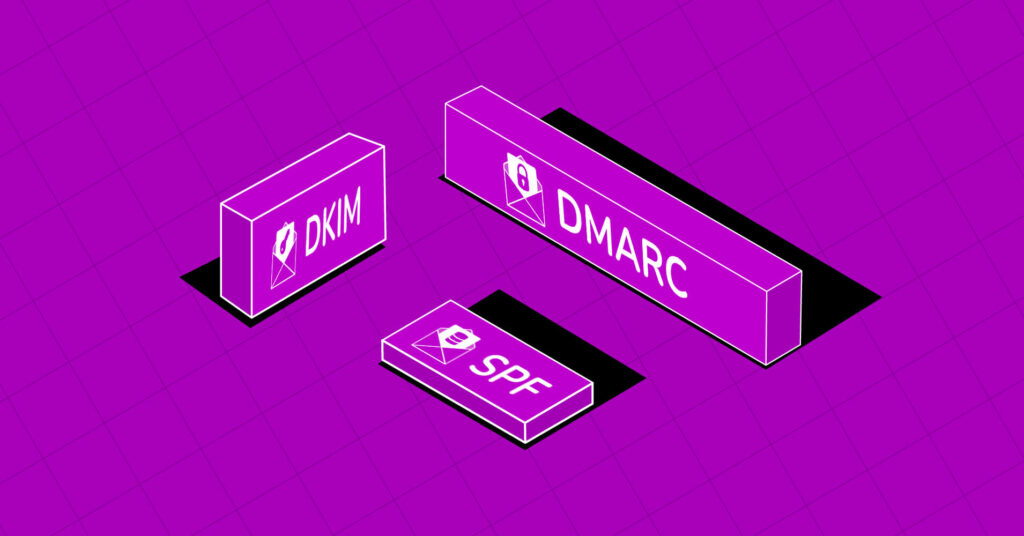
Three DNS records make that verification possible:
- SPF lists which servers are permitted to send mail using your domain.
- DKIM signs each message cryptographically so tampering is detectable.
- DMARC tells receiving servers what to do when a message fails authentication checks.
Without these, you are asking Gmail to trust an unsigned message from an unverified source. That makes reliable inbox placement much harder.
This became even more important in February 2024, when Google and Yahoo introduced stricter bulk sender requirements. Under Google’s published Email Sender Guidelines, domains sending more than 5,000 messages a day to Gmail addresses need valid email authentication, along with SPF and DKIM authentication. A store running abandoned cart and shipping notifications alongside order confirmations can reach that threshold faster than many owners expect.
Worth knowing: Switching to SMTP in Cause A does not authenticate your email on its own. It routes mail correctly, but the DNS records still need to exist.
Cause C: One specific plugin isn’t sending
You’ll see: Some email works and one plugin’s doesn’t. Password resets arrive fine; contact form notifications never do. Or one form on your site sends while another stays silent.
This one is confusing because the delivery layer is obviously working. If your password reset emails arrive, WordPress can send.
The reason plugin-level failures survive a working SMTP setup is that form plugins add their own layer on top. Every one of them has its own notification settings, its own recipient and sender fields, and in most cases conditional logic that can silently suppress a notification. A form that never triggers its notification never reaches wp_mail() at all, so nothing appears in your email log, and no amount of SMTP configuration will change that.
There is also a sender address trap common to all of them. Many form plugins default to sending from whatever address the visitor typed into the form. That means your server is sending mail claiming to be from gmail.com or outlook.com, a domain it has no authorisation to use. Modern spam filters can reject this outright. It is one of the most frequent causes of “the form works, but I never get the email.”
The specifics differ by plugin, so go straight to the guide for yours:
| Form plugin | Typical symptom | Fix guide |
|---|---|---|
| Contact Form 7 | Success message shows, no notification arrives | Contact Form 7 not sending email |
| Elementor Forms | Submissions recorded, email notification silent | Elementor form not sending email |
| WPForms | Entries saved but notifications don’t send | WPForms not sending emails |
| Gravity Forms | Notification configured but never fires | Gravity Forms notifications not sending |
| Ninja Forms | Form submits, admin email missing | Ninja Forms not sending emails |
| Divi Contact Form | Message sends, nothing reaches the inbox | Divi contact form not sending emails |
| Formidable Forms | Entry recorded, notification doesn’t arrive | Formidable Forms not sending email |
| ZoloBlocks | Block form submits without delivering | ZoloBlocks contact form email delivery |
If your form plugin is not listed, the diagnostic sequence is the same: confirm the notification is enabled and unconditioned, check what address it sends from, then check whether the attempt reaches your email log.
Cause D: LMS or membership plugin emails aren’t arriving
You’ll see: Enrolment confirmations, lesson notifications, or membership welcome emails are missing, while ordinary site email works.
Course and membership platforms send in bursts. A cohort enrolment, a drip content release, or a renewal cycle can fire dozens or hundreds of messages within a minute or two.
That volume pattern can become the problem. Shared hosts often cap outgoing mail per hour, and a burst above the cap can be throttled or dropped without an error your site ever sees. Your host may publish this limit in its terms of service. Find it, then compare it with the size of your largest cohort or drip release.
The email log can make this unmistakable: a run of successful sends that stops partway through a batch often points to a rate limit rather than a simple misconfiguration. A misconfiguration usually fails from the beginning, not on the fortieth message.
The stakes are also higher than a missed contact form. A student who never receives their enrolment email may not be able to access the course they just paid for, and their first experience of your product becomes a support ticket.
If you are on shared hosting and enrolling students in cohorts rather than one at a time, an SMTP service with proper sending headroom becomes essential. Cause A is your real fix here. The throttling is the symptom, not the underlying problem.
Cause E: WooCommerce order emails aren’t going out
You’ll see: Orders process and appear in your dashboard, but the customer’s confirmation never arrives, or your store notification doesn’t.
WooCommerce failures have two layers, and they need checking in order.
The first layer is WooCommerce’s own email settings. Each notification type, including new order, processing, completed, and refunded, is enabled or disabled individually, with its own recipient. A store can process orders perfectly while one notification sits switched off or points to an address nobody has monitored since the site launched.
Nothing reaches your email log because nothing was ever attempted. That distinction matters. An empty log here means the problem is in WooCommerce, not in your delivery setup.
The second layer is delivery, which is everything else in this guide. If the notification is enabled and still not arriving, you have one of the other five causes, and the WooCommerce settings were a red herring.
Check the first layer before the second. It takes a minute and rules out the simplest explanation.
Cause F: WordPress’s own emails aren’t arriving
You’ll see: New users never receive registration confirmations, or password reset requests produce nothing.
WordPress core emails often break first and are usually the last thing anyone tests. A site can run for months with broken core email before someone tries to reset a password and discovers it.
They are also one of the clearest diagnostic signals you have. Registration and password reset emails are sent by WordPress core through wp_mail() with no form or ecommerce plugin involved. If these fail, the problem is usually the delivery layer itself, Cause A or Cause B, rather than an individual plugin.
If you have just fixed your SMTP configuration and want to confirm it worked, request a password reset. It exercises the whole path with very little else in the way.
Once it’s fixed: making sure it stays fixed
WordPress email breaks quietly, and that is the entire problem. Your site does not warn you. By the time a customer asks where their confirmation went, you have no way of knowing whether it was one message or three weeks of them.
Fixing the cause does not fix the blindness. Three habits do.
- Keep logging on: A log answers “did this send?” instantly, without reproducing the problem. It is also the only way to know how long a failure has been running.
- Set up failure alerts: Get notified when a send fails, instead of finding out through a customer complaint weeks later.
- Test after anything changes: Migrations, host changes, DNS edits, and provider updates all break email delivery, and none of them announce it. A password reset request takes fifteen seconds and confirms the whole path still works.
FluentSMTP handles the first two: logging runs by default, and failure alerts can be routed to Slack, Telegram, or Discord, so a failed send reaches you the same day rather than the same quarter.
Frequently Asked Questions
Nader Chowdhury
Table of Content
Subscribe To Get
WordPress Guides, Tips, and Tutorials


Add your first comment to this post