

SMTP Error Codes Explained: What Each Code Means and How to Fix It

550 5.7.1.
To a mail server, that is a complete sentence. To everyone else, it looks like a phone number that means absolutely nothing!
SMTP error codes are the compact language mail servers use to communicate with each other. They tell you whether an email was accepted, temporarily delayed, or rejected completely. In many cases, they also tell you exactly what caused the problem.
The trouble is that these messages were written for servers, not people.
Once you understand how the codes are structured, though, they become much easier to read. You do not need to memorize every possible response. You only need to know what the numbers represent, where to find the full response, and what to check next.
Let’s decode them.
What Is an SMTP Error Code?
An SMTP error code is a response sent by a mail server during the email delivery process.
When your WordPress site sends an email, the sending server communicates with one or more receiving servers. At each stage, the receiving server can respond with a numerical code.
That response might mean:
- The message was accepted
- The server needs more information
- Delivery is temporarily unavailable
- Authentication failed
- The recipient does not exist
- The message was rejected by a security policy
- The sender or sending IP is not trusted
The number gives you the general result. The text following the number usually provides the specific reason.
For example: 550 5.7.1 – Message rejected due to unauthenticated sender
- The 550 tells you that the rejection is permanent
- The 5.7.1 narrows it down to a security or policy-related rejection
- The accompanying message tells you what the receiving server disliked
Always read the complete response when it is available. Two servers can return the same basic code while describing very different problems.
How SMTP Error Codes Are Structured
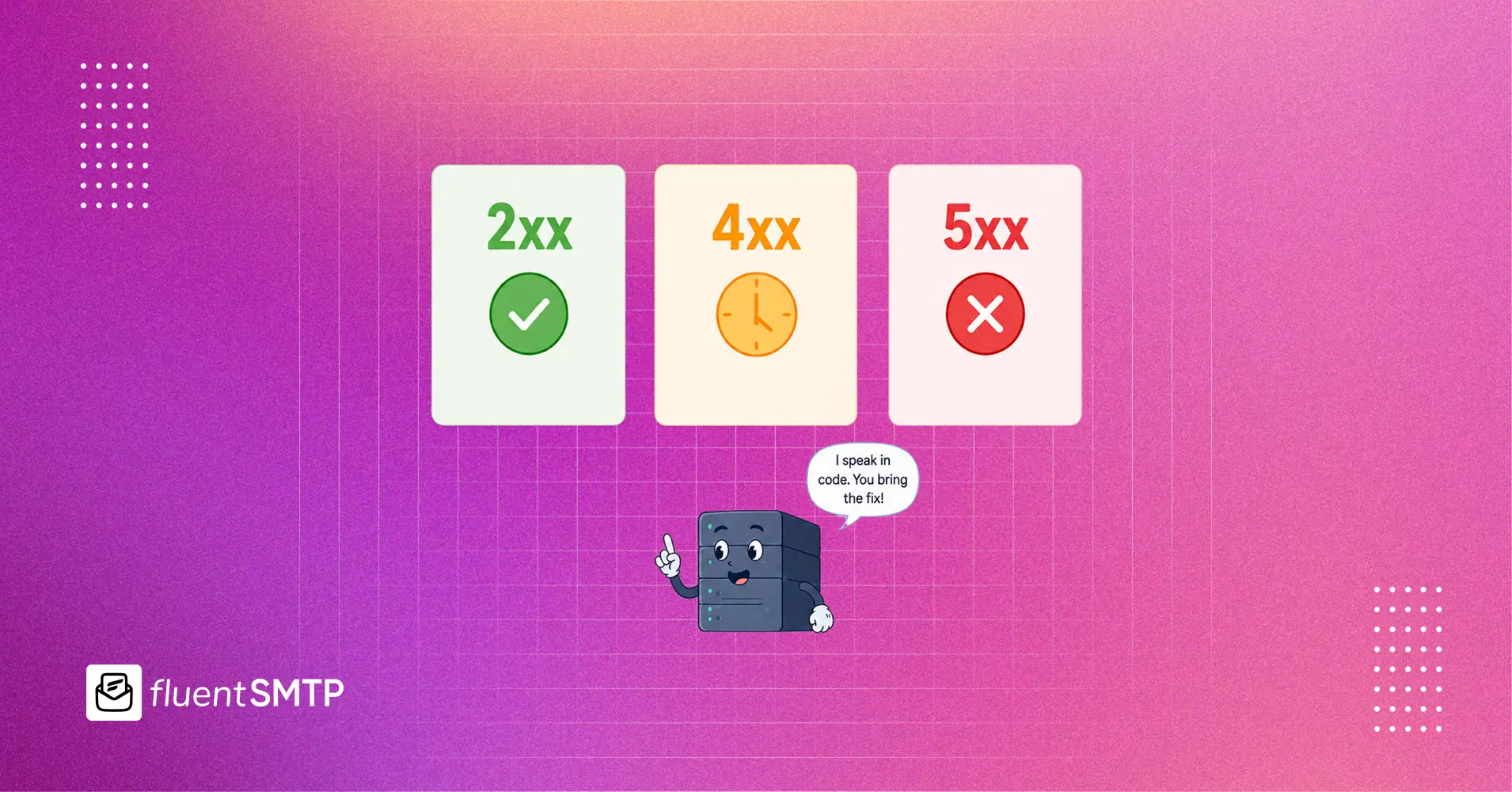
A standard SMTP response begins with a three-digit number. The first digit tells you the broad category of the response before you read anything else.
2xx: The Message Was Accepted
A response beginning with 2 means the requested action was completed successfully. For example: 250 Message accepted for delivery
You will not normally spend much time troubleshooting 2xx responses because nothing has failed. However, a successful SMTP response only confirms that the receiving server accepted the message. It does not always guarantee that the email reached the recipient’s primary inbox. The message could still be filtered, quarantined, or placed in spam later.
3xx: The Server Needs More Information
A response beginning with 3 means the server has accepted part of the request but needs additional information before continuing. For example: 354 Start mail input
This response tells the sending server to begin transmitting the email content. These codes are usually part of the normal SMTP conversation and do not indicate a delivery problem on their own.
4xx: A Temporary Failure
A response beginning with 4 means the server cannot accept the message right now, but the problem may resolve later. This is commonly called a soft bounce.
Temporary failures can happen because:
- The receiving server is busy
- The recipient’s mailbox is temporarily unavailable
- The sender has exceeded a rate limit
- The server is using greylisting
- The receiving system is experiencing a temporary problem
- The sender’s IP has been temporarily restricted
A properly configured sending server will normally retry the message automatically. Repeatedly sending the same message manually is not usually helpful. It can make rate-limiting or reputation problems worse.
5xx: A Permanent Failure
A response beginning with 5 means the server has refused the message permanently. This is commonly called a hard bounce.
A 5xx response means something must change before another attempt is likely to succeed. The problem could be:
- Incorrect SMTP credentials
- An invalid recipient address
- Missing authentication
- A failed SPF, DKIM, or DMARC check
- An unauthorized relay attempt
- A blocked sending domain or IP
- A message that violates the recipient server’s policy
- An attachment or message that exceeds the allowed size
Retrying the same message without fixing the cause will normally produce the same result
What Are Enhanced SMTP Status Codes?
Many modern mail servers include another code after the standard three-digit response. It usually looks like this: 5.7.1
This is called an enhanced status code. Enhanced codes follow this structure:
Class.Subject.Detail
The first number shows the result:
- 2 means success
- 4 means a temporary failure
- 5 means a permanent failure
The second number identifies the general area of the problem:
- 1 often relates to addressing
- 2 often relates to mailbox status
- 4 often relates to network or routing
- 5 often relates to mail delivery protocols
- 7 often relates to security or policy
The final number provides more specific detail:
- 5.1.1: This commonly means the destination mailbox does not exist
- 5.2.2: This usually means the recipient’s mailbox is full
- 5.7.1: This points to a security, authorization, or policy-related rejection.
The enhanced code helps narrow down the cause, but the text beside it still matters. Email providers sometimes use the same enhanced code for slightly different rejection policies.
Common SMTP Error Codes and How to Fix Them
The following are some of the SMTP responses you are most likely to encounter when sending email from WordPress.
| Code | Type | What It Usually Means | What to Check |
| 220 | Success | The SMTP server is ready | Nothing needs fixing |
| 221 | Success | The server is closing the connection normally | Nothing needs fixing |
| 235 | Success | SMTP authentication succeeded | Nothing needs fixing |
| 250 | Success | The requested action was completed, often meaning the message was accepted | Nothing needs fixing at the SMTP stage |
| 354 | Continue | The server is ready to receive the email content | This is part of normal delivery |
| 421 | Temporary | The service is unavailable, busy, rate-limiting the sender, or closing the connection | Wait for an automatic retry, then check limits, server availability, and sending reputation |
| 450 | Temporary | The mailbox or requested action is temporarily unavailable | Wait and retry; check for greylisting or temporary recipient restrictions |
| 451 | Temporary | The server encountered a local processing error or temporary policy issue | Retry later and review the full server response |
| 452 | Temporary | The server has insufficient storage or resources | Retry later; check recipient quota, provider limits, or message volume |
| 530 | Permanent | Authentication is required before sending | Enable SMTP authentication and confirm the correct connection method |
| 535 | Permanent | SMTP authentication failed | Recheck the username, password, API key, encryption method, and SMTP port |
| 550 | Permanent | The mailbox is unavailable or the message was rejected | Read the enhanced code; verify the recipient, authentication, reputation, and server policy |
| 551 | Permanent | The recipient is not hosted on that server or should be sent elsewhere | Verify the recipient address and destination domain |
| 552 | Permanent | The mailbox is full or the message exceeds a size limit | Reduce the email or attachment size and check mailbox storage |
| 553 | Permanent | The sender or recipient address is invalid or not permitted | Check address formatting, sender identity, and provider restrictions |
| 554 | Permanent | The transaction failed, often because of spam or policy filtering | Review authentication, content, links, reputation, and the full rejection message |
These descriptions are useful starting points, not universal definitions. A 550 response from one provider might mean the recipient does not exist. Another provider might use it because your domain failed authentication. That is why you should never troubleshoot using only the first three digits.
What Does “550 5.7.1” Mean?
550 5.7.1 deserves its own section because it is one of the most common and confusing SMTP errors. In most cases, it means the receiving server rejected the message because of a security, authorization, or policy rule.
The email successfully reached the receiving server. The server then inspected the sender, authentication results, permissions, reputation, or content and decided not to accept it.
Several different problems can produce this response.
SPF, DKIM, or DMARC Failed
The receiving server may not have been able to confirm that your domain authorized the message. This can happen when:
- Your SPF record does not include the sending provider
- Your domain has multiple conflicting SPF records
- Your DKIM signature is missing or invalid
- Your DMARC policy is active, but SPF and DKIM alignment fail
- You recently changed DNS records and the changes have not fully propagated
A rejection message may include wording such as:
- Unauthenticated sender
- SPF validation failed
- Message rejected due to DMARC policy
Check your domain’s SPF, DKIM, and DMARC configuration. Also confirm that the domain used in your From address matches the domain authenticated by your sending provider.
SMTP Relaying Was Denied
Relaying happens when one mail server sends a message onward to another destination.
That is a normal part of email delivery when the server has permission to do it. The problem begins when a server is asked to relay mail without proper authorization.
A response might say:
- Relay access denied
- Unable to relay
- Relaying prohibite
This often means:
- SMTP authentication was not completed
- The sender is using the wrong outgoing server
- The server does not recognize the sender’s domain
- The authenticated account does not have permission to use the selected From address
Confirm that your SMTP host, port, encryption, username, and password belong to the same email provider. You should also make sure the From address is permitted by that provider.
For a deeper explanation, see our complete guide to SMTP relay and when to use it.
The Sender Has a Reputation Problem
The sending IP or domain may have a poor reputation. Receiving servers calculate trust using signals such as:
- Previous spam complaints
- High bounce rates
- Sudden changes in sending volume
- Spam-trap activity
- Blocklist appearances
- Low engagement
- Suspicious or misleading content
- Shared hosting IP reputation
In this case, the server may reject the message even when your SMTP credentials are correct. Search the complete response for phrases such as:
- IP reputation
- Sender blocked
- Message considered spam
- Listed on a blocklist
Moving from a shared hosting mail server to a reputable transactional email provider can often improve the sending path. However, changing providers will not fix poor sending practices by itself. You may still need to clean your recipient list, reduce complaints, and improve authentication.
The Recipient Server Has a Specific Policy
Sometimes your setup is technically correct, but the recipient server still refuses the message.
The server may block:
- Certain attachment types
- Messages containing suspicious links
- Messages from newly registered domains
- Senders without reverse DNS
- Emails that fail internal spam checks
- Messages that do not meet organization-specific security requirements
The text after 550 5.7.1 will usually provide the most useful clue
Why a 550 Error Does Not Always Mean the Same Thing
It is tempting to treat every 550 response as an invalid email address. Sometimes that is the cause.
For example:
550 5.1.1 User unknown
This strongly suggests that the mailbox does not exist.
But this response means something different:
550 5.7.1 Message rejected due to sender policy
Here, the recipient may be perfectly valid. The problem is that the receiving server does not trust or permit the sender.
Always look at:
- The basic SMTP code
- The enhanced status code
- The explanatory text
- The stage at which the failure happened
Those four pieces together give you a much clearer diagnosis.
How to Fix an SMTP Error Code
You do not need to memorize every number. A consistent troubleshooting process is more useful.
1. Capture the Complete Error Message
Start by finding the full SMTP response.
Do not stop at: 550
Look for the complete message, such as:
550 5.7.1 Message rejected because SPF validation failed
The text after the code may contain:
- The rejected sender
- The recipient domain
- The failed authentication method
- A provider-specific support link
- A blocklist name
- A policy identifier
- A retry time
- A rate-limit explanation
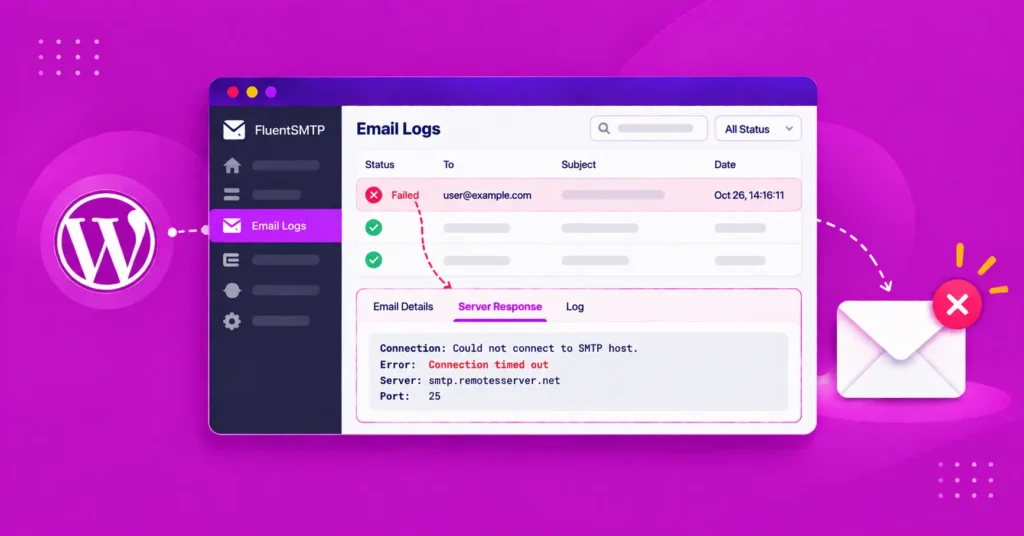
For WordPress email, you can usually find this information inside your SMTP plugin’s email log or error details.
2. Check Whether It Is Temporary or Permanent
Look at the first digit. A 4xx error is temporary. Allow the sending server to retry before making major changes.
A 5xx error is permanent. Something needs to be corrected before another attempt will work.
This distinction prevents you from changing a working setup because of a short server outage. It also prevents you from repeatedly retrying a message that will continue to fail.
3. Verify Your SMTP Credentials
Authentication failures are among the easiest problems to diagnose. Check:
- SMTP hostname
- SMTP username
- SMTP password
- API key, when applicable
- Port number
- Encryption method
- From email address
- Provider authorization
A password can stop working after it is changed, revoked, or replaced with an app-specific password. Some providers also require the SMTP username to be the complete email address rather than only the part before the @ symbol.
For more details, see our guide to SMTP authentication
4. Check Your SPF, DKIM, and DMARC Records
Valid SMTP credentials prove that your website can connect to the sending server.
Domain authentication proves that the server is allowed to send mail for your domain.
You usually need to check all three:
- SPF lists the servers permitted to send on behalf of your domain
- DKIM adds a cryptographic signature that receiving servers can verify
- DMARC tells servers what to do when SPF or DKIM checks fail and checks domain alignment
A message can leave your WordPress site successfully and still be rejected later because these DNS records are missing or incorrect.
5. Verify the Sender and Recipient Addresses
Check both sides of the message.
For the recipient:
- Confirm the address is spelled correctly
- Check whether the mailbox still exists
- Remove accidental spaces or invalid characters
- Confirm that the domain has working mail records
For the sender:
- Use an address authorized by your SMTP provider
- Avoid using an unrelated free email address as the From address
- Keep the From domain aligned with your authenticated domain
- Make sure the Reply-To address is formatted correctly
Some SMTP providers will reject a message when the authenticated account and From address do not match.
6. Check Message Size and Attachments
Large emails can produce 552, 554, or provider-specific rejection messages.
Check:
- Total attachment size
- Individual attachment limits
- Blocked file extensions
- Number of attachments
- Message body size
Remember that email encoding increases attachment size during transmission. A file that appears to be within the limit on your computer may become larger when attached to an email.
For large files, send a secure download link instead of attaching the file directly.
7. Review Your Sending Limits
SMTP providers often limit:
- Messages per minute
- Messages per hour
- Messages per day
- Number of recipients per email
- Simultaneous connections
- Maximum message size
Exceeding these limits can cause temporary 421, 450, 451, or 452 responses.
Do not immediately resend a large batch. Check your provider dashboard and allow the rate-limit window to reset.
8. Check Your Sending Reputation
When authentication, addresses, and message size are correct, reputation becomes the next likely cause.
Review:
- Bounce rates
- Spam complaints
- Recipient engagement
- Recent sending-volume changes
- Domain and IP blocklists
- The quality of your email list
- Whether recipients explicitly requested the emails
Avoid sending repeatedly to addresses that have already hard-bounced. Continuing to send to invalid recipients can damage your reputation further.
9. Review the Email Content
Spam filters do not judge a message using one word or one rule. They evaluate the entire message and the sender’s history.
Still, certain elements can increase the chance of rejection:
- Misleading subject lines
- Suspicious shortened links
- Links to low-reputation domains
- Executable attachments
- Broken HTML
- Image-only messages
- Hidden text
- Too many redirects
- A From name that impersonates another organization
When a server returns a content-related rejection, test a simpler version of the email. Remove unnecessary links and attachments, then try again after correcting the underlying issue.
10. Resend Only After Fixing the Cause
A failed email should not be resent blindly.
First correct the authentication, recipient, reputation, policy, or content problem. Then resend the message.
Repeatedly sending the same rejected message can create duplicate emails if the original was delayed rather than permanently rejected. It can also trigger additional rate limits.
Check the SMTP Response Before Checking the Email Header
Email headers are incredibly useful, but only after a receiving server has accepted the message. If the message was rejected during the SMTP conversation, there may be no delivered email whose header you can inspect.
In that situation, the most useful source is the SMTP transaction response stored by your sending service or WordPress SMTP plugin.
When a message is accepted but later routed to spam, the header becomes more useful. You can inspect fields such as: Authentication-Results, Received-SPF, DKIM-Signature Received.
These fields can show whether SPF, DKIM, and DMARC passed and which servers handled the message.
Our guide to reading an email header explains how to follow that delivery path in more detail.
Why SMTP Errors Are Difficult to Diagnose in WordPress
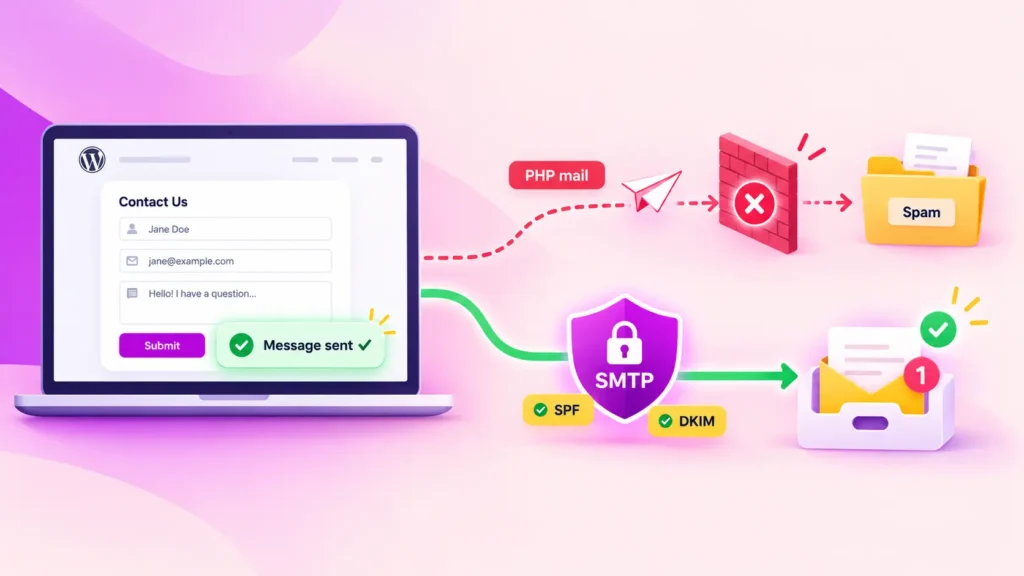
By default, WordPress sends email through the wp_mail() function. The actual delivery method depends on the server configuration beneath it. On many hosting environments, that means PHP mail or a basic local mail server.
This creates two problems.
First, the sending path may not be properly authenticated.
Second, WordPress may provide very little information when delivery fails.
Your website can appear to send an email successfully even though the message is later rejected, delayed, or filtered. In some cases, the only sign of the problem is a customer saying they never received an order confirmation, password reset, form notification, or account email. That is not a great monitoring system.
Get Notified the Moment an Email Fails
Diagnosing an SMTP code after the fact only works when you know the email failed in the first place. Most WordPress sites do not make that obvious.
An email fails silently. Nobody notices. Then, hours or days later, a customer asks why they never received their confirmation email.
FluentSMTP closes that gap with real-time failure alerts.
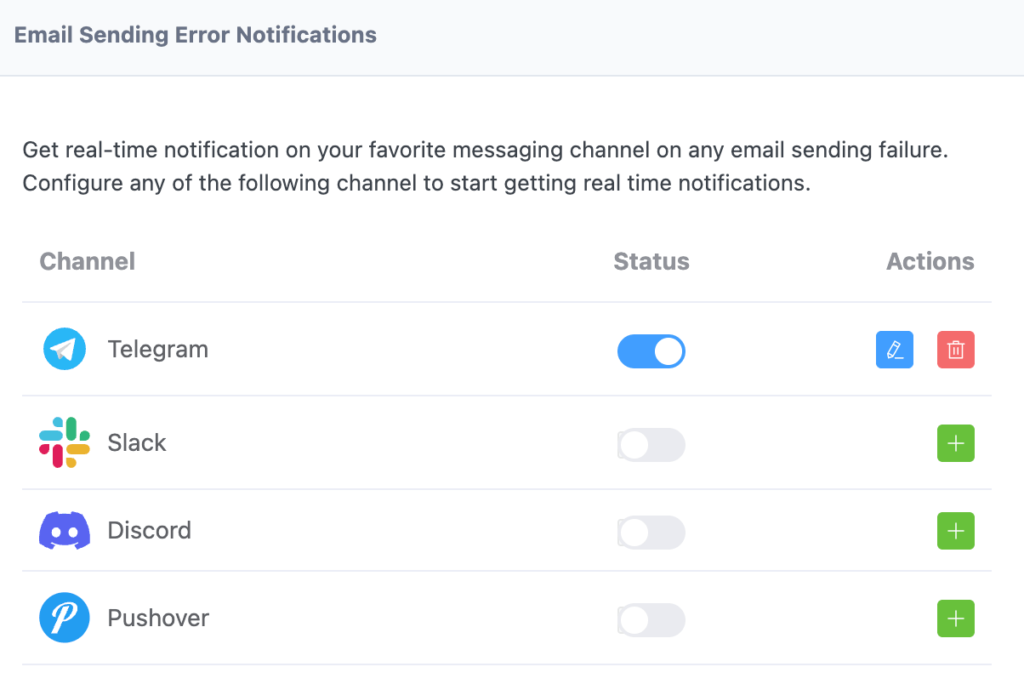
You can connect Slack, Telegram, or Discord from the FluentSMTP alert settings. When a send fails, FluentSMTP can notify you in the channel your team already uses. Instead of discovering the problem from a customer, you can investigate it immediately.
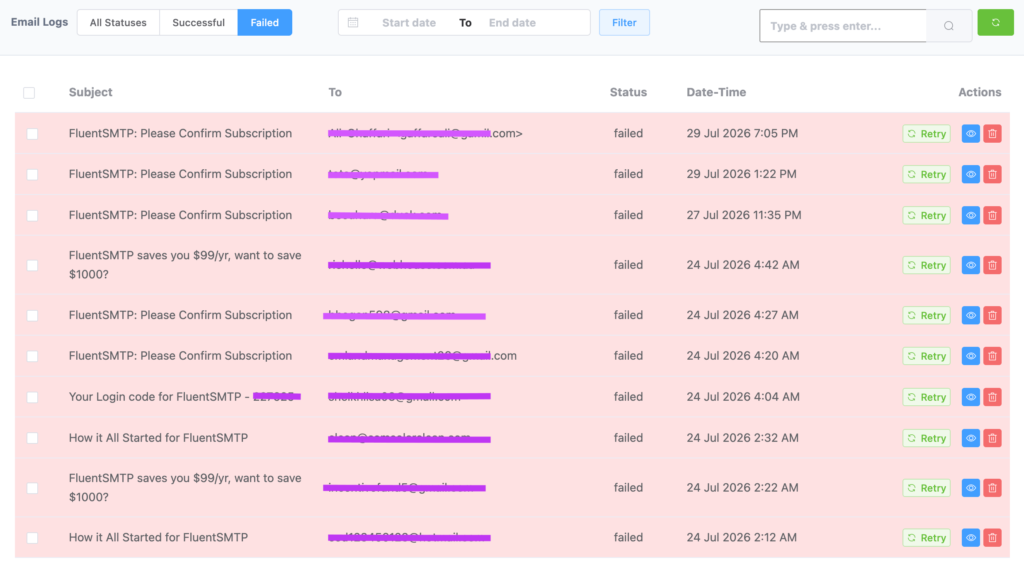
Every failed send is also recorded in the Email Log, where you can review details such as:
- The recipient
- The subject
- The sending connection
- The server response
- The date and time
- The email headers
- The message content
Once the underlying problem has been fixed, you can resend the email directly from the log. This does not make SMTP errors disappear. It makes them visible, understandable, and much easier to resolve.
Frequently Asked Questions
What Is the Difference Between a 4xx and 5xx SMTP Error?
A 4xx response means the failure is temporary. The receiving server may accept the message later, and the sending server will normally retry automatically. A 5xx response means the failure is permanent. The message will continue to fail until something changes, such as the recipient address, SMTP credentials, domain authentication, sender reputation, or message content.
What Does SMTP Error 535 Mean?
SMTP error 535 means authentication failed. The username, password, API key, SMTP host, port, or encryption method may be incorrect. The provider may also require an app password or may have revoked the existing credentials.
What Does SMTP Error 550 Mean?
SMTP error 550 is a broad permanent rejection. It can mean: The recipient does not exist, The sender is not authorized, Relaying is denied, SPF, DKIM, or DMARC failed, The sending IP or domain has a poor reputation, The message violates a recipient-server policy, etc.
What Does 550 5.7.1 Mean?
550 5.7.1 usually means the receiving server rejected the message because of a security, authorization, or policy rule.
What Does 550 5.1.1 Mean?
550 5.1.1 normally means the recipient mailbox does not exist. Check the spelling of the address and confirm that the mailbox is still active. Do not continue sending to the address if the server repeatedly returns a hard bounce.
What Does SMTP Error 554 Mean?
SMTP error 554 means the transaction failed permanently. It is commonly associated with spam filtering, policy restrictions, blocked senders, poor reputation, suspicious content, or failed authentication.
Can I Resend an Email After an SMTP Error?
Yes, but only after understanding the type of failure. For a temporary 4xx response, your mail server may retry automatically. For a permanent 5xx response, fix the cause before resending. Otherwise, the next attempt will probably fail for the same reason.
Are SMTP Error Codes the Same for Every Email Provider?
The broad categories are standardized, but providers do not always describe or apply them in exactly the same way. Gmail, Microsoft, Yahoo, hosting providers, and private mail servers may return different wording for similar problems. Some also include their own policy codes or support links.
Fix the Cause, Not Just the Code
An SMTP error code is a symptom.
The real cause is usually one of a familiar handful of problems:
- Incorrect credentials
- Missing authentication
- An invalid address
- An unauthorized sending path
- Provider limits
- Poor sender reputation
- A recipient-server policy
- Suspicious content or attachments
The code tells you where to begin. The enhanced status code and accompanying message help narrow the problem down.
The best approach is not to wait until these failures reach your customers.
Connect WordPress to a properly authenticated sending provider. Keep your SPF, DKIM, and DMARC records correctly configured. Monitor every send. Then set up alerts so you know the moment something goes wrong.
FluentSMTP helps you do exactly that.
It gives WordPress a properly authenticated sending path, keeps every email inside a detailed log, and alerts you when delivery fails.
So when a mail server sends you something like 550 5.7.1, it no longer looks like a meaningless number.
It tells you exactly where to start.
Nader Chowdhury
Table of Content
Subscribe To Get
WordPress Guides, Tips, and Tutorials




Add your first comment to this post