

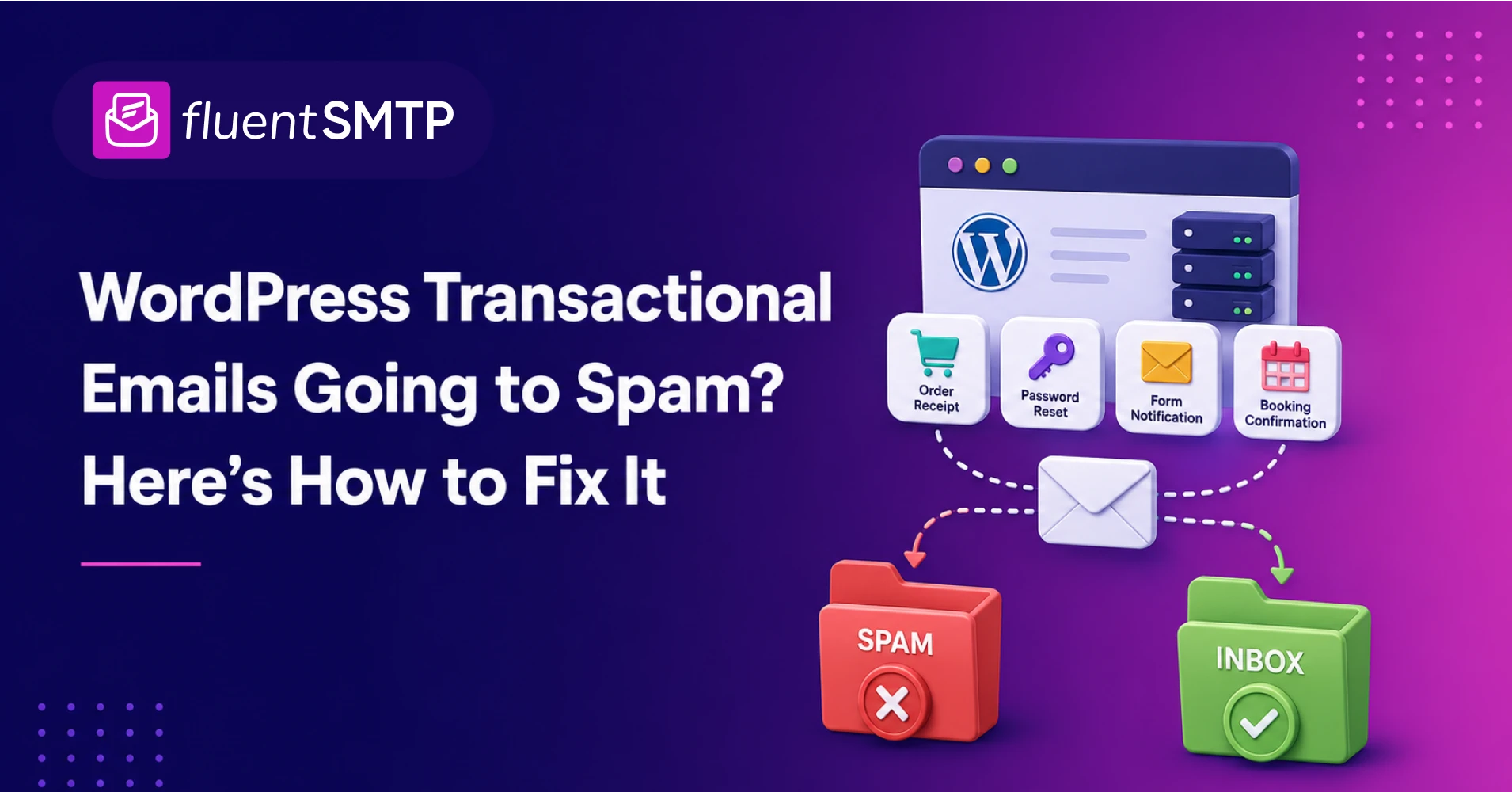
WordPress Transactional Emails Going to Spam? Here’s How to Fix It

Your customer completes a payment. The order page confirms it. WordPress sends the receipt.
The customer receives nothing.
Now they are wondering whether the order worked. Your support team gets another ticket. And a technical email problem has quietly become a customer experience problem.
When WordPress transactional emails are going to spam, missing completely, or arriving hours late, changing the subject line will rarely fix the real issue. You need to find where the message failed: inside WordPress, at the sending provider, during authentication, or at the recipient’s mailbox.
This guide will help you trace that journey and fix the weak point without guessing.
For a wider look at infrastructure, list quality, sender reputation, and monitoring, read this complete WordPress email deliverability guide. Here, we will focus specifically on the emails your website cannot afford to lose.
Key Takeaways
Short on time? Start here:
- Confirm that WordPress actually triggered the email.
- Check the WordPress email log before changing anything.
- Stop depending on your web host’s default mail configuration.
- Connect WordPress to a dedicated email provider through SMTP or an API.
- Use a From address on a domain you control.
- Configure and verify SPF, DKIM, and DMARC.
- Check the provider response, not only the WordPress status.
- Separate transactional and marketing traffic where practical.
- Test real order, form, booking, and password-reset workflows.
- Remember that “sent” does not guarantee inbox placement.
The fastest fix is not a new email template. It is finding the exact stage where delivery breaks.
What Is a WordPress Transactional Email?
A transactional email is an automated message triggered by a specific user or website action.
The recipient usually expects it immediately because it contains information needed to complete or confirm something.
Common WordPress transactional emails include:
| Website action | Transactional email |
|---|---|
| Customer completes a purchase | Order confirmation or payment receipt |
| Store ships an order | Shipping update and tracking details |
| User requests a new password | Password-reset link |
| Visitor creates an account | Account confirmation or verification |
| Visitor submits a form | Submission confirmation and admin notification |
| Customer books an appointment | Booking confirmation and reminder |
| Payment fails or renews | Subscription or billing notification |
| User opens a support request | Ticket confirmation and status update |
| Student joins a course | Enrollment confirmation and access details |
| Customer buys a digital product | Download link or license information |
These are only some of the different types of emails WordPress businesses send.
Transactional emails are not the same as newsletters or promotional campaigns. They are triggered individually and usually contain information specific to the recipient. Read the full transactional email vs. marketing email comparison if you need help separating the two.
That distinction matters because mixing both types of email on one sending stream can put critical messages at risk.
If a marketing campaign generates complaints or sudden volume spikes, the resulting reputation damage may affect order receipts and password resets sent through the same domain and infrastructure.
Why Are WordPress Transactional Emails Going to Spam?
WordPress transactional emails usually go to spam because the sending setup lacks one or more trust signals mailbox providers expect.
The most common causes are:
- WordPress depends on the hosting server’s default mail configuration.
- No dedicated SMTP or email API connection is configured.
- The From address uses a free or unrelated domain.
- SPF, DKIM, or DMARC is missing or incorrect.
- The From domain does not align with the authenticated domain.
- The sending IP or domain has a weak reputation.
- Marketing and transactional emails share the same sending stream.
- The recipient address previously bounced and entered a suppression list.
- The sending volume changed suddenly.
- The email contains suspicious, broken, or misleading links.
- A WordPress plugin failed to generate the email correctly.
- The recipient’s mailbox provider rejected, deferred, or filtered the message.
Several problems can look identical from the customer’s side. They received nothing. But each problem requires a different fix.
That is why the first job is not “improve deliverability.”
It is to locate the failure.
“Sent” Does Not Mean “Received”
WordPress officially warns that a successful wp_mail() result does not mean the recipient received the email. It only means WordPress processed the request without detecting an error. WordPress developer documentation
Between the original WordPress event and the customer’s inbox, the message passes through several stages.
| Stage | What happened |
|---|---|
| Triggered | A plugin or WordPress event generated the email. |
| Processed | WordPress passed the message to its configured mailer. |
| Accepted | The sending provider accepted the message. |
| Delivered | The recipient’s mail server accepted it. |
| Inbox placement | The message reached a visible inbox instead of spam. |
A message can succeed at one stage and fail at the next.
For example:
- WordPress may trigger an order receipt, but the mail connection fails.
- The email provider may accept it, but Gmail may reject it.
- Gmail may accept the email, but place it in spam.
- The message may reach the inbox, but a mail rule may hide it in another folder.
Understanding how SMTP moves an email between servers makes these handoffs much easier to diagnose.
Diagnose the Problem Before You Fix It
Use the message pattern to narrow down the likely cause.
| What you see | Most likely area to investigate |
|---|---|
| No email appears in the WordPress log | Plugin trigger, notification settings, cron, queue, or code |
| Email appears as failed | SMTP credentials, API key, OAuth, port, TLS, or provider configuration |
| Email appears as successful but never arrives | Provider history, bounces, suppression, recipient rejection, or filtering |
| Only Gmail recipients are affected | Gmail reputation, authentication, or policy enforcement |
| Only one type of WordPress email fails | Plugin-specific notification or routing configuration |
| Emails arrive after a long delay | Provider throttling, temporary deferral, or sending-volume problem |
| Emails arrive in spam everywhere | Authentication, alignment, reputation, or content issue |
| Some recipients receive the email and others do not | Mailbox-specific filtering, invalid addresses, or provider reputation |
Once you know the pattern, follow the appropriate steps below.
1. Confirm That WordPress Generated the Email
Do not begin with DNS records.
First, confirm that WordPress or the responsible plugin created the message.
Trigger the actual action causing trouble:
- Place a test order.
- Request a password reset.
- Submit the contact form.
- Create a test account.
- Book an appointment.
- Open a support ticket.
- Trigger a subscription renewal notice.
Then check your WordPress email log.
If no entry appears, the delivery system has not received anything to send. The problem is likely inside WordPress or the plugin that should have generated the notification.
Check:
- Is the notification enabled?
- Is the recipient address correct?
- Does the email use a conditional rule that was not met?
- Is a cron job or background queue stuck?
- Did the plugin record an error?
- Is another plugin overriding the From address?
- Does the message fail only with a particular template?
- Is there a plugin or theme conflict?
For form notifications, confirm both sides separately. A form may successfully save the entry while failing to trigger the admin notification or user confirmation.
If you need a logging system first, follow this guide to set up and check WordPress email logs.
2. Inspect the Email Log and Provider Response
If the email appears in the log, check its status and full error information.
A failed entry may reveal:
- Authentication failure
- Invalid API key
- Expired OAuth token
- Unauthorized From address
- Connection timeout
- Incorrect SMTP port
- TLS or certificate error
- Provider sending limit
- Suspended provider account
- Rejected recipient
- Rate limiting
Do not stop at a red or green status icon. Open the log entry and read the response.
The response often tells you exactly which system refused the message and why.
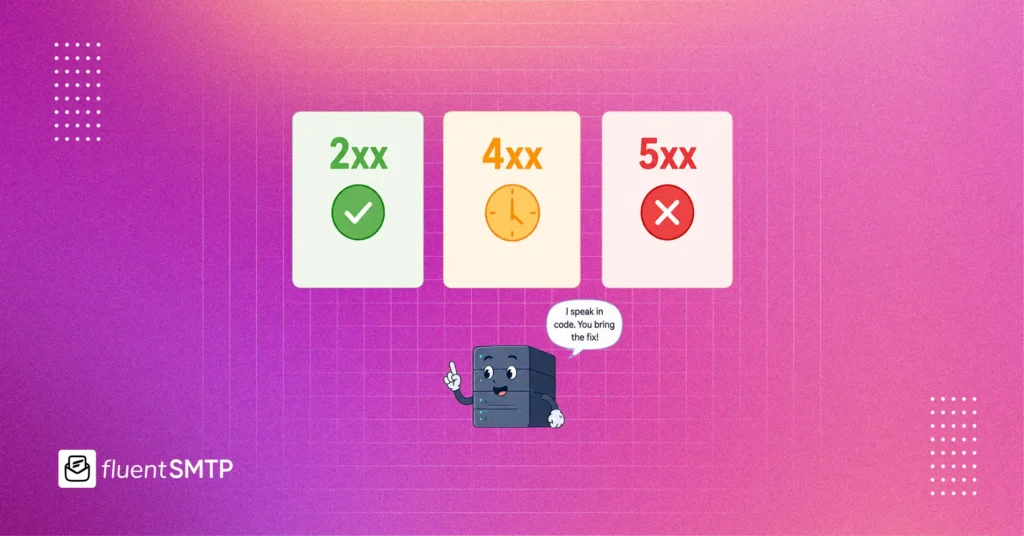
Common SMTP response groups include:
| Code range | General meaning |
|---|---|
| 2xx | The request was accepted |
| 4xx | Temporary failure or deferral |
| 5xx | Permanent rejection |
A 4xx response may be retried later. A 5xx response usually requires action before another attempt will work.
If the provider accepted the message but the recipient did not receive it, move outside WordPress. Check the provider’s activity, event, bounce, or suppression history.
3. Replace the Default WordPress Sending Method
Many WordPress websites begin by handing emails to the web server’s local mail configuration.
That setup may work for a while. But it usually gives you limited control over authentication, sending reputation, failure handling, routing, and diagnostics.
Your web host is built to serve websites. It may not be designed to deliver time-sensitive business email.
The safer setup is:
- WordPress generates the email.
- An SMTP plugin routes it securely.
- A dedicated email provider sends it.
- The recipient’s provider verifies and evaluates it.
FluentSMTP connects WordPress to services such as Amazon SES, Mailgun, SendGrid, Postmark, Brevo, Google Workspace, Microsoft 365, Elastic Email, SparkPost, SMTP2GO, and other standard SMTP providers.
Depending on the provider, the connection may use:
- An email API
- OAuth 2.0
- Standard SMTP credentials
To build the connection, follow the WordPress SMTP configuration guide.
After connecting to your provider, send a test email. Then trigger the actual transactional workflow. A generic test may succeed while an order or form notification fails because the plugin uses a different From address or routing rule.
4. Fix the From Address
Your visible From address should use a domain you control.
Good:
Risky:
- [email protected]
- [email protected]
- [email protected]
- A customer’s email address
- An address on a domain you have not authenticated
A common contact-form mistake is using the visitor’s email address as the From address.
Suppose someone submits a form using [email protected]. If your website sends the admin notification as if it came directly from that Gmail address, the message may fail authentication because your WordPress server is not authorized to send on behalf of Gmail.
Use this structure instead:
- From: [email protected]
- Reply-To: the visitor’s email address
The email comes from your authenticated domain, while clicking Reply still sends the response to the visitor.
You should also check whether different WordPress plugins are setting different From addresses. A password-reset email may use one address while a store plugin uses another. If only one message type fails, inconsistent From settings are a strong suspect.
5. Understand SMTP Authentication
SMTP authentication verifies that your WordPress website is authorized to connect to the sending service.
It checks credentials such as:
- Username and password
- API key
- OAuth token
- Account permission
- Approved sending identity
This is different from SPF, DKIM, and DMARC.
SMTP authentication protects the connection between WordPress and the sending provider. Domain authentication helps the recipient verify the message and its domain.
You need both.
Read what SMTP authentication means for WordPress if you are seeing credential, connection, or authorization errors.
6. Authenticate the Sending Domain
SPF, DKIM, and DMARC help mailbox providers verify that your email is legitimate.
| Record | What it checks |
|---|---|
| SPF | Whether the sending service is authorized to send for the domain |
| DKIM | Whether the message carries a valid cryptographic signature |
| DMARC | Whether SPF or DKIM passes with the required domain alignment |
These records belong in your domain’s DNS manager, not inside WordPress.
SPF
SPF lists the services allowed to send email for your domain.
If you use several sending services, they generally need to be included in a single valid SPF record. Creating multiple independent SPF records can invalidate the configuration.
DKIM
DKIM adds a cryptographic signature to each message.
The receiving server retrieves the public key from DNS and checks whether the signature is valid. A passing result helps confirm that the signed parts of the message were not altered after signing.
DMARC
DMARC checks whether the visible From domain aligns with the domain authenticated through SPF or DKIM.
It also publishes a policy describing how receivers should treat messages that fail.
A DMARC policy may begin in monitoring mode with p=none. Moving directly to p=reject without identifying every legitimate sending source can block your own emails.
Follow this complete tutorial to set up SPF, DKIM, and DMARC for WordPress.
Current Gmail, Yahoo, and Outlook Requirements
Authentication is no longer optional advice for serious senders.
Gmail
Google requires all senders to personal Gmail accounts to use SPF or DKIM. Senders delivering more than 5,000 messages per day to personal Gmail accounts must use SPF, DKIM, and DMARC, maintain alignment, use TLS, and follow additional sending requirements. Google’s email sender guidelines
Google recommends keeping the user-reported spam rate below 0.1% and preventing it from reaching 0.3% or higher. Google sender guidelines FAQ
Yahoo
Yahoo requires all senders to use SPF or DKIM at minimum. Bulk senders need SPF, DKIM, DMARC, alignment, easy unsubscribe for marketing messages, and low complaint rates. Yahoo Sender Best Practices
Microsoft Outlook
Microsoft introduced SPF, DKIM, and DMARC requirements for domains sending more than 5,000 messages per day to Outlook.com consumer addresses, including Outlook, Hotmail, and Live accounts. Microsoft’s high-volume sender requirements
These are bulk-sender thresholds, not reasons for smaller WordPress sites to ignore authentication. A store sending 50 daily emails still benefits from configuring all three records.
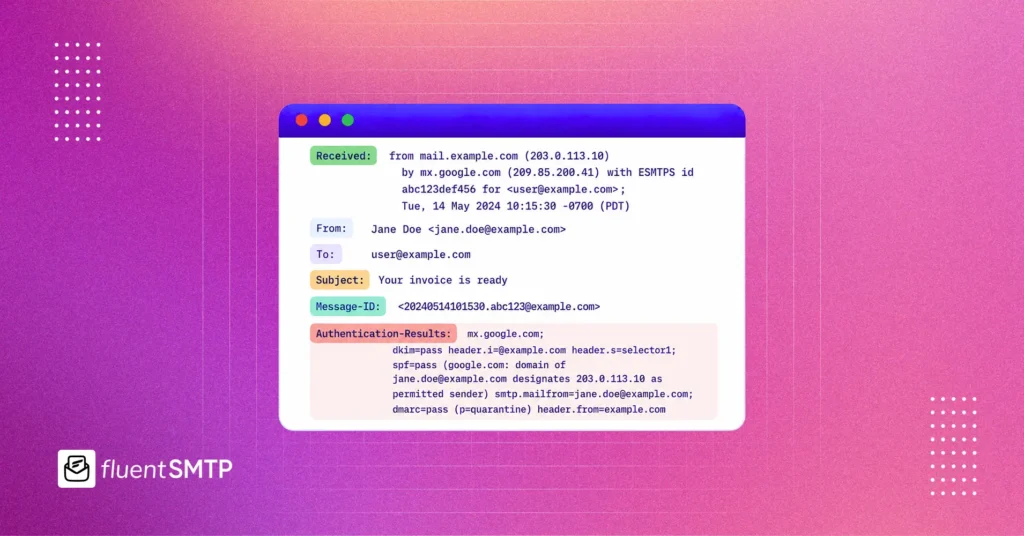
7. Verify Authentication in a Real Email Header
Do not assume your DNS changes worked.
Send a fresh test email through the same connection and From address used by your transactional messages.
In Gmail:
- Open the email.
- Click the three-dot menu.
- Select Show original.
- Look for the authentication results.
You want to see:
- SPF: PASS
- DKIM: PASS
- DMARC: PASS
If SPF passes but DMARC fails, the SPF-authenticated domain may not align with the visible From domain.
If DKIM fails, check:
- DKIM selector
- DNS host or name
- Public key value
- Whether DKIM signing is enabled in the provider
- DNS propagation
- Accidental spaces or quotation marks
Passing all three does not guarantee inbox placement. But a failure gives you a clear place to begin.
8. Check Bounces and Suppression Lists
Email providers maintain suppression lists to prevent repeated sending to addresses that previously failed or complained.
An address may be suppressed after:
- A hard bounce
- Repeated soft bounces
- A spam complaint
- A manual block
- A previous account-level suppression
- An invalid or nonexistent mailbox response
This can create a confusing situation:
- The customer’s address is correct now.
- WordPress generates the email.
- The provider refuses to send because the address is already suppressed.
Check the sending provider’s suppression, bounce, and complaint sections. Do not repeatedly resend to a hard-bounced address without resolving the cause.
A hard bounce is usually permanent. A soft bounce is usually temporary. Learn how to identify hard and soft bounces before deciding whether to resend or suppress an address.
9. Separate Transactional and Marketing Emails
A password reset should not have to survive the reputation damage created by a poorly received promotional campaign.
Where your volume and provider setup justify it, use separate sending streams for:
- Transactional email
- Marketing campaigns
- Employee or one-to-one communication
- Support notifications
That separation may involve:
- Different provider message streams
- Different SMTP connections
- Separate subdomains
- Separate IP pools at higher volume
- Different From addresses
- Different bounce and complaint handling
Example:
| Email purpose | Example identity |
|---|---|
| Transactional | notifications.example.com |
| Marketing | news.example.com |
| Employee email | example.com |
M3AAWG recommends separating different types of email traffic when practical and using recognizable subdomains of the main brand domain rather than unrelated cousin domains. M3AAWG sending-domain practices
Do not treat a subdomain as a disposable reputation reset. Mailbox providers can evaluate the broader organizational domain and sending behavior.
FluentSMTP allows you to configure multiple connections, making it possible to route different From addresses through different services.
10. Protect Transactional Emails With a Fallback Connection
A secondary connection can help when the primary provider fails.
For example:
- Your main API becomes unavailable.
- OAuth authorization expires.
- The provider experiences an outage.
- The sending request times out.
- The main connection rejects the request.
With two connections configured, FluentSMTP can use the second as a fallback when the primary connection fails.
A fallback cannot fix:
- An invalid recipient address
- A recipient-level block
- A bad or misleading email
- Broken domain alignment
- A spam complaint
- A domain-wide reputation problem
- Filtering after the provider accepts the message
Fallback is infrastructure protection. It is not a way around mailbox filtering.
11. Test Real WordPress Workflows
A generic “Hello World” test email proves only that one manually generated message could leave through a selected connection.
It does not prove that your store, form, booking, membership, or support plugin uses the same settings.
Run a test for every critical workflow.
eCommerce
- New order confirmation
- Payment receipt
- Failed payment notice
- Shipping update
- Refund confirmation
- Digital download delivery
You can customize WooCommerce email notifications after confirming that the delivery foundation works.
User accounts
- New-account confirmation
- Email verification
- Password reset
- Password-changed alert
- Security notification
Forms
- Admin notification
- User confirmation
- File-upload notification
- Payment-form receipt
Bookings
- Booking confirmation
- Reminder
- Cancellation
- Reschedule notification
Memberships and courses
- Enrollment confirmation
- Account activation
- Renewal notice
- Expiration warning
- Access details
Send the tests to addresses you control at several providers:
- Gmail
- Outlook or Hotmail
- Yahoo
- A business-domain mailbox
For each message, record:
| Check | What to look for |
|---|---|
| WordPress log | Was the message triggered? |
| Connection | Which provider handled it? |
| Provider response | Was it accepted, deferred, or rejected? |
| Authentication | Did SPF, DKIM, and DMARC pass? |
| Placement | Inbox, another tab, spam, or missing? |
| Delay | How long did delivery take? |
| Links | Do all transactional links work? |
| From and Reply-To | Are they correct and aligned? |
Follow the wider process to test email deliverability properly.
A few test mailboxes cannot predict placement for every recipient. They can, however, expose configuration errors and provider-specific patterns before customers find them.
12. Review the Email Content and Template
Infrastructure comes first. Content still matters.
If authentication passes and your reputation appears healthy, inspect the actual transactional message.
Look for:
- Broken HTML
- Missing plain-text alternative
- Large attachments
- URL shorteners
- Links to blocked or unrelated domains
- Too many redirects
- Image-only messages
- Misleading sender name
- A From address customers do not recognize
- Promotional content inside a transactional message
- Tracking domains that do not match the brand
- A subject line that does not explain the transaction
Do not obsess over mythical lists of forbidden words.
A legitimate order confirmation can use the word “free.” Removing that word will not repair a failed DKIM signature, a blocked sending domain, or a polluted shared IP.
The message should make its purpose obvious:
- What happened?
- Which website or business sent it?
- Why did the recipient receive it?
- What should they do next?
- Where can they get help?
If Gmail is the only provider blocking your messages, review these Gmail-specific email blocking causes.
13. Monitor Transactional Email After the Fix
Deliverability is not a one-time configuration project.
Providers change policies. OAuth tokens expire. DNS records get edited. Plugins change From addresses. Sending volumes grow. Customers mistype email addresses.
Monitor:
- Failed WordPress emails
- Provider rejections
- Temporary deferrals
- Hard and soft bounces
- Suppressed recipients
- Authentication results
- Domain and IP reputation
- Sudden changes by mailbox provider
- Unusual sending-volume spikes
- Failure patterns tied to one plugin
- Customer reports about missing emails
Authentication gives mailbox providers a verified identity. Your behavior builds the reputation attached to that identity.
That is why you should continue to protect your email sender reputation after the technical setup is complete.
WordPress Transactional Email Checklist
Use this before a store launch, product release, migration, campaign, or major plugin update.
WordPress Email Deliverability Checklist
Complete each step to strengthen your transactional email setup.
WordPress setup
0 of 5Sending connection
0 of 6Domain authentication
0 of 6Testing
0 of 8Monitoring
0 of 6Who Should You Contact?
The evidence should determine where you ask for help.
| Evidence | Best contact |
|---|---|
| No email was generated or logged | Plugin or theme developer |
| WordPress cannot connect to the provider | Web host or sending provider |
| SMTP credentials are rejected | Sending provider |
| SPF, DKIM, or DMARC fails | DNS host or sending provider |
| Provider accepted the message but it later bounced | Sending provider |
| Only one mailbox provider rejects the email | Sending provider or receiving provider |
| Email is accepted but consistently goes to spam | Deliverability investigation |
| Fallback also fails | Review domain, recipient, and provider responses |
Send the support team useful evidence:
- Date and time
- Recipient domain
- WordPress log entry
- Error or SMTP code
- Sending connection
- From address
- Provider event ID
- Authentication result
- Whether other recipient domains succeeded
“Email did not arrive” gives support very little to work with. A provider response and message ID can shorten the investigation considerably.
Frequently Asked Questions
Why are my WordPress order emails going to spam?
WordPress order emails commonly go to spam because they are sent through an unreliable hosting server, lack SPF/DKIM/DMARC authentication, use an unaligned From address, or come from a domain or IP with a weak reputation. Connect WordPress to a dedicated provider and verify authentication in the received message header.
Why does WordPress say an email was sent when the customer received nothing?
A successful WordPress response means the sending request was processed without a detected local error. It does not prove that the provider accepted the message, the recipient’s server delivered it, or the email reached the inbox.
Does using SMTP guarantee inbox placement?
No. SMTP or an email API provides a more reliable and authenticated sending path. Inbox placement still depends on authentication, alignment, sender reputation, recipient behavior, message content, bounce history, and mailbox-provider filtering.
Do transactional emails need an unsubscribe link?
Purely transactional emails such as receipts, password resets, and security alerts generally do not require one-click unsubscribe under Gmail and Yahoo’s bulk-sender rules. Marketing and subscribed messages do. If a message mixes transactional and promotional content, legal and provider requirements can become less clear.
Should marketing and transactional emails use separate providers?
Not every small website needs separate providers. However, separating traffic becomes useful when marketing volume, complaint risk, deliverability requirements, or business importance grows. At minimum, consider separate connections, message streams, or subdomains.
Why does only Gmail block my WordPress emails?
Mailbox providers use different reputation systems and filtering rules. If Outlook and Yahoo accept the same message while Gmail rejects or filters it, inspect Google Postmaster Tools, Gmail error codes, authentication alignment, complaint rates, and Gmail-specific reputation patterns.
Can a fallback SMTP fix emails going to spam?
No. A fallback connection helps when the primary sending connection fails. It does not correct bad content, invalid recipients, authentication problems, or filtering that occurs after the fallback provider accepts the message.
What is the best email provider for WordPress transactional emails?
The best provider depends on your volume, technical experience, budget, support needs, and email type. Amazon SES is cost-efficient at scale but requires more setup. Postmark focuses heavily on transactional email. Brevo, Mailgun, SendGrid, SMTP2GO, and other providers suit different requirements. Choose based on your actual sending pattern, not only the free allowance.
Stop Guessing Where WordPress Emails Went
When a receipt, password reset, form notification, or booking reminder disappears, you need more than a “sent” message.
You need to know:
- Whether WordPress generated the email
- Which connection handled it
- What the provider returned
- Whether authentication passed
- Where the message finally landed
FluentSMTP gives WordPress a professional sending connection plus the logs, routing, fallback, reports, and failure alerts needed to investigate problems properly.
Install FluentSMTP, connect your preferred email provider, and test the transactions that keep your website running.

Mohiuddin Omran
WordPress, automation, eCommerce and growth marketing specialist, a WordPress Core Contributor and Media Corps member blending storytelling with technology to craft strategies in SEO, email marketing, and beyond.
Table of Content
Subscribe To Get
WordPress Guides, Tips, and Tutorials


Add your first comment to this post