

How to Fix “Could Not Connect to SMTP Host” in WordPress

You set up SMTP because WordPress wasn’t sending email. You copied the host and port from your provider’s settings page, pasted in the username and password, and clicked send test email. And guess what?
A red line comes back: SMTP Error: Could not connect to SMTP host.
So now the thing you installed to fix your email is the thing that’s broken. You check the settings again, and they look right. You check them a third time, and they still look right. You ask your host, and the reply comes back the way it always does: “Our mail servers are working fine.” And trust me, they probably are.
That error means your site tried to reach the SMTP host and nothing usable came back. No login, no message, and no error code either. There’s no error code because there was never a conversation.
If you’ve just moved hosts, switched providers, or set up SMTP for the first time, this is the error that tends to show up first. The full error text usually says why the connection failed, so we start there, then test the connection from your own server and fix the one cause it points to.
The short answer: “Could not connect to SMTP host” means your WordPress server never opened a connection to the mail server, so no login or message was attempted. The usual causes are a wrong host, port, or encryption setting; a hosting provider or firewall blocking outbound SMTP ports; DNS or IPv6 routing problems; and a failed TLS handshake.
What “Could Not Connect to SMTP Host” Means
“Could not connect to SMTP host” means WordPress failed at the first of the three stages every SMTP send goes through, always in the same order.
- First, WordPress opens a network connection to the SMTP host on a specific port.
- Next, it logs in with your username and password.
- Finally, it hands over the message, and the server replies with a numbered code saying whether it accepted it.
When the first stage fails, the login and the message never happen at all.
That one detail takes your password, your DNS records, and your email content off the suspect list. If the server had rejected your password, you’d see an authentication error instead. If it had refused the message, you’d get a numbered reply such as 550, which explains code by code.
A connection failure produces neither, because the server never got far enough to say anything. The same failure also turns up as “failed to connect to SMTP server”, “SMTP timeout”, and “SMTP server not responding”.
It’s also why your host keeps saying the mail server is fine, since the problem sits on the path between your site and your provider’s server. It’s one of several reasons WordPress stops sending email, and it’s the one that usually appears right after SMTP has been set up.
Read the Full Error Before Changing Anything
The full error behind “could not connect to SMTP host” is more useful than the short message. PHPMailer, the library WordPress uses to send mail, shows this error for nearly every connection failure.
Underneath it, there’s usually a second line from PHP itself, something like SMTP ERROR: Failed to connect to server: Connection timed out (110), and that second line tells you which layer failed.
To see it, open your SMTP plugin’s email log or the result of its test email, since most plugins record the full server response there. If yours doesn’t log failed sends, setting up a WordPress email log takes a few minutes and pays for itself the next time something breaks.
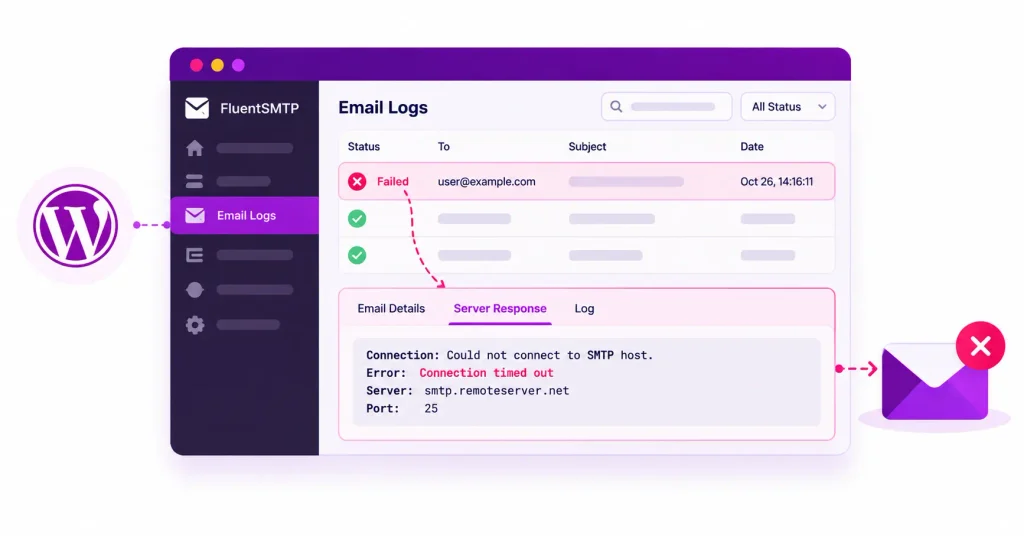
In FluentSMTP, a failed send appears under Email Logs with a Failed status, and opening the entry shows the full server response, so you can trigger the failing email and read the exact error within seconds.
This is what each version of the full error text tells you about a failed SMTP connection, and where to go next:
|
The error contains |
What it tells you |
Go to |
|
Connection timed out (110) or Operation timed out |
Nothing answered. Either the traffic is being dropped on the way, or the port and encryption don’t match |
Fix 1, then Fix 2, then Fix 3 |
|
Connection refused (111) |
A machine answered, but nothing on it is listening on that port |
Fix 1, then Fix 6 |
|
Getaddrinfo failed, or Name or service not known |
The hostname didn’t turn into an IP address |
Fix 1 for a typo, then Fix 4 |
|
Network is unreachable (101) |
Your server tried a route it doesn’t have, which is often IPv6 |
Fix 4 |
|
SSL operation failed, certificate verify failed or Peer certificate CN did not match |
The connection opened, but the encryption step failed |
Fix 5 |
|
SMTP connect() failed and nothing else |
PHPMailer’s generic message, with the detail missing |
See below |
If all you get is the generic line, send a test through a plugin that logs the full response. Alternatively, ask your developer to set PHPMailer’s SMTPDebug to 2 on a staging copy of the site, which prints the whole conversation up to the line where it stopped.
Test Whether Your Server Can Reach the SMTP Host
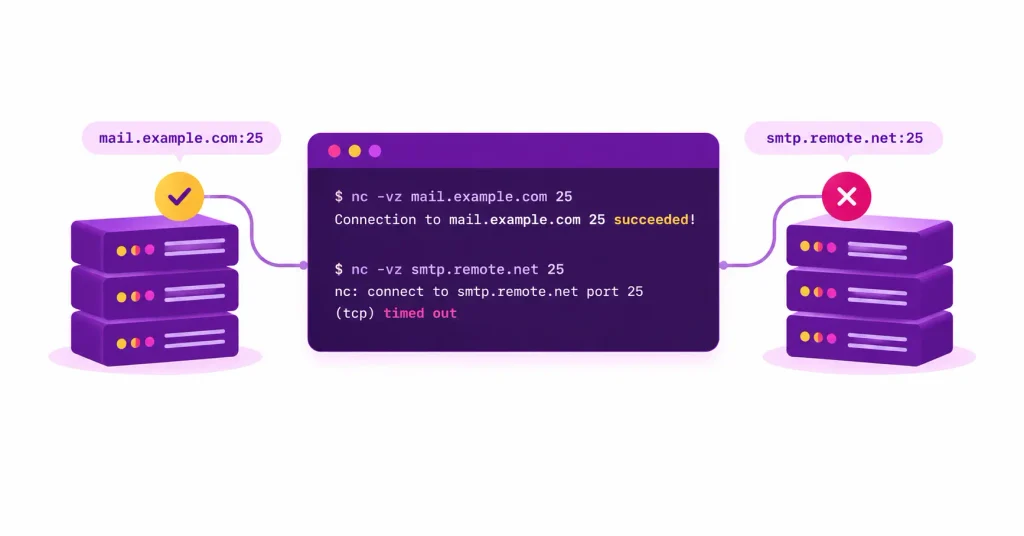
Testing the SMTP connection yourself from the web server is the quickest way to tell wrong settings apart from a blocked path, because a test from your laptop passes even when your site can’t connect.
With SSH access, any one of these works. Swap in your own provider’s host and port:
nc -vz smtp.gmail.com 587
telnet smtp.gmail.com 587
openssl s_client -starttls smtp -connect smtp.gmail.com:587 -crlf
nc reports whether the port is open. telnet shows the server’s greeting, a line starting with 220, when the connection works. openssl prints the server’s certificate once the encrypted session is up, and for port 465, which encrypts from the first byte, use openssl s_client -connect smtp.gmail.com:465 instead.
Without SSH, a temporary PHP file does the same job. Upload it, open it in your browser once, then delete it:
<?php
$fp = fsockopen(‘smtp.gmail.com’, 587, $errno, $errstr, 10);
echo $fp? ‘Connected’: “Failed: errstr(errno)”;
For port 465, change the host to ssl://smtp.gmail.com and the port to 465.
If you can’t run either, ask your host a precise question, since “my email isn’t working” only gets the same reply again: “Are outbound connections from my server to smtp.gmail.com on ports 587, 465, and 2525 allowed? My WordPress site reports ‘Connection timed out’.”
Then read the result:
- It connects: The path is open, so the problem is in your settings. Go to Fix 1, or Fix 5 if the error mentioned SSL.
- It times out: Check the port and encryption pairing in Fix 1 first, because a mismatch times out too. If the pairing is right, something is dropping the traffic, so go to Fix 2 and then Fix 3.
- It’s refused: The host is reachable, but nothing is listening on that port, or you’re pointing at the wrong machine. Go to Fix 1, then Fix 6.
Fix 1: The Host, Port, and Encryption Don’t Match
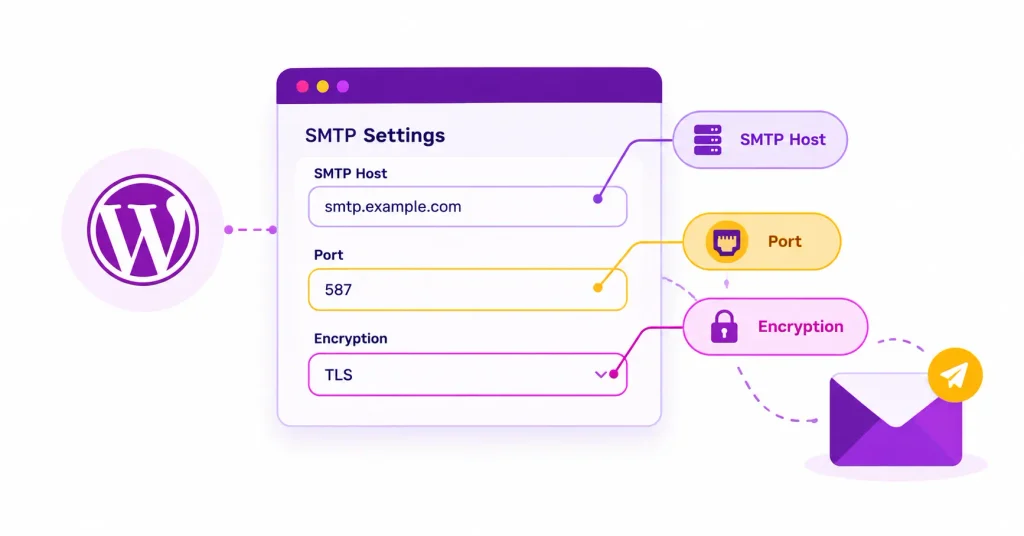
A mismatched host, port, or encryption setting is the cause to rule out first, because it’s a settings change you can check in a minute, and it’s easy to miss because each setting looks right on its own. The port and the encryption setting have to agree with each other, and both have to match what the provider offers on that host:
- Port 587 goes with TLS the connection starts in plain text and then switches to encryption with STARTTLS.
- Port 465 goes with SSL the connection is encrypted from the very first byte.
- Port 2525 is an alternative many providers offer alongside 587, and it uses TLS as well.
The pairing comes from the standards themselves. RFC 6409 sets port 587 aside for message submission, with encryption added through STARTTLS, and RFC 8314 restored port 465 for submission over encryption that starts immediately.
The mismatches are sneaky because they don’t always produce an encryption error. Choose TLS on port 465, and your site waits for a plain-text greeting while the server waits for an encrypted handshake, so neither side moves, and you get a timeout that looks exactly like a blocked port.
Choose SSL on port 587, and your site starts encrypting at a server that expects plain text, which usually fails with an SSL error mentioning a “wrong version number”. SMTP port numbers and how to choose between them cover the reasoning behind each port.
After the pairing, check the hostname letter by letter. smtp.sendgrid.com instead of smtp.sendgrid.net fails, and so does an Amazon SES host for the wrong region, since SES hosts follow the pattern email-smtp.<region>.amazonaws.com and the region has to be the one your account uses.
These are the published settings for the providers WordPress sites use most.
|
Provider |
SMTP host |
TLS (STARTTLS) ports |
SSL port |
Setup guide |
|
Gmail and Google Workspace |
smtp.gmail.com |
587 |
465 |
|
|
Microsoft 365 |
smtp.office365.com |
587 |
none |
|
|
Amazon SES |
email-smtp.<region>.amazonaws.com |
587, 2587, 25 |
465, 2465 |
|
|
SendGrid |
smtp.sendgrid.net |
587, 2525, 25 |
465 |
|
|
Mailgun |
smtp.mailgun.org, or smtp.eu.mailgun.org for EU accounts |
587, 2525, 25 |
465 |
|
|
Brevo |
smtp-relay.brevo.com |
587, 2525 |
465 |
|
|
Postmark |
smtp.postmarkapp.com |
587, 2525, 25 |
none |
|
|
SMTP2GO |
mail.smtp2go.com |
2525, 8025, 587, 80, 25 |
465, 8465, 443 |
none |
Change one setting at a time and send the test again after each change, so that when it finally connects, you know which setting was wrong.
Fix 2: Your Host Blocks Outbound SMTP Ports
When an SMTP connection times out with a port and encryption pairing you know is correct, a hosting provider blocking outbound SMTP ports is the usual cause. Many hosts block outbound SMTP ports to stop compromised sites sending spam, and they rarely announce it. These policies were current when this article was last verified.
- DigitalOcean blocks ports 25, 465, and 587 on Droplets by default.
- Google Cloud blocks outbound port 25.
- AWS EC2 restricts outbound port 25 until you request removal.
- Linode (Akamai) blocks ports 25, 465, and 587 on new accounts.
- GoDaddy shared hosting limits outbound SMTP to its own relay servers.
Several of these block only port 25, so if your settings use 25, moving to 587 with TLS may be the whole fix. Otherwise, there are three ways out, in the order worth trying them:
- Ask your host to open the port: Use the question from the testing section. Some hosts open 587 or 465 on request, and others never do, but one support reply tells you which kind you have.
- Use the provider’s alternate port: Hosts tend to block the well-known ports and leave the others alone, so 2525, or 2587 and 2465 on Amazon SES, often get through where 587 doesn’t. Run the connection test on the new port before changing your settings.
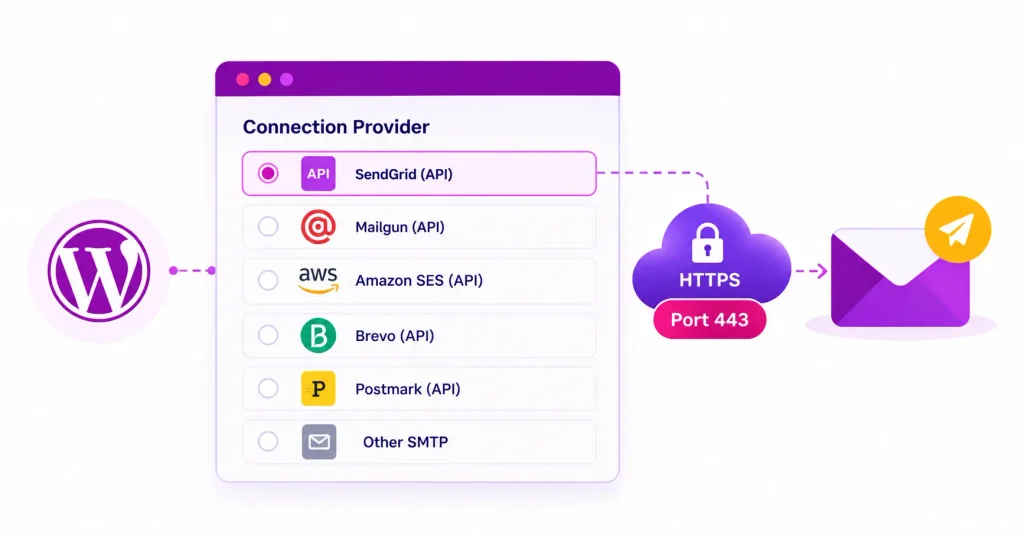
- Switch from SMTP to the provider’s API: Most sending services also accept email over HTTPS on port 443, the port every website already uses, which hosts leave open. You use an API key instead of an SMTP password, and the port question goes away.
Most WordPress SMTP plugins support at least some API connections. In FluentSMTP, you choose the provider’s own mailer in the connection settings in place of Other SMTP, then paste in the API key where the host and port used to be. Major providers such as Amazon SES, SendGrid, and Mailgun each have a mailer there.
When the API Connection Times Out Too
API connections to an email provider fail with different wording from SMTP connections, because the request goes through WordPress’s HTTP layer, which uses cURL, rather than PHPMailer. Three errors cover most cases:
- cURL error 28: Operation timed out means the request went out and nothing came back in time. On a server that reaches other websites without trouble, that points to an outbound firewall rule or a proxy that only allows certain destinations, so Fix 3 applies here too.
- cURL error 7: Failed to connect is the HTTPS version of a refused or blocked connection, and on shared hosting it usually means outbound access is restricted to an allowlist. Ask your host to allow the provider’s API hostname.
- cURL error 60: SSL certificate problem means your server couldn’t verify the provider’s certificate, usually because its list of trusted certificate authorities is out of date. That’s a server update for your host, the same as the third cause in Fix 5.
Fix 3: A Server Firewall is Dropping the Connection
A server firewall can block SMTP connections even when the hosting company allows them. This happens mostly on cPanel VPS and dedicated servers, where two common settings stop PHP from opening SMTP connections while the server’s own mail keeps working.
- WHM’s SMTP Restrictions setting, under Security Center, limits outgoing SMTP to the mail server and a few system users. WordPress runs as your cPanel user, so its connections get blocked until you turn the restriction off.
- ConfigServer Security & Firewall (CSF) has an SMTP_BLOCK option that does the same thing. Even with it off, the port also has to appear in TCP_OUT, CSF’s list of allowed outbound ports, so check that 587, 465, or 2525 is there.
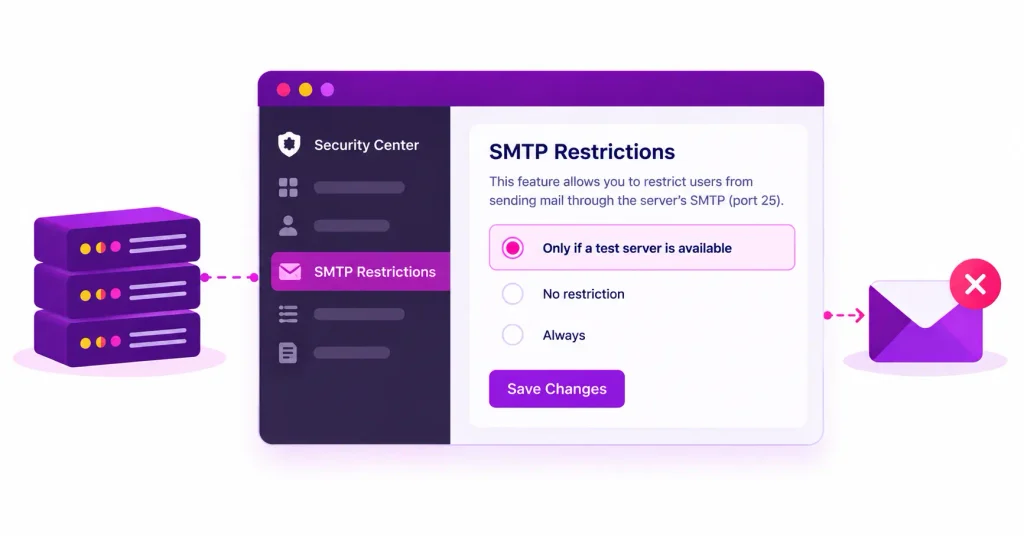
On managed WordPress hosting, you won’t see these settings, so send support the exact host and port and ask whether outbound connections to it are filtered.
Fix 4: DNS or IPv6 is Sending the Connection Nowhere
An error that mentions getaddrinfo means your server couldn’t turn the SMTP hostname into an IP address. After ruling out a typo, test the lookup from the server with dig smtp.gmail.com or nslookup smtp.gmail.com. An empty answer means the server’s DNS resolver is broken, which only your host can fix.
Network is unreachable (101) is different because the hostname resolves perfectly. Many SMTP hosts publish both an IPv4 and an IPv6 address, and the default address selection rules in RFC 6724 rank IPv6 first.
If your server has an IPv6 address but no working IPv6 route to the internet, that attempt fails, and on some setups the connection gives up before it tries IPv4.
There are two clean fixes. Your host can repair the server’s IPv6 routing, or, on a VPS you manage yourself, you can tell the system to prefer IPv4 by uncommenting the line precedence ffff:0:0/96 100 in /etc/gai.conf.
Don’t type the SMTP server’s IP address into the host field instead, because the certificate check in Fix 5 fails when the certificate names a hostname, and providers change IP addresses without notice.
Fix 5: The TLS Handshake Fails
Errors that mention SSL or certificates mean the connection opened and then failed while the two sides were setting up encryption. Three causes account for nearly all of them:
- An encryption mismatch: SSL on port 587 or TLS on port 465, as covered in Fix 1. Check this first, because it takes ten seconds.
- A certificate that doesn’t cover the hostname you used: This mostly happens on shared cPanel hosting when the SMTP host is set to mail.yourdomain.com and the certificate covers the server’s own hostname instead, so the check fails with Peer certificate CN did not match. Ask your host which hostname their certificate covers, and use that.
- An outdated server: An old OpenSSL version or an out-of-date certificate bundle can’t verify modern certificates, which gives you certificate verify failed. That’s an update your host has to make.
You’ll find advice online to set verify_peer to false in PHPMailer’s options. It makes the error disappear, but it also lets anyone intercepting the connection read your SMTP password, so use it only as a one-minute test and then turn verification back on.
Fix 6: “localhost” or Port 25 With No Mail Server
PHPMailer’s own defaults are host localhost and port 25, so a setup that never got its real SMTP details, or one copied from an old server, can end up pointing there. That only works if your web server runs its own mail server, and most WordPress hosting doesn’t.
Managed WordPress hosts, Docker containers, and local development tools usually have nothing listening on port 25, so the connection gets Connection refused (111) straight away.
The fix is to send through an external SMTP provider instead of the server itself. If you’re choosing one, these free SMTP servers are a good option for low-volume sites and can help you get your WordPress emails sending reliably.
When It Connects Sometimes and Fails Sometimes
When test emails go through but some real WordPress emails fail with a connection error, the cause usually sits outside your SMTP settings:
- The provider is having an incident: Check its status page against the times of the failed sends in your log.
- You’re hitting a connection limit: A burst of email, such as WooCommerce order confirmations during a sale or a form flooded by bots, can open more simultaneous connections than your plan allows, and the extra ones get turned away.
- The route is slow: A congested path can push a connection past your plugin’s timeout, especially when your server is far from the provider’s region.
You can’t prevent all of these, but you can stop a failure going unnoticed for days with a second connection that takes over when the first fails, plus an alert when a send fails. In FluentSMTP, you add a second connection, set it as the fallback, and send failure alerts to Slack, Telegram, or Discord; email failure alerts for WordPress cover the setup.
Frequently Asked Questions
Madhobi Dhar
Table of Content
Subscribe To Get
WordPress Guides, Tips, and Tutorials





Add your first comment to this post