


PTR Record Explained: How to Fix Reverse DNS for WordPress Email

Your WordPress site sends a password reset email. The customer never gets it. It’s not in their inbox or their spam folder.
So you run your domain through MXToolbox. SPF passes. DKIM passes. Then you spot a warning about reverse DNS. Or Gmail bounces the email back, saying the sending IP has no PTR record.
You didn’t break anything. You’ve probably never touched a PTR record in your life.
WordPress sends email from your web server’s IP, and that IP belongs to your host. So does its reverse DNS. When it’s missing or misconfigured, Gmail stops trusting the emails your site sends. That means order confirmations, form notifications and donation receipts. Nothing in your WordPress dashboard warns you.
You don’t need server access to fix this. This guide explains what a PTR record is, why WordPress sites fail the check, and how to test yours in a couple of minutes. It also covers the fix for both shared hosting and your own VPS.
A PTR record maps an IP address back to a hostname, and mail servers like Gmail check it before accepting your email. WordPress sites often fail this check because their emails leave from the host’s web server IP, which the site owner doesn’t control. Sending through an email service with FluentSMTP fixes it, because those services already have valid reverse DNS.
What is a PTR Record?
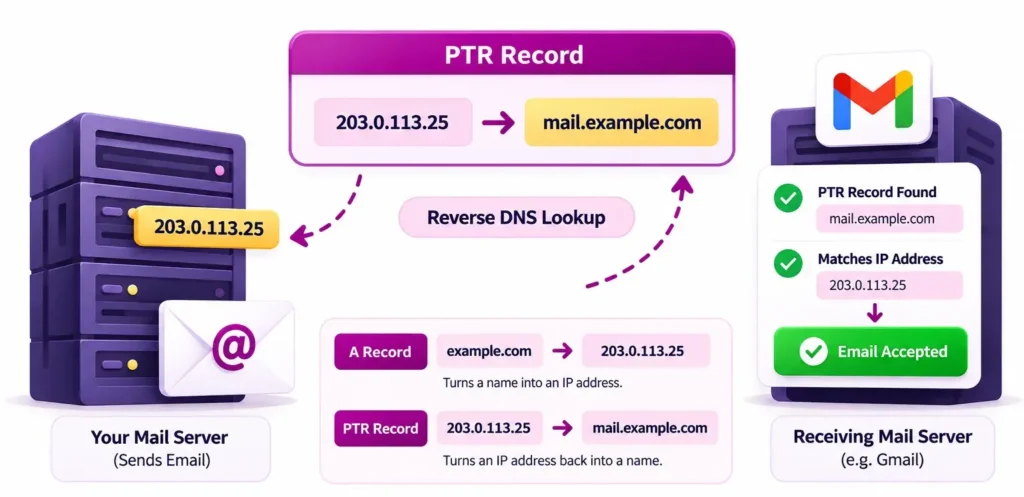
A PTR record (pointer record) connects an IP address to a hostname. For example, the IP address 203.0.113.25 might point to mail.example.com.
When your site sends an email, the receiving mail server sees the IP address the email came from. It then looks up that IP’s PTR record to find the server name behind it. This check is called a reverse DNS lookup.
If the IP has no PTR record, or the name it points to doesn’t lead back to the same IP, the receiving server treats the email as suspicious. Gmail rejects it, and many spam filters push it to the spam folder.
A PTR record works the opposite way to an A record. An A record turns a name into an IP address. A PTR record turns an IP address back into a name.
Is a PTR Record the Same as Reverse DNS?
Not exactly, but they work together. Reverse DNS (rDNS) is the lookup itself: starting with an IP address and finding the server name behind it. The PTR record is where that answer is stored.
So when a mail server runs a reverse DNS lookup on your IP, the PTR record is what it reads. That’s why most people use the two terms to mean the same thing.
How Does a Reverse DNS Lookup Work?
A reverse DNS lookup starts with an IP address and works backwards to find the server name. To do that, it reverses the IP address and adds a special ending: in-addr. arpa for IPv4 or ip6.arpa for IPv6.
For the IP 203.0.113.25, the lookup searches for 25.113.0.203.in-addr.arpa. The PTR record stored there returns the server name, such as mail.example.com.
PTR Record Example and Format
Here’s a PTR record for the IP address 203.0.113.25:
25.113.0.203.in-addr.arpa. 3600 IN PTR mail.example.com.
- 25.113.0.203.in-addr.arpa. is the IP address written backwards, plus the reverse lookup ending.
- 3600 is the TTL. Other servers can remember this answer for one hour.
- IN PTR marks this as a pointer record.
- mail.example.com is the server name that owns the IP.
The IP is written backwards because DNS reads addresses from the most specific part to the most general. Reversing it lets each block of IP addresses be managed by whoever owns that block.
Forward-Confirmed Reverse DNS (FCrDNS)
Having a PTR record isn’t enough on its own. The lookup also has to work in both directions. This two-way match is called forward-confirmed reverse DNS, or FCrDNS.
- Reverse: 203.0.113.25 → PTR record → mail.example.com
- Forward: mail.example.com → A record → 203.0.113.25
If both lookups point to each other, the check passes. Gmail runs this check on incoming email. Google’s sender guidelines say the sending IP “must match the IP address of the hostname specified in the PTR record.”
If the PTR record points to a server name that has no matching A record, the check fails, even though the PTR record exists.
Why Do Mail Servers Check PTR Records?
Mail servers check PTR records to tell real mail servers apart from likely spam sources. Real mail servers almost always have proper reverse DNS. Spam usually comes from hacked home computers, botnets and throwaway cloud servers, and those rarely have a valid PTR record.
The check happens the moment your server connects, before the receiving server even reads the email. A missing or broken PTR record can get your email turned away at the door.
When a PTR Record is Missing
When the sending IP has no valid PTR record, the email is usually rejected or marked as spam:
- Gmail rejects the email outright with a 5.7.25 error.
- Spam filters such as SpamAssassin add points to the email’s spam score. Missing reverse DNS has its own rule there.
- Corporate email filters may hold the email in quarantine without telling anyone.
When Gmail rejects an email for this reason, the bounce message looks like this:
550 5.7.25 The IP address sending this message does not have a PTR record setup
If this happens to a customer’s order confirmation or a donor’s receipt, the email never arrives. WordPress doesn’t show any error, so you won’t know it happened.
Since February 1, 2024, Google requires every sender to Gmail to have valid forward and reverse DNS, whether you send 10 emails a day or 10,000.
Why WordPress Sites Fail the PTR Check
WordPress sites fail the PTR check because WordPress sends email with PHP mail() by default, so every email leaves from the web server’s IP. The hosting company owns that IP and its PTR record. The site owner can’t edit it, and on shared hosting, hundreds of sites share the same IP and the same reverse DNS.
Here are the five most common ways this goes wrong.
Your Emails Go Out From a Shared Web Server
On shared hosting, the PTR record points to the host’s server name, something like server42.examplehost.com. That often passes Gmail’s forward-confirmed check. But the hostname has nothing to do with your domain, and the IP’s reputation is shared with every other site on the server.
If the host’s reverse DNS is missing or broken, you have no way to fix it. This is the same root cause behind most WordPress contact form email failures.
Your VPS Still Has the Provider’s Default Hostname
A new VPS often gets a generic PTR record, such as ip-203-0-113-25.provider.net, or none at all. If WordPress sends mail directly from that server, receiving servers see an anonymous cloud IP. That looks exactly like a throwaway spam server.
Your Server Sends Over IPv6 Without an IPv6 PTR
Your IPv4 address may have a proper PTR record, but the server prefers IPv6 when it connects to Gmail. If the IPv6 address has no PTR record, Gmail rejects the email with an IPv6 authorization error.
This catches a lot of VPS owners, because the IPv4 setup they checked is correct.
Your IP Changed After a Host Move
Migrating hosts or upgrading a server plan often assigns a new IP. The PTR record you set up stays attached to the old IP, and the new one has a default entry or nothing. Emails that worked for years suddenly land in spam, and nobody connects it to the migration.
Your SMTP Banner Doesn’t Match the PTR
The SMTP banner is the hostname a mail server announces in its HELO or EHLO greeting. When the banner doesn’t match the PTR hostname, tools like MXToolbox show “Reverse DNS does not match SMTP banner.”
Most mail servers won’t reject an email over this alone, but some count it against the email’s spam score. It only matters if you run your own mail server, not when you send through an email service.
Who Controls Your PTR Record?
The owner of an IP address controls its PTR record, not the owner of the domain. On shared and managed WordPress hosting, that’s the host. On a VPS, it’s the cloud provider, usually through a reverse DNS setting in your control panel. On an email service, the service manages it for you.
|
Your setup |
Whose IP sends your email |
Who controls the PTR |
Can you change it? |
|
Shared hosting |
The host’s shared server |
Your host |
No |
|
Managed WordPress hosting |
The host’s server or mail relay |
Your host |
No |
|
VPS or cloud server |
Your server’s IP |
The cloud provider, set from your panel |
Usually yes |
|
Email service (Amazon SES, SendGrid, Brevo, Mailgun) |
The service’s sending IPs |
The email service |
Already handled for you |
This is also why adding a PTR record in Cloudflare, GoDaddy or Namecheap does nothing. Receiving servers never check your domain’s DNS zone for reverse lookups.
How to Check the PTR Record for Your WordPress Emails
To check the PTR record for your WordPress emails, find the sending IP in the headers of an email your site sent. Run a reverse DNS lookup on that IP with dig -x or nslookup. Then look up the returned hostname to confirm it points back to the same IP.
Step 1: Find the IP Your Emails Come From
Your emails may leave from a different IP than your website, so start with a real email. Send yourself a password reset or form notification at a Gmail address, then:
- Open the email in Gmail.
- Click the three-dot menu and choose Show original.
- Find the SPF line. It shows the sending IP, for example “designates 203.0.113.25 as permitted sender.” The first Received: from line shows it too.
Step 2: Run a Reverse DNS Lookup
- Mac or Linux: dig -x 203.0.113.25 +short
- Windows: nslookup 203.0.113.25
- No terminal: the Reverse Lookup tool on MXToolbox, or the PTR check in Google Admin Toolbox Dig
The result is the hostname in the PTR record. An empty result means the IP has no PTR record.
Step 3: Confirm the Forward DNS Matches
Look up the hostname from Step 2 the normal way:
dig server42.examplehost.com +short
If it returns the same IP you started with, forward-confirmed reverse DNS passes.
|
What you see |
What it means |
|
No PTR record |
Fails. Gmail rejects mail from this IP. |
|
PTR points to a hostname that doesn’t resolve back |
Fails the forward-confirmed check |
|
Generic hostname that resolves back |
Passes Gmail’s check, but carries no trust for your domain |
|
Proper hostname that resolves back and matches the SMTP banner |
Passes |
What Should Your PTR Record Be?
A PTR record should point to a full hostname, such as mail.example.com, that resolves back to the same IP address. Ideally, that hostname matches the name the server announces in its SMTP banner. The PTR record does not need to match your From address or your website’s domain.
Many site owners assume the PTR record must match their domain. If you send through Amazon SES or SendGrid, the PTR record points to their hostname, and that’s correct. Your own domain is proven separately through SPF, DKIM and DMARC.
Keep one PTR record per IP. Multiple PTR records can give receiving servers inconsistent answers.
How to Fix a Missing or Mismatched PTR Record
The fix for a PTR record problem depends on who owns the sending IP. On shared or managed WordPress hosting, send emails through an email service using an SMTP plugin like FluentSMTP. On a VPS or cloud server, set reverse DNS in your provider’s panel to a hostname with a matching A record.
On Shared or Managed WordPress Hosting: Stop Sending From the Web Server
You can’t change your host’s PTR record. Most hosts won’t point a shared IP at your domain, because hundreds of other sites use it.
The practical fix is to take the web server out of the picture. FluentSMTP, a free WordPress SMTP plugin from WPManageNinja, replaces PHP mail(). It routes every WordPress email through an email service such as Amazon SES, SendGrid, Mailgun, Brevo, Postmark or Google Workspace.
Once FluentSMTP is connected:
- Your emails leave from the email service’s IPs, which already have valid forward and reverse DNS.
- An API connection sends over HTTPS, so host-blocked SMTP ports stop being an issue.
- Your domain gets authenticated with SPF and DKIM through the service, which covers the other half of Gmail’s requirements.
Download FluentSMTP
(100% Free)
Get the most powerful SMTP plugin for free and hit the recipient’s inbox with your WordPress emails

After connecting, send a test from FluentSMTP’s Email Test tab. Then repeat the header check above. The sending IP should now belong to your email service, with clean reverse DNS.
On a VPS or Cloud Server: Set Reverse DNS Yourself
- Pick a hostname on your domain, like mail.yourdomain.com.
- Create an A record for that hostname pointing to your server’s IPv4 address. If the server uses IPv6, add an AAAA record too.
- Set reverse DNS in your cloud provider’s panel.
- Most providers have an rDNS field in the server’s networking settings.
- DigitalOcean sets it from the droplet name, so the droplet must be named with the full hostname.
- On AWS, you set reverse DNS on an Elastic IP.
- Match the SMTP banner. Set your mail server’s hostname, for example, myhostname in Postfix, to the same name.
- Recheck with the three steps above once the change has propagated.
Even with perfect reverse DNS, a fresh VPS IP has no sending history. Inbox providers trust new IPs slowly, so plan for a warm-up period. For most WordPress sites, an email service is still the faster path to the inbox.
PTR vs SPF, DKIM and DMARC: How They Work Together
A PTR record vouches for the sending server. SPF, DKIM and DMARC vouch for your domain. Inbox providers like Gmail check both. A server with perfect reverse DNS can still land in spam if your domain isn’t authenticated, and a well-authenticated domain can still be rejected if the sending IP has no PTR record.
|
Record |
What it proves |
Where it lives |
Who sets it |
|
PTR |
The sending IP belongs to a real, named server |
The IP owner’s reverse zone |
Host, cloud provider or email service |
|
SPF |
That IP is allowed to send for your domain |
Your domain’s DNS |
You |
|
DKIM |
The message was signed by your domain and not altered |
Your domain’s DNS |
You, using the key from your email service |
|
DMARC |
What to do when SPF or DKIM fails, and whether the From domain aligns |
Your domain’s DNS |
You |
Reverse DNS is a Server Setting, Not a WordPress Setting
No plugin setting or DNS record in your domain dashboard changes a PTR record. The PTR belongs to whoever owns the sending IP.
If you run your own server, set reverse DNS in your provider’s panel and match it to your hostname. If you’re on shared or managed hosting, stop sending from the web server. Route your emails through an email service with FluentSMTP, and the PTR check is handled for you.
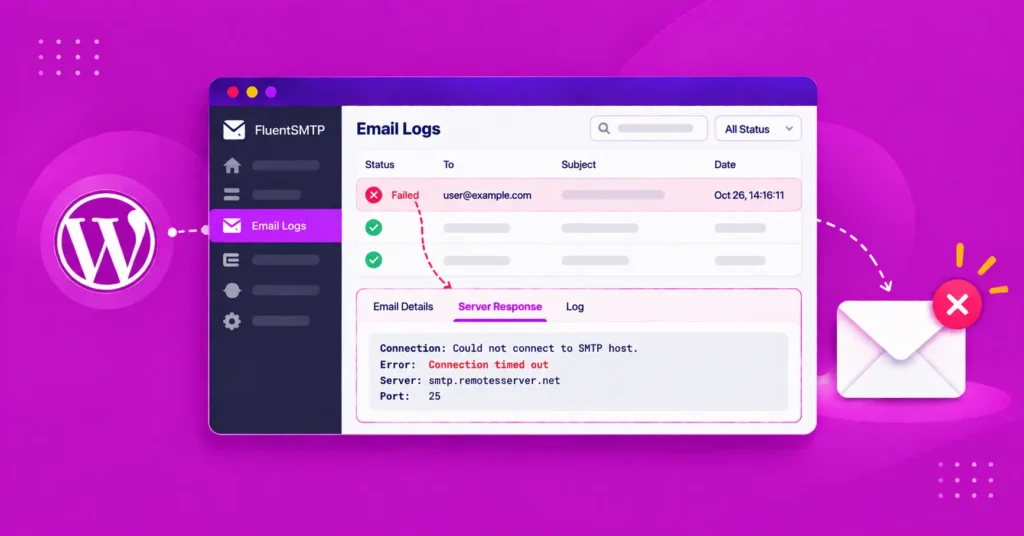
Then keep an email log running. If a provider rejects a message, you’ll see the exact error instead of guessing. For more ways to stay out of spam, see these email deliverability tactics.
If you have any further queries, drop a comment below. I’m always happy to help.
Thanks for reading!
Frequently Asked Questions

Madhobi Dhar
Table of Content
Subscribe To Get
WordPress Guides, Tips, and Tutorials






Add your first comment to this post